> ## Documentation Index
> Fetch the complete documentation index at: https://docs.commert.com/llms.txt
> Use this file to discover all available pages before exploring further.
# Payments Overview in Commert Admin
In this guide, you’ll learn how to manage payments in your store in the Commert Admin.
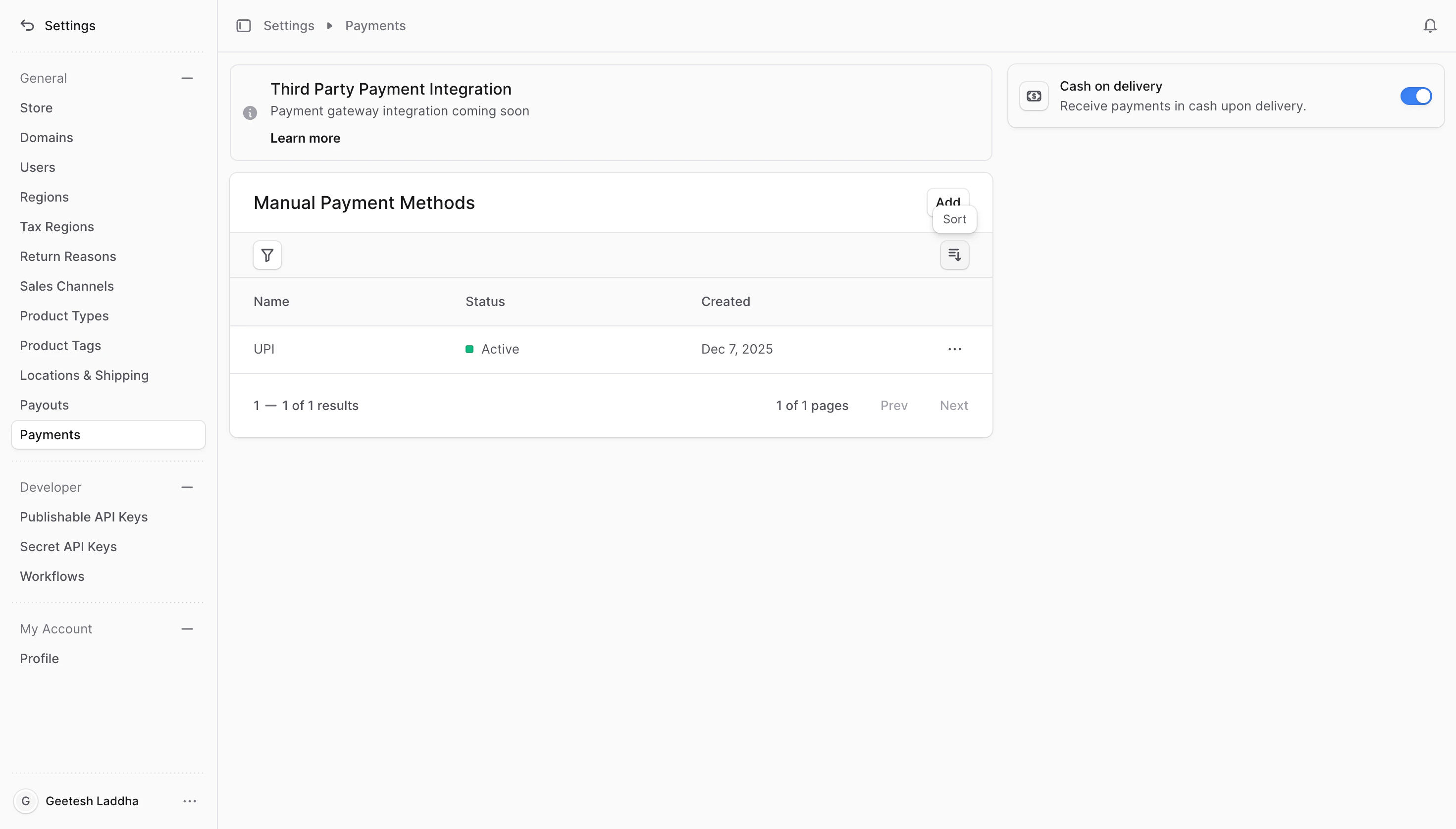
Payments are how you decide what customers see at checkout in your storefront. From the Payments page you can show or hide options like Cash on Delivery, Bank Transfer, or (soon) Razorpay so shoppers can either pay offline or pay instantly online.
 ## Payment types
* **Manual payment methods**: Processed by you outside the platform (for example, Cash on Delivery, Bank Transfer). Customers select these during checkout and you handle collection offline.
* **Payment gateway (online)**: Customers pay immediately at checkout. Razorpay support is coming soon to the platform.
## Where to manage payments
1. Go to **Settings** → **Payments** in Commert Admin.
2. Use the **Manual payment methods** table to add, edit, or remove offline options.
3. Use the **Gateway** section (coming soon) to enable Razorpay for online payments.
Cash on Delivery (COD) is available by default. You can toggle it on or off directly from the Payments page.
***
## Next steps
* [Manual Payment Method](./payments/manual-payment-method) — add, edit, or delete offline options like COD or bank transfer.
* [Payment Gateway](./payments/payment-gateway) — learn about the upcoming Razorpay checkout experience.
## Payment types
* **Manual payment methods**: Processed by you outside the platform (for example, Cash on Delivery, Bank Transfer). Customers select these during checkout and you handle collection offline.
* **Payment gateway (online)**: Customers pay immediately at checkout. Razorpay support is coming soon to the platform.
## Where to manage payments
1. Go to **Settings** → **Payments** in Commert Admin.
2. Use the **Manual payment methods** table to add, edit, or remove offline options.
3. Use the **Gateway** section (coming soon) to enable Razorpay for online payments.
Cash on Delivery (COD) is available by default. You can toggle it on or off directly from the Payments page.
***
## Next steps
* [Manual Payment Method](./payments/manual-payment-method) — add, edit, or delete offline options like COD or bank transfer.
* [Payment Gateway](./payments/payment-gateway) — learn about the upcoming Razorpay checkout experience.