> ## Documentation Index
> Fetch the complete documentation index at: https://docs.commert.com/llms.txt
> Use this file to discover all available pages before exploring further.
# Manual Payment Methods in Commert Admin
In this guide, you’ll learn how to add, edit, or delete manual payment methods in the Commert Admin.
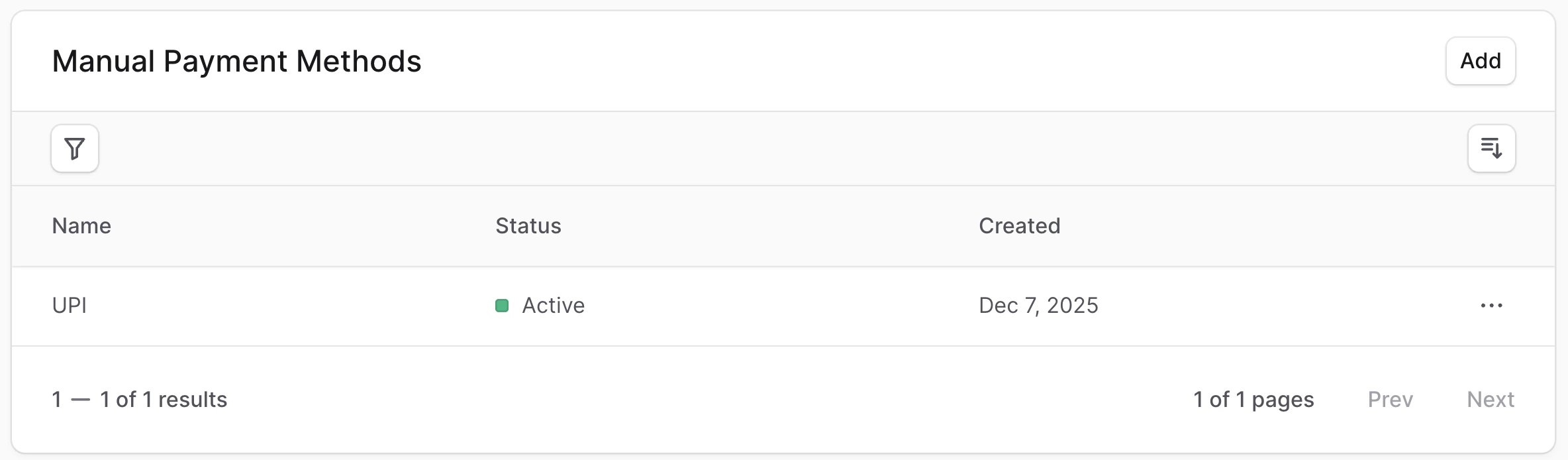
Manual payment methods let you decide which offline options customers see at storefront checkout—Cash on Delivery (COD), Bank Transfer, or in-person collection. You set the label and instructions they read so they know exactly how to pay you outside the platform.
 ## Cash on Delivery toggle
Cash on Delivery is available by default. Use the dedicated COD toggle on the Payments page to enable or disable it without editing the table.
## Cash on Delivery toggle
Cash on Delivery is available by default. Use the dedicated COD toggle on the Payments page to enable or disable it without editing the table.
 ## View details of a manual payment method
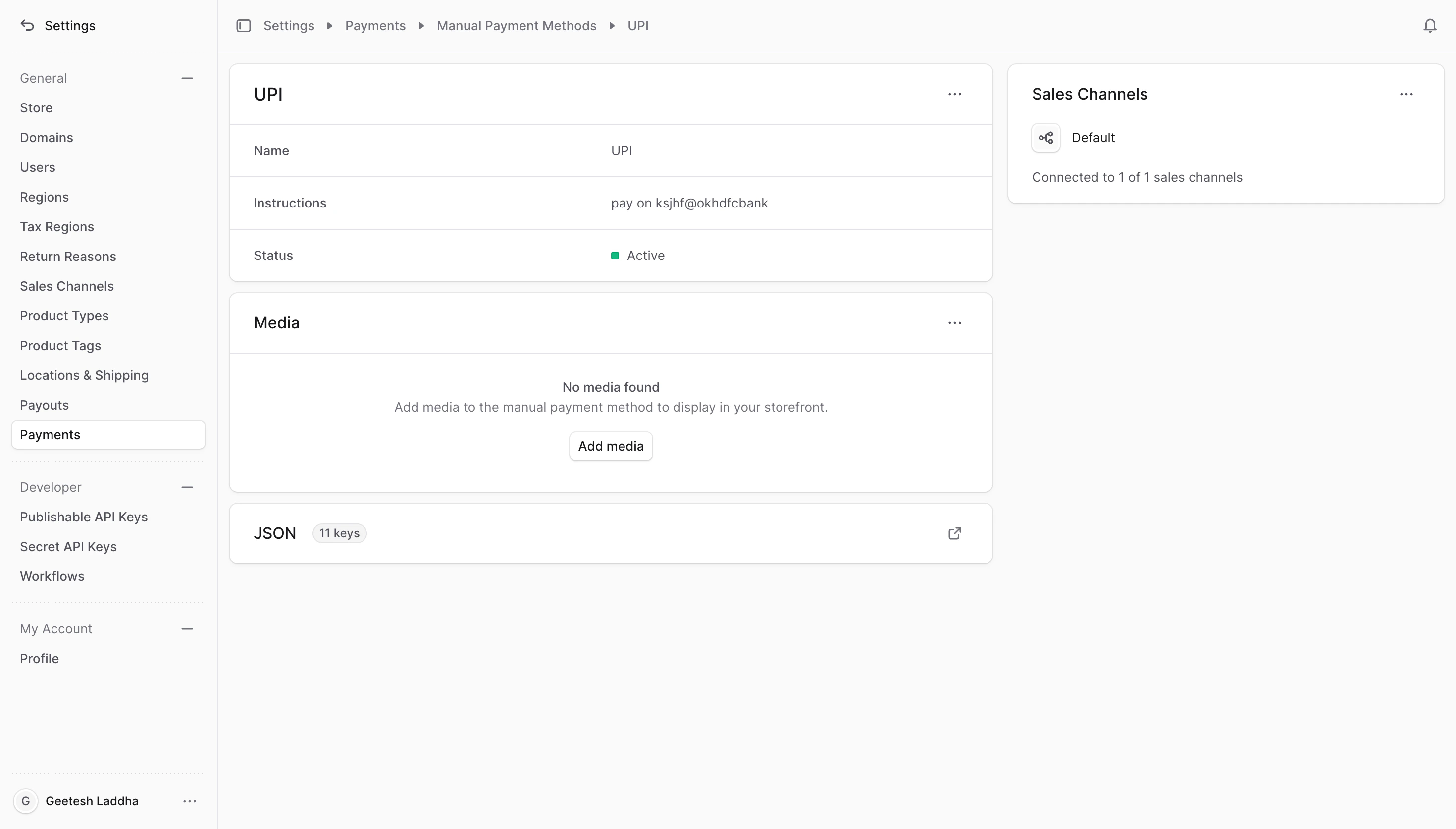
Open the method’s detail page to review everything configured for that option:
* Name and logo/image
* Customer-facing instructions shown at checkout
* Linked sales channels
* When it was created or last updated
Use this view to confirm what customers will see before you publish changes.
## View details of a manual payment method
Open the method’s detail page to review everything configured for that option:
* Name and logo/image
* Customer-facing instructions shown at checkout
* Linked sales channels
* When it was created or last updated
Use this view to confirm what customers will see before you publish changes.
 ## Add a manual payment method
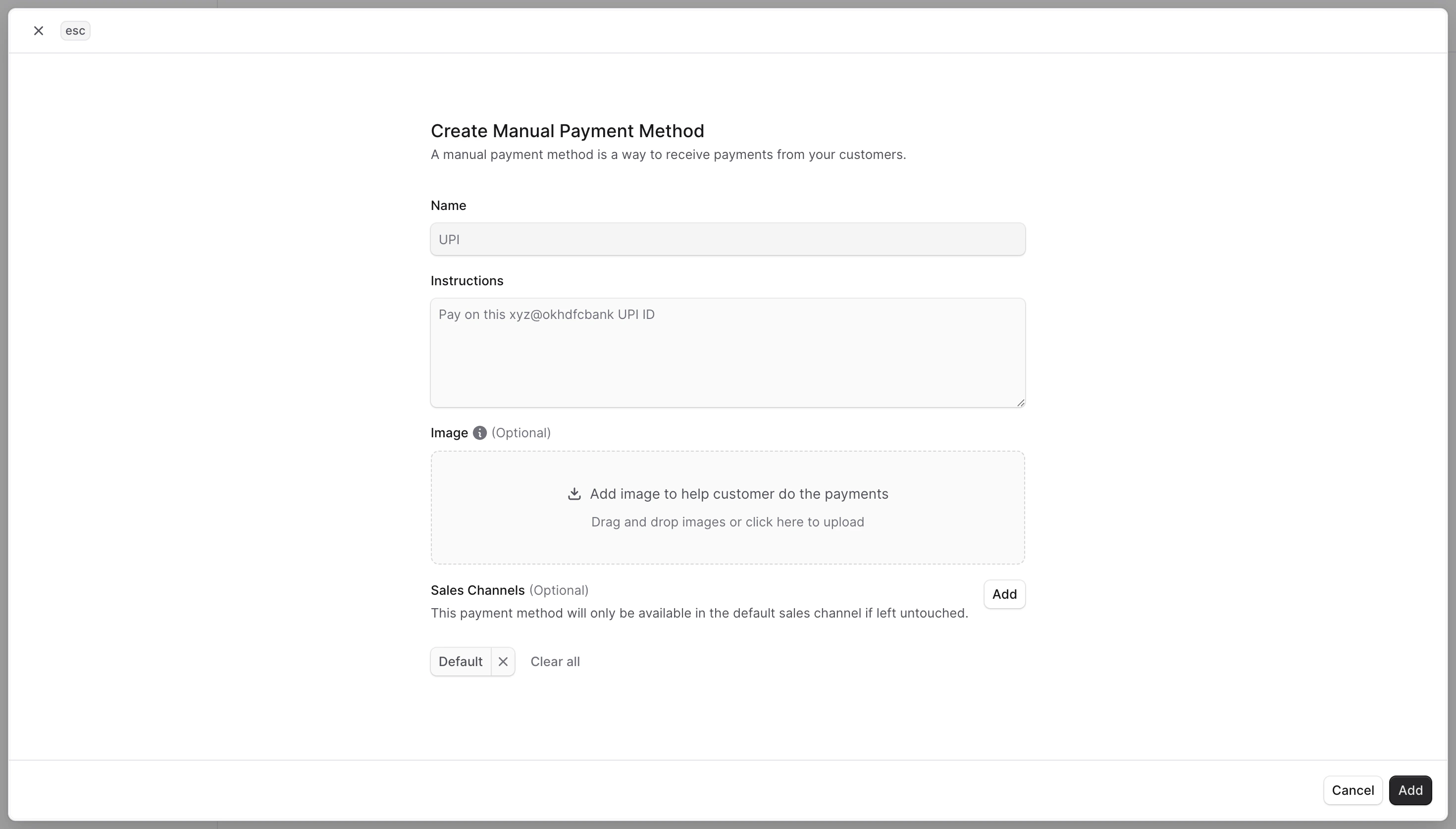
1. Go to **Settings** → **Payments**.
2. In **Manual payment methods**, select **Add**.
3. Fill in:
* **Name** (for example, “Bank Transfer”)
* **Instructions** (how the customer should pay and any steps to confirm)
* **Image URL** (optional badge or logo)
* **Sales Channels** (where this option should appear)
4. Click **Add**. The method becomes available at checkout on the selected channels.
## Add a manual payment method
1. Go to **Settings** → **Payments**.
2. In **Manual payment methods**, select **Add**.
3. Fill in:
* **Name** (for example, “Bank Transfer”)
* **Instructions** (how the customer should pay and any steps to confirm)
* **Image URL** (optional badge or logo)
* **Sales Channels** (where this option should appear)
4. Click **Add**. The method becomes available at checkout on the selected channels.
 ## Edit a manual payment method
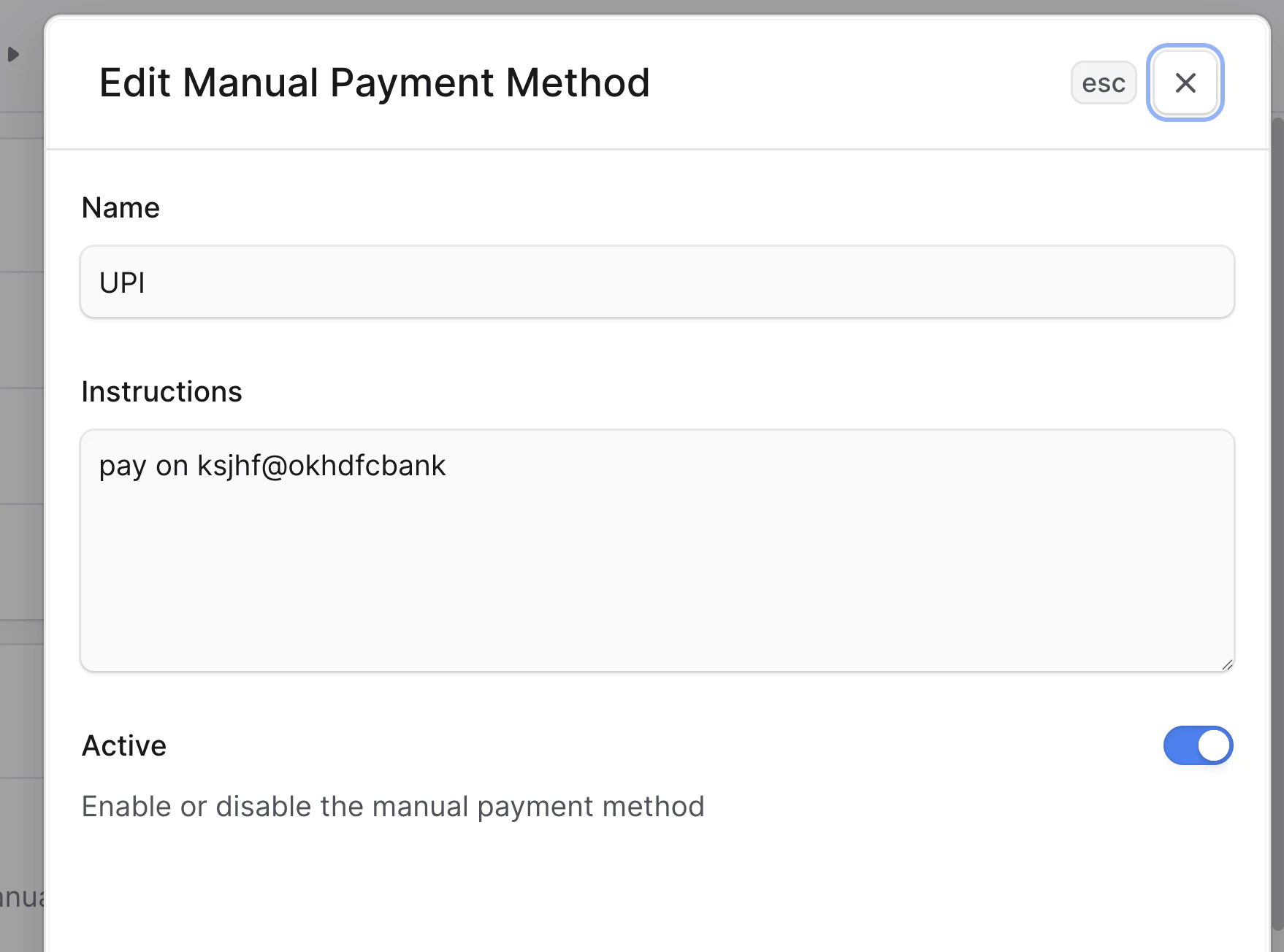
To edit a manual payment method:
1. Go to **Settings** → **Payments**.
2. In the **Manual payment methods** table, select the ellipsis for the method.
3. Choose **Edit**, update the fields.
* **Name** (for example, “Bank Transfer”)
* **Instructions** (how the customer should pay and any steps to confirm)
* **Active** (whether the method is active or not)
4. Click **Save** to apply the changes immediately.
## Edit a manual payment method
To edit a manual payment method:
1. Go to **Settings** → **Payments**.
2. In the **Manual payment methods** table, select the ellipsis for the method.
3. Choose **Edit**, update the fields.
* **Name** (for example, “Bank Transfer”)
* **Instructions** (how the customer should pay and any steps to confirm)
* **Active** (whether the method is active or not)
4. Click **Save** to apply the changes immediately.
 ### Manage sales channels
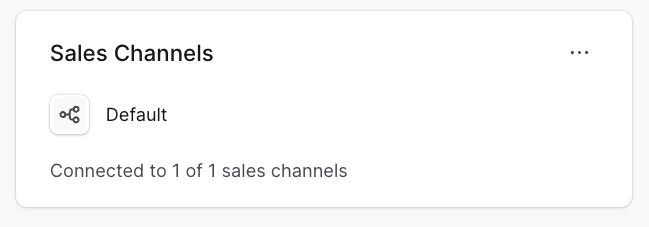
The Sales Channels section includes the sales channels the product is available in. Use this section to view and edit the manual payment method's sales channels.
### Manage sales channels
The Sales Channels section includes the sales channels the product is available in. Use this section to view and edit the manual payment method's sales channels.
 Removing a manual payment method from a sales channel will make it unavailable for purchase in
that sales channel.
1. Go to the manual payment method's details page.
2. Click the icon at the top right of the "Sales Channels" section.
3. Choose Edit from the dropdown.
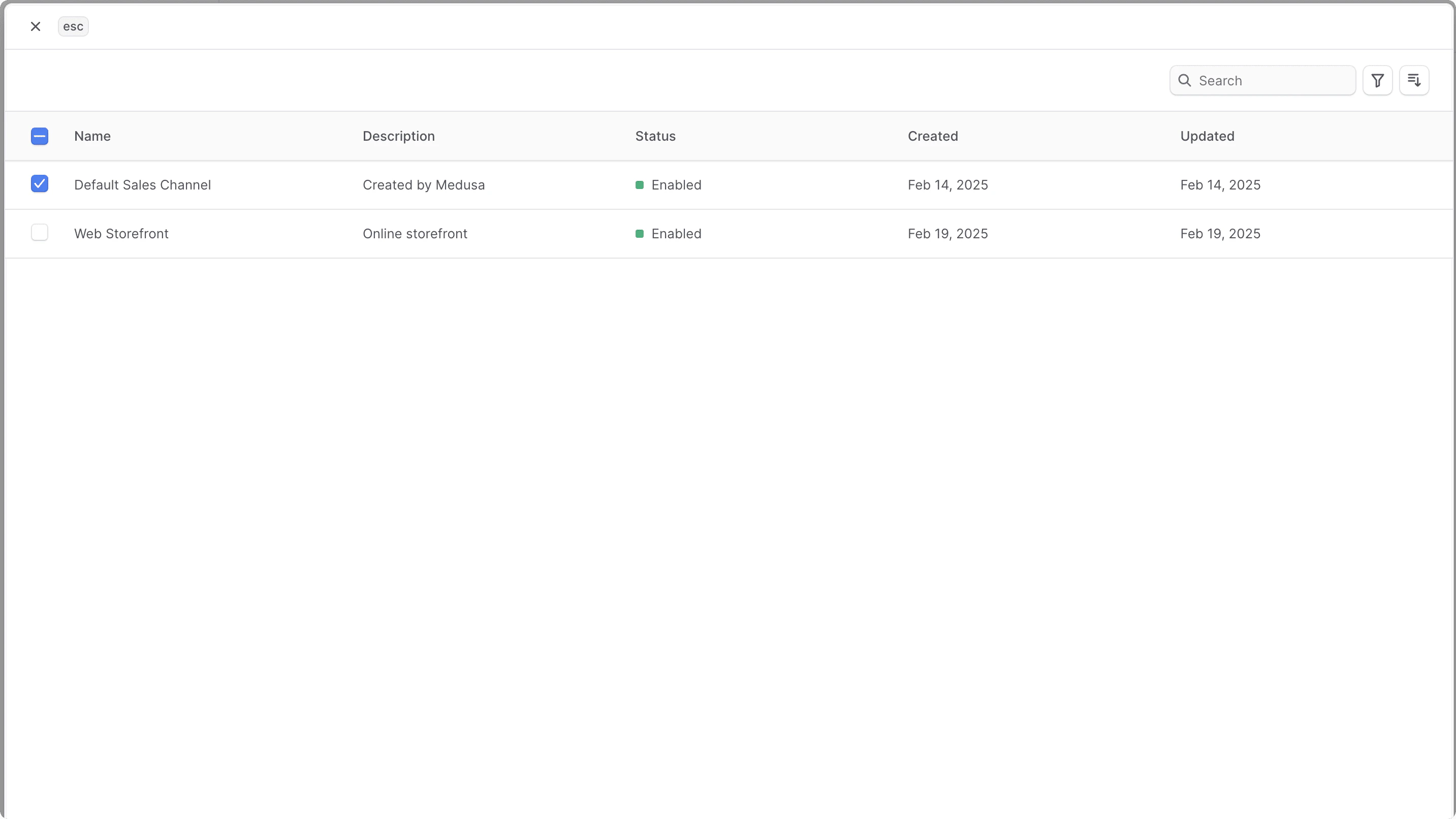
4. In the list that opens, you can select the sales channels to associate with the manual payment method, or unselect the ones you want to remove.
5. Once you're done, click the Save button.
Removing a manual payment method from a sales channel will make it unavailable for purchase in
that sales channel.
1. Go to the manual payment method's details page.
2. Click the icon at the top right of the "Sales Channels" section.
3. Choose Edit from the dropdown.
4. In the list that opens, you can select the sales channels to associate with the manual payment method, or unselect the ones you want to remove.
5. Once you're done, click the Save button.
 ### Change Media
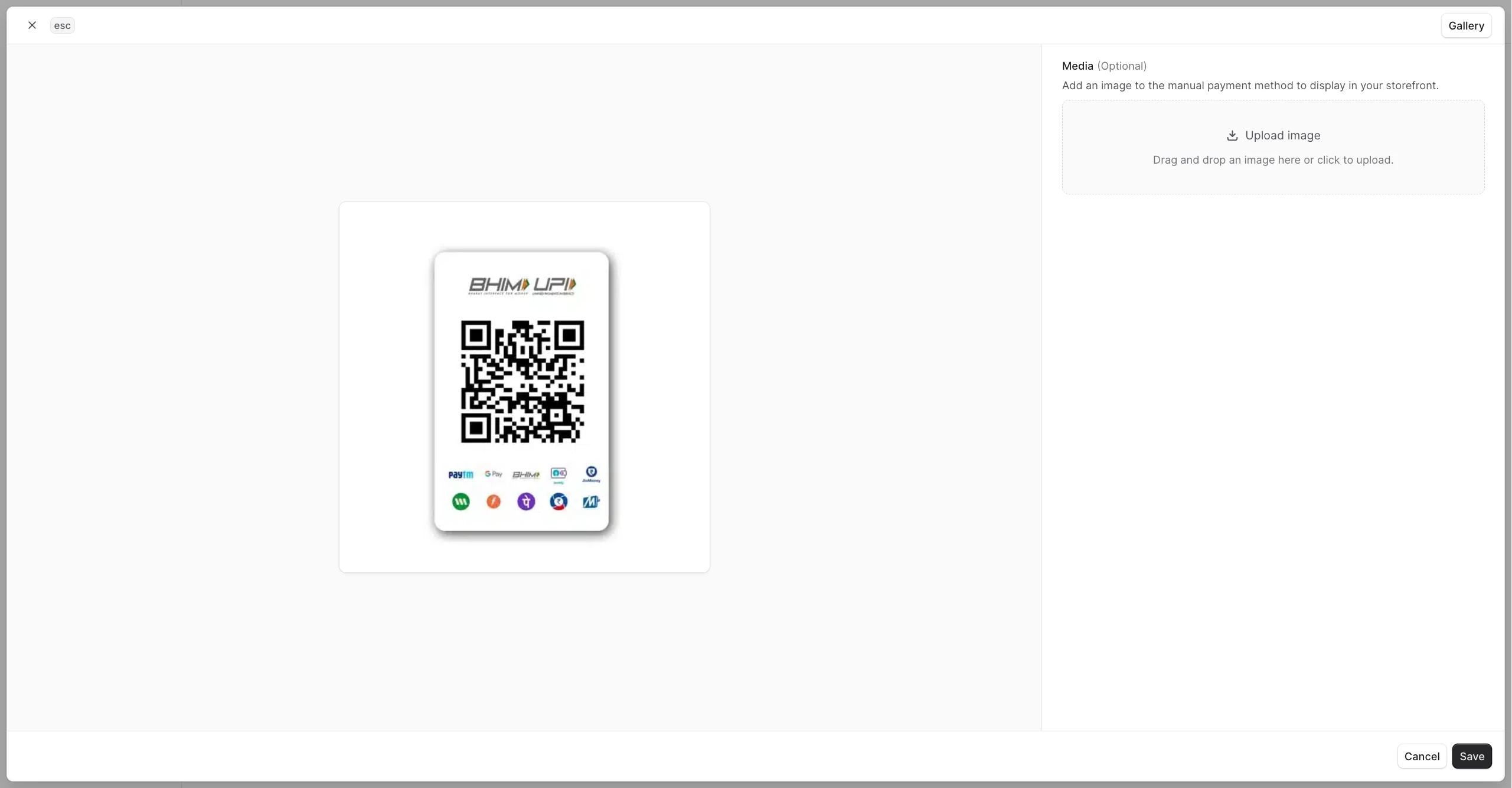
The Media section includes the media associated with the manual payment method. Use this section to view and edit the manual payment method's media.
1. Go to the manual payment method's details page.
2. Click the icon at the top right of the "Media" section.
3. Choose Edit from the dropdown.
4. In the list that opens, you can select the media to associate with the manual payment method, or unselect the ones you want to remove.
5. Once you're done, click the Save button.
### Change Media
The Media section includes the media associated with the manual payment method. Use this section to view and edit the manual payment method's media.
1. Go to the manual payment method's details page.
2. Click the icon at the top right of the "Media" section.
3. Choose Edit from the dropdown.
4. In the list that opens, you can select the media to associate with the manual payment method, or unselect the ones you want to remove.
5. Once you're done, click the Save button.
 ## Delete a manual payment method
1. Go to **Settings** → **Payments**.
2. Select the ellipsis for the method.
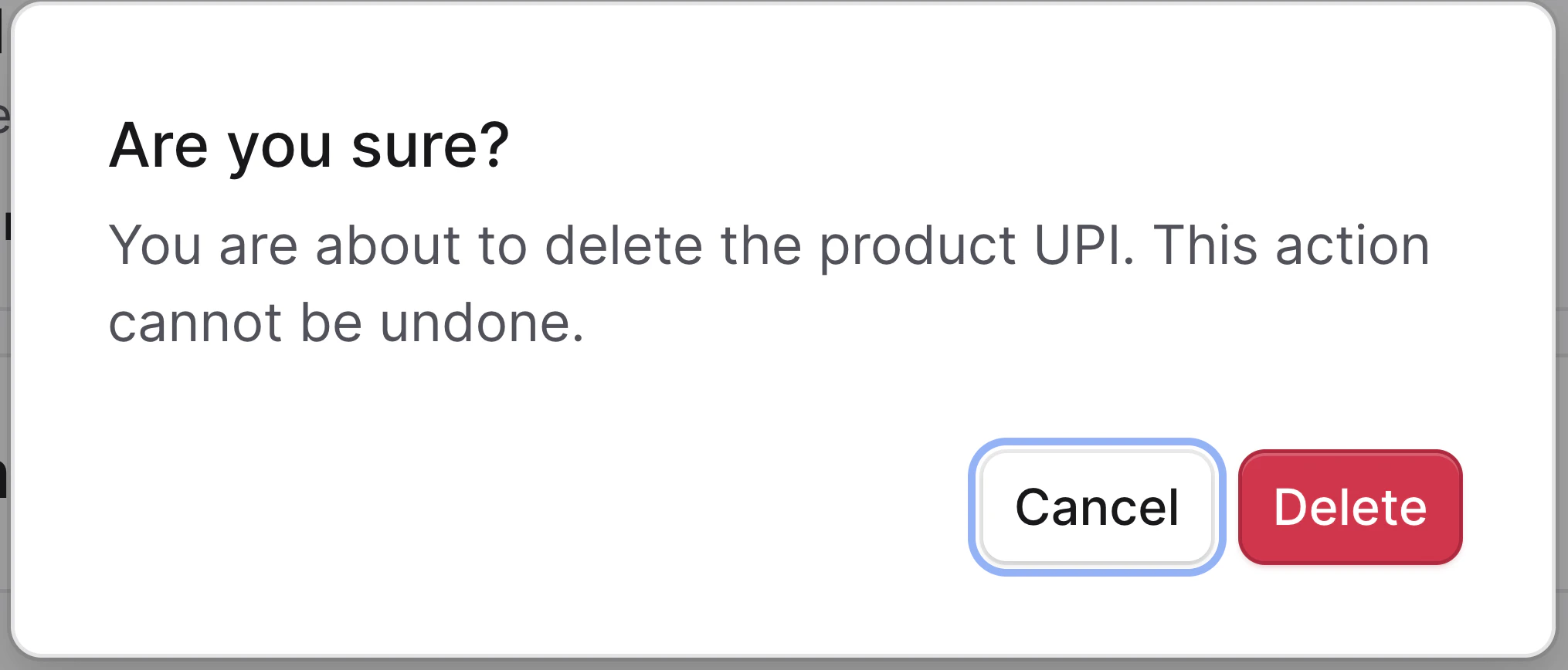
3. Choose **Delete**, then confirm.
4. The method is removed from checkout for all sales channels.
## Delete a manual payment method
1. Go to **Settings** → **Payments**.
2. Select the ellipsis for the method.
3. Choose **Delete**, then confirm.
4. The method is removed from checkout for all sales channels.
 Ensure instructions clearly explain how and when payment is collected. If you disable a method, customers will no longer see it at checkout.