> ## Documentation Index
> Fetch the complete documentation index at: https://docs.commert.com/llms.txt
> Use this file to discover all available pages before exploring further.
# Manage Price Lists in Commert Admin
In this guide, you’ll learn how to manage price lists and their related information.
## View Price List Details
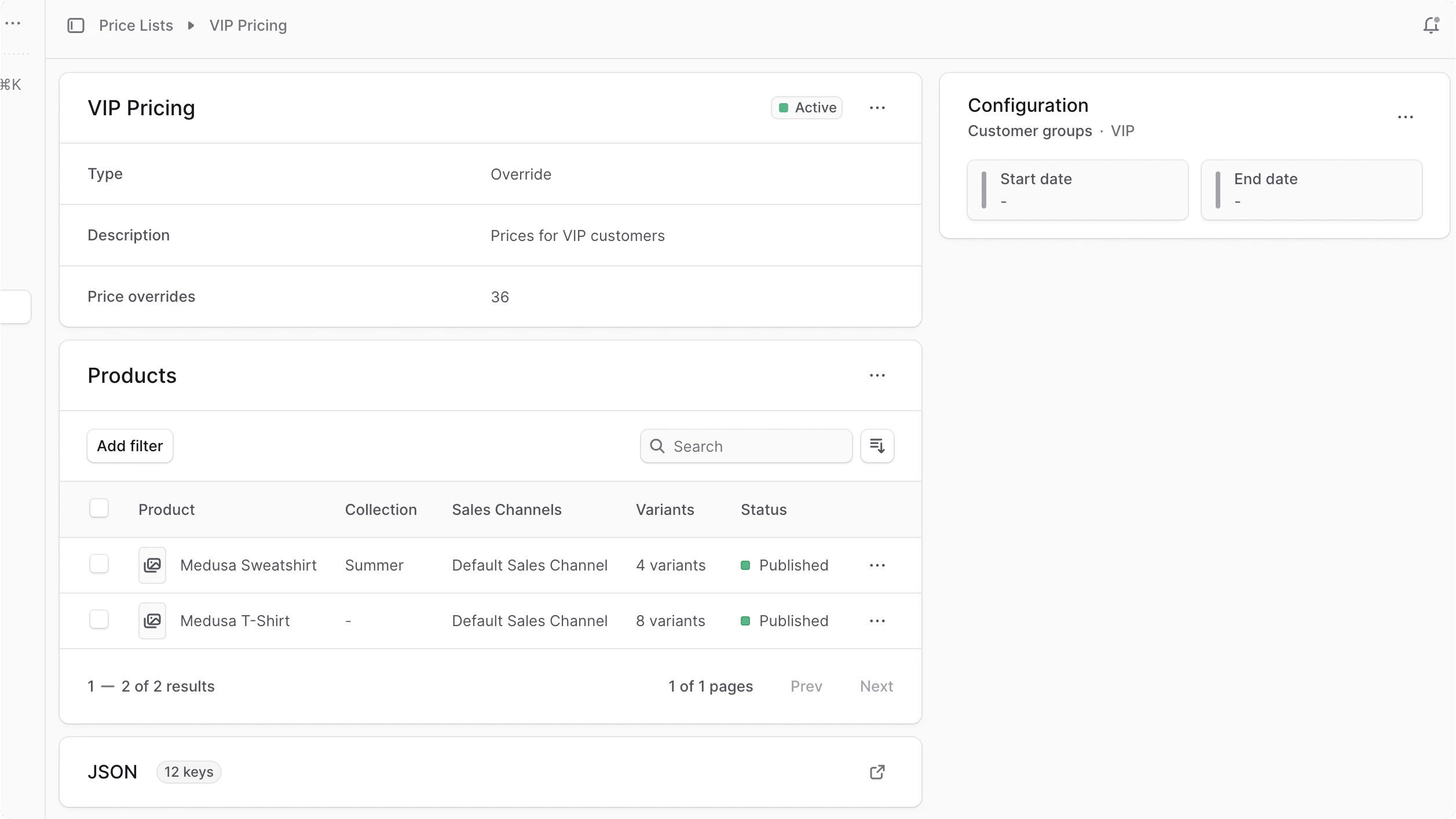
To view a price list’s details:
1. Go to the Price Lists page from the sidebar.
2. Click on the price list you want to view.
This will open the price list's details page.
 ### Price List Status
At the top right of the first section, you'll find the price list's status. It can be one of the following:
| Status | Description |
| --------- | ------------------------------------------------------------------------------------------------------------- |
| Draft | The price list is not active and can't be used. |
| Active | The price list is active and can be used. |
| Scheduled | The price list has a start date in the future. Once the start date is reached, the price list becomes active. |
| Expired | The price list has an end date that has passed. The price list can't be used. |
***
## Edit Price List Details
To edit a price list's details:
To edit a price list's start and expiry dates, or customer availability, refer to the [Edit Price List Configurations](#edit-price-list-configurations) section.
1. Go to the price list's details page.
2. Click on the icon at the top right of the first section.
3. Choose Edit from the dropdown.
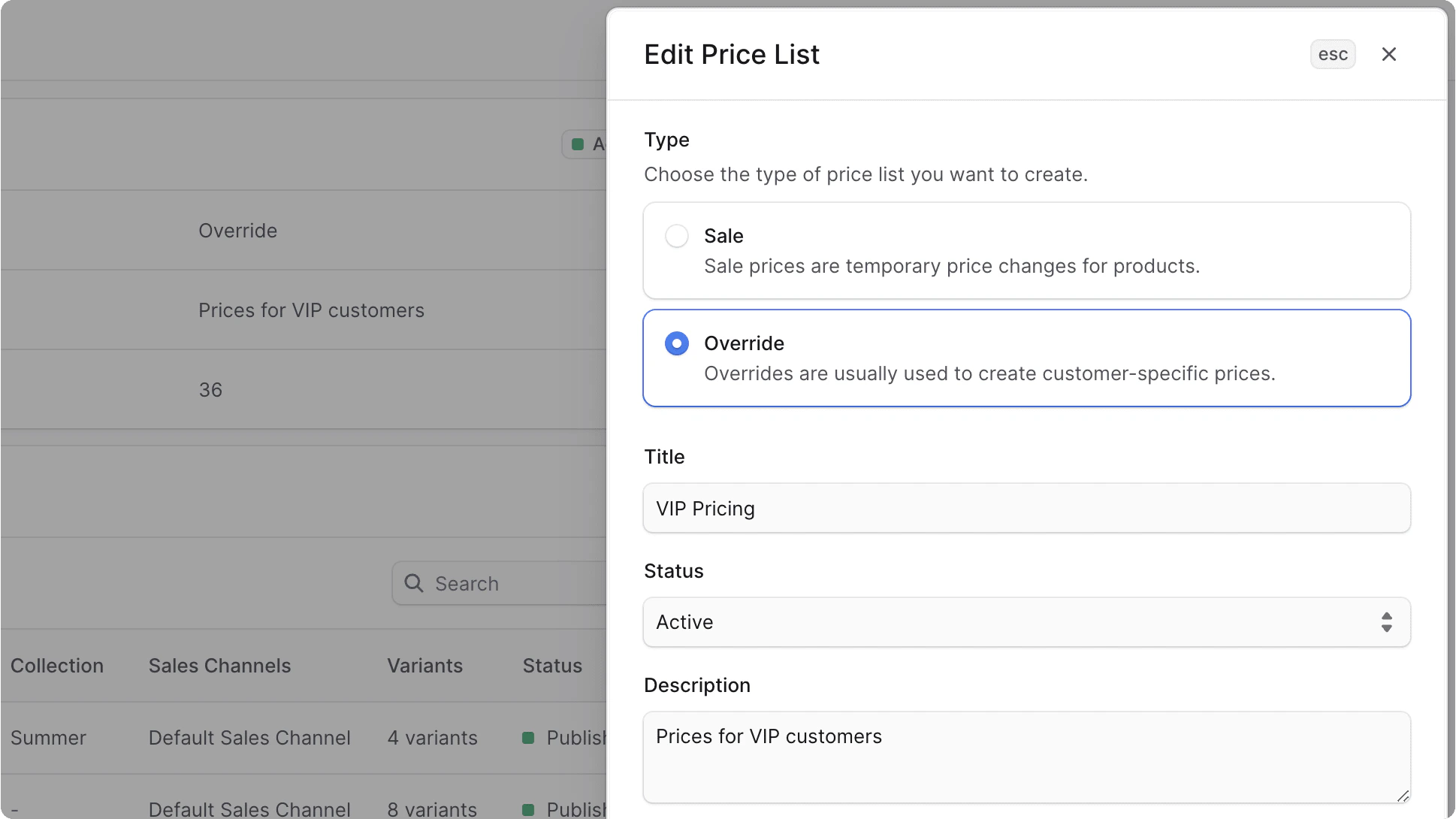
4. In the side window that opens, you can edit the price list's type, title, status, and description.
* If you change the price list's status to Active, but the price list has a start date in the future, the price list will have a "Scheduled" status and become active once the start date is reached.
5. Once you're done, click the Save button.
### Price List Status
At the top right of the first section, you'll find the price list's status. It can be one of the following:
| Status | Description |
| --------- | ------------------------------------------------------------------------------------------------------------- |
| Draft | The price list is not active and can't be used. |
| Active | The price list is active and can be used. |
| Scheduled | The price list has a start date in the future. Once the start date is reached, the price list becomes active. |
| Expired | The price list has an end date that has passed. The price list can't be used. |
***
## Edit Price List Details
To edit a price list's details:
To edit a price list's start and expiry dates, or customer availability, refer to the [Edit Price List Configurations](#edit-price-list-configurations) section.
1. Go to the price list's details page.
2. Click on the icon at the top right of the first section.
3. Choose Edit from the dropdown.
4. In the side window that opens, you can edit the price list's type, title, status, and description.
* If you change the price list's status to Active, but the price list has a start date in the future, the price list will have a "Scheduled" status and become active once the start date is reached.
5. Once you're done, click the Save button.
 ***
## Edit Price List Configurations
A price list's configurations include the start and expiry dates, and customer availability.
1. Go to the price list's details page.
2. Click the icon at the top right of the "Configuration" section.
3. Choose Edit from the dropdown.
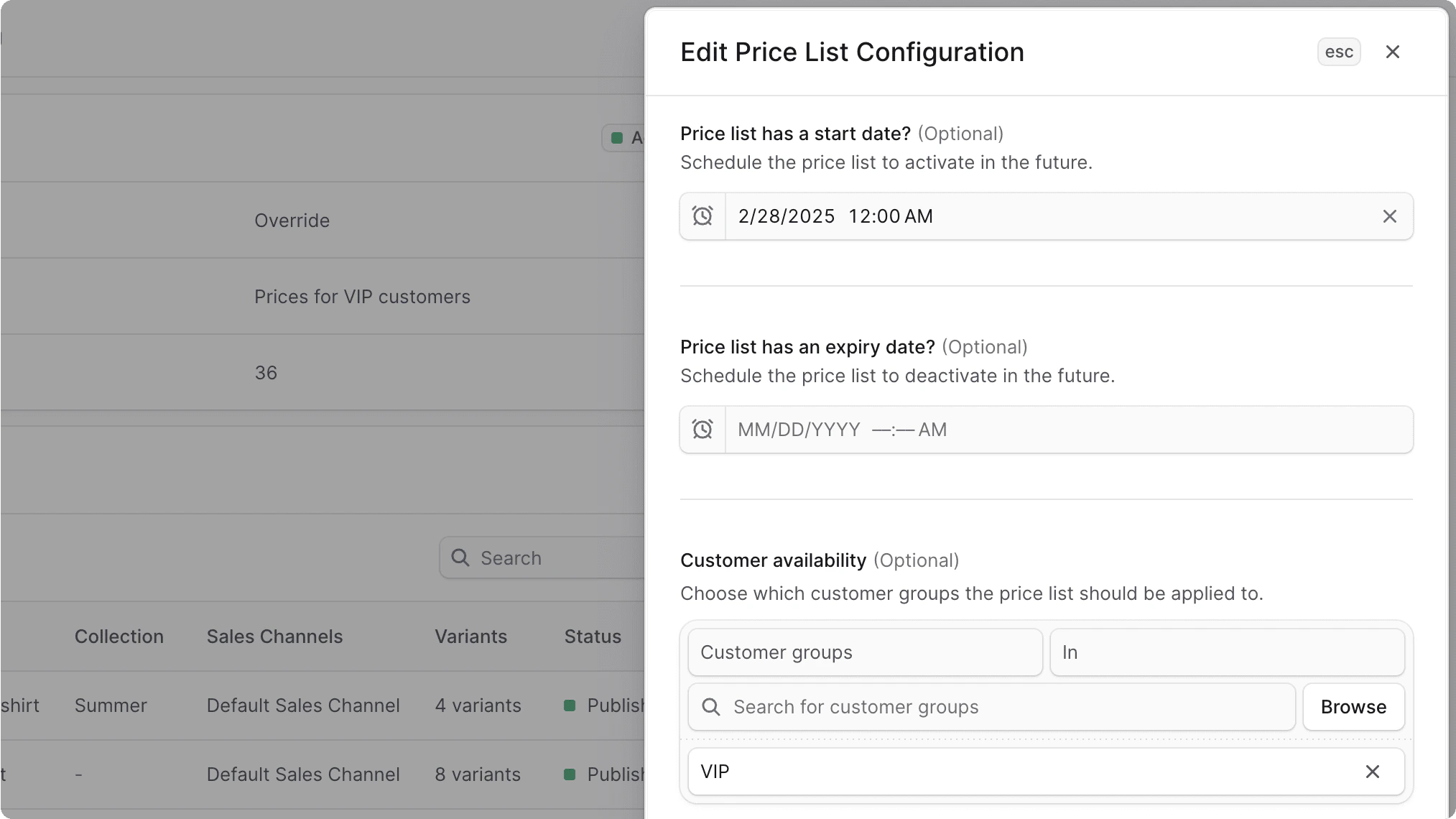
4. In the side window that opens, you can edit the start and expiry dates and the customer groups that the price list applies to.
* To change the customer groups, click the Browse button, select the customer groups, and click Save.
5. Once you're done, click the Save button.
***
## Edit Price List Configurations
A price list's configurations include the start and expiry dates, and customer availability.
1. Go to the price list's details page.
2. Click the icon at the top right of the "Configuration" section.
3. Choose Edit from the dropdown.
4. In the side window that opens, you can edit the start and expiry dates and the customer groups that the price list applies to.
* To change the customer groups, click the Browse button, select the customer groups, and click Save.
5. Once you're done, click the Save button.
 ***
## Manage Products in Price List
From the price list's details page, you can manage the products in the price list.
### Add Products to Price List
To add products to a price list:
1. Go to the price list's details page.
2. In the Products section, click the icon.
3. Choose "Add products" from the dropdown.
4. In the list that opens, check the products you want to add to the price list.
5. Once you’re done, click the Continue button.
6. In the next "Prices" step, use the [Bulk Editor](/tips/bulk-editor) to set the prices for the variants of the products you added. You can set prices for every currency and region in your store.
7. Once you're done, click the Save button.
### Remove Products from Price List
To remove products from a price list:
1. Go to the price list's details page.
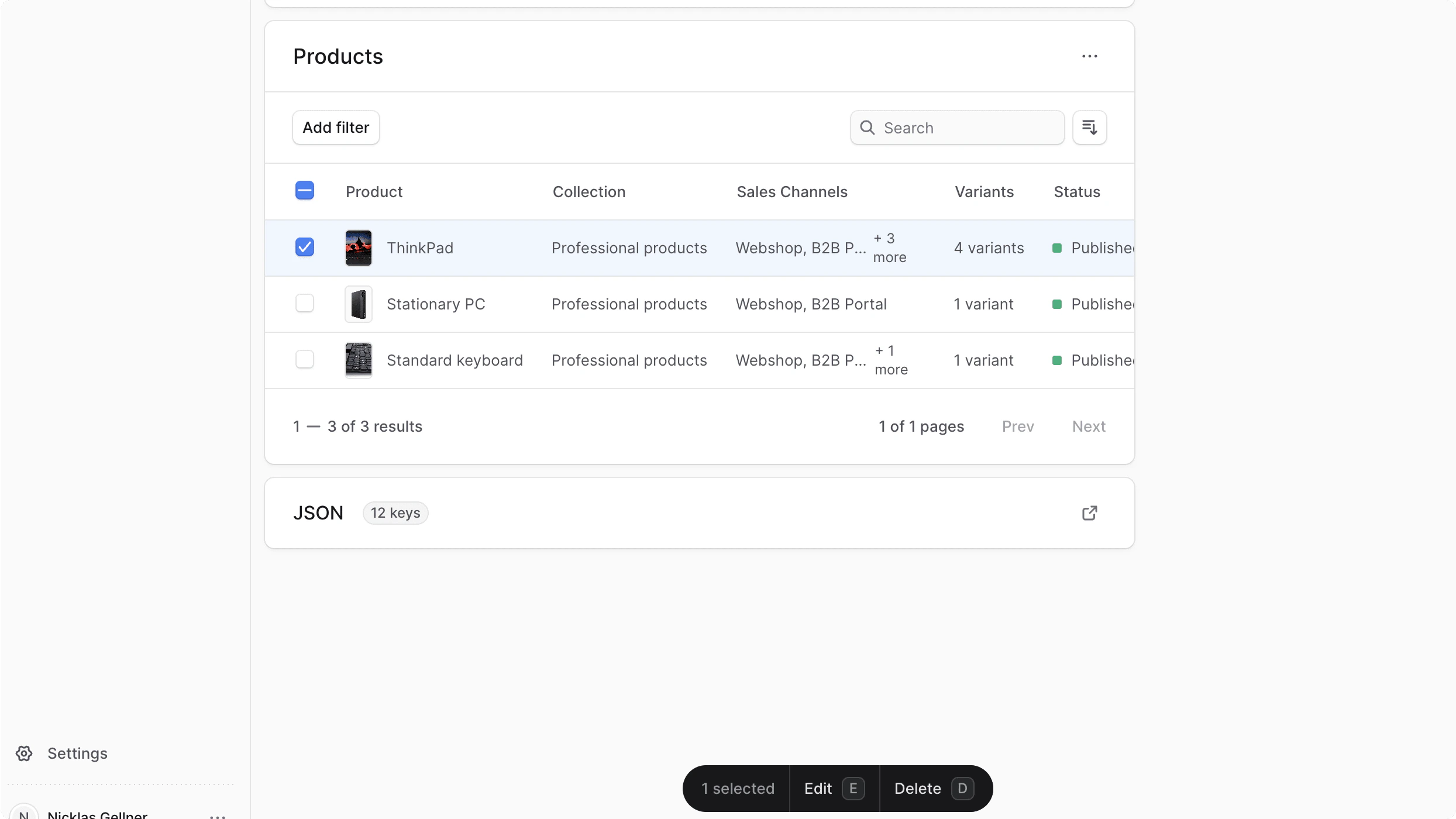
2. In the Products section, check the products you want to remove from the price list.
3. Either press `D` or click "Delete" at the bottom center of the page.
4. Confirm removing the products by clicking the "Delete" button in the pop-up.
***
## Manage Products in Price List
From the price list's details page, you can manage the products in the price list.
### Add Products to Price List
To add products to a price list:
1. Go to the price list's details page.
2. In the Products section, click the icon.
3. Choose "Add products" from the dropdown.
4. In the list that opens, check the products you want to add to the price list.
5. Once you’re done, click the Continue button.
6. In the next "Prices" step, use the [Bulk Editor](/tips/bulk-editor) to set the prices for the variants of the products you added. You can set prices for every currency and region in your store.
7. Once you're done, click the Save button.
### Remove Products from Price List
To remove products from a price list:
1. Go to the price list's details page.
2. In the Products section, check the products you want to remove from the price list.
3. Either press `D` or click "Delete" at the bottom center of the page.
4. Confirm removing the products by clicking the "Delete" button in the pop-up.
 ***
## Edit Prices in Price List
From the price list's details page, you can manage the price overrides of the products in the price list.
To edit the prices of the products in the price list:
1. Go to the price list's details page.
2. In the Products section, click the icon.
3. Choose "Edit prices" from the dropdown.
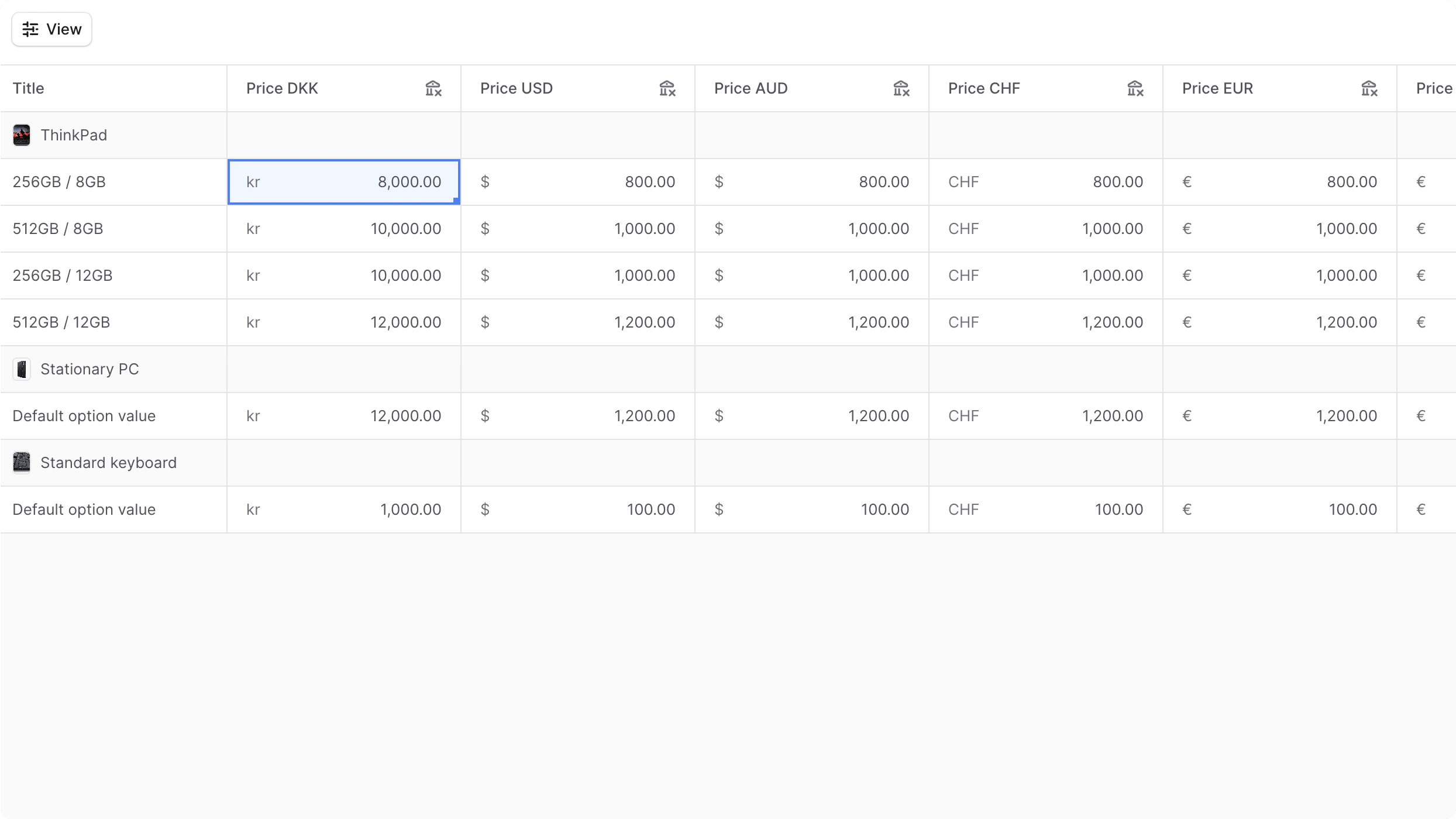
4. This opens the [Bulk Editor](/tips/bulk-editor) to edit the prices of the products' variants. You can set prices for every currency and region in your store.
5. Once you're done, click the Save button.
***
## Edit Prices in Price List
From the price list's details page, you can manage the price overrides of the products in the price list.
To edit the prices of the products in the price list:
1. Go to the price list's details page.
2. In the Products section, click the icon.
3. Choose "Edit prices" from the dropdown.
4. This opens the [Bulk Editor](/tips/bulk-editor) to edit the prices of the products' variants. You can set prices for every currency and region in your store.
5. Once you're done, click the Save button.
 ***
## Delete Price List
Deleting a price list is irreversible.
To delete a price list:
1. Go to the price list's details page.
2. Click on the icon at the top right of the first section.
3. Choose Delete from the dropdown.
4. In the pop-up, enter the price list's title and click the "Delete" button.
***
## Delete Price List
Deleting a price list is irreversible.
To delete a price list:
1. Go to the price list's details page.
2. Click on the icon at the top right of the first section.
3. Choose Delete from the dropdown.
4. In the pop-up, enter the price list's title and click the "Delete" button.