> ## Documentation Index
> Fetch the complete documentation index at: https://docs.commert.com/llms.txt
> Use this file to discover all available pages before exploring further.
# Manage Shipping Profiles in Commert Admin
In this guide, you’ll learn what shipping profiles are and how to manage them in Commert Admin.
## What is a Shipping Profile?
A shipping profile groups products with similar shipping requirements, allowing you to cater shipping options specifically for those products.
For example, if your store has fragile items that are shipped differently from other products, you can create a "Fragile" shipping profile and associate it with the fragile products. Then, you can [create shipping options](../locations#create-shipping-options) for fragile products, and options for other products.
***
## View Shipping Profiles
To view shipping profiles in your store:
1. Go to Settings → Location & Shipping.
2. In the Shipping Configuration section, click on "Shipping Profiles".
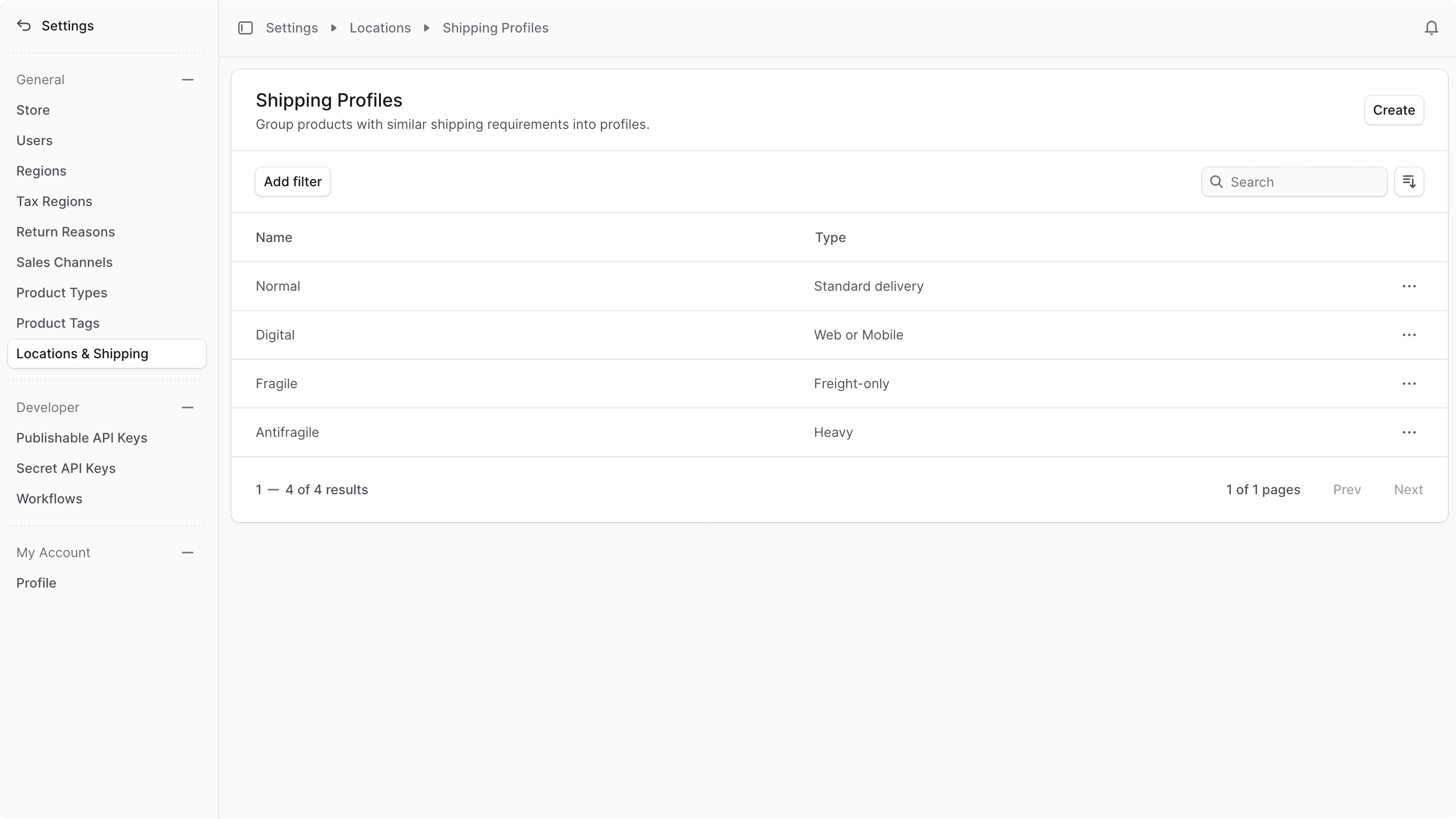
Here, you can see a list of all the shipping profiles you have set up in your store. You can also search, filter, and sort the shipping profiles to find the one you are looking for.
 ***
## Create Shipping Profile
To create a shipping profile:
1. Go to Settings → Location & Shipping -> Shipping Profiles.
2. Click the Create button at the top right.
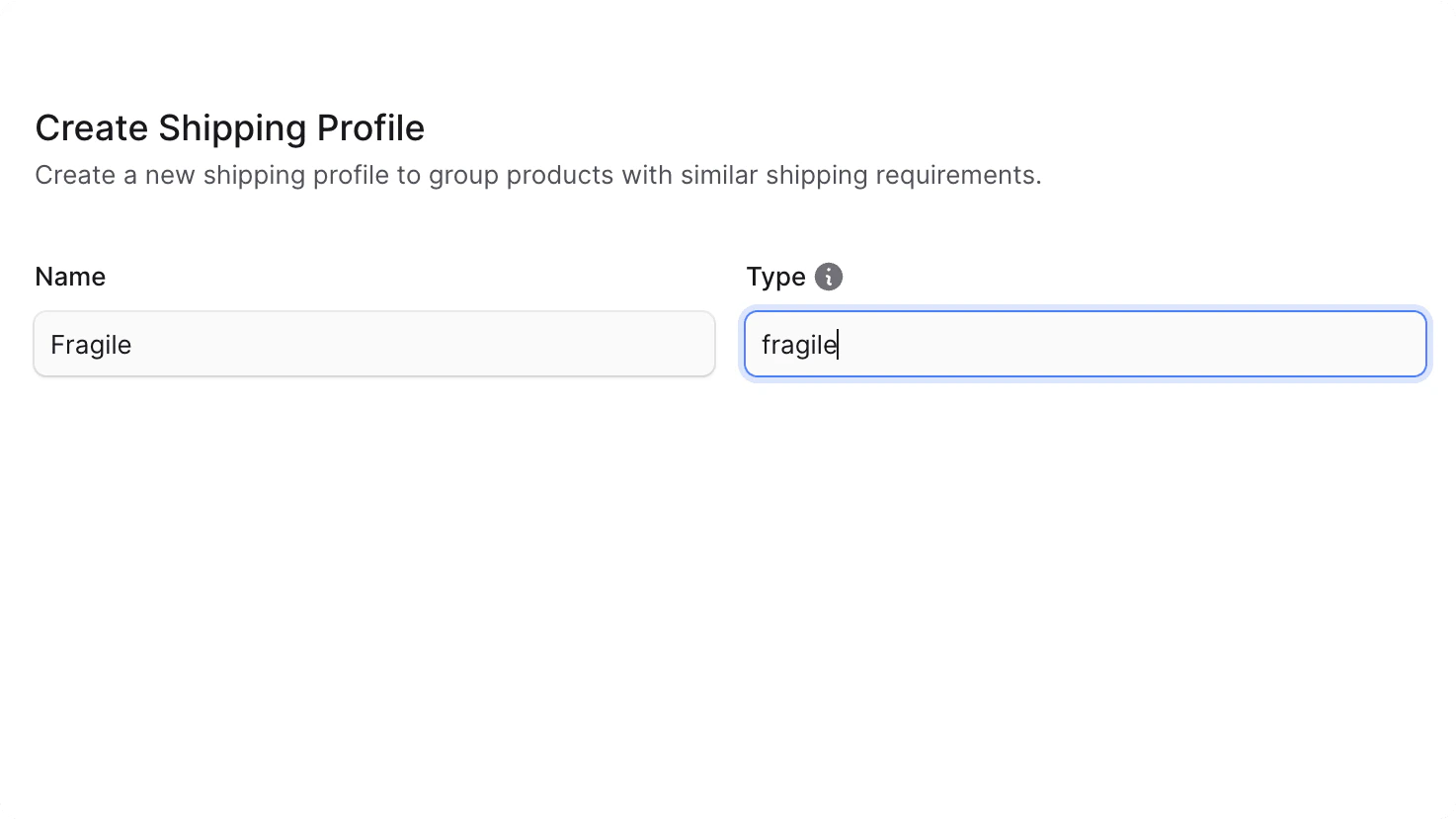
3. In the form that opens:
* In the Name field, enter a name for the shipping profile. For example, "Fragile".
* In the Type field, enter the type of products that belong to the shipping profile. For example, "fragile" or "heavy".
4. Once you're done, click the Save button.
***
## Create Shipping Profile
To create a shipping profile:
1. Go to Settings → Location & Shipping -> Shipping Profiles.
2. Click the Create button at the top right.
3. In the form that opens:
* In the Name field, enter a name for the shipping profile. For example, "Fragile".
* In the Type field, enter the type of products that belong to the shipping profile. For example, "fragile" or "heavy".
4. Once you're done, click the Save button.
 ***
## View Shipping Profile Details
To view the details of a shipping profile:
1. Go to Settings → Location & Shipping -> Shipping Profiles.
2. Click on a shipping profile from the list.
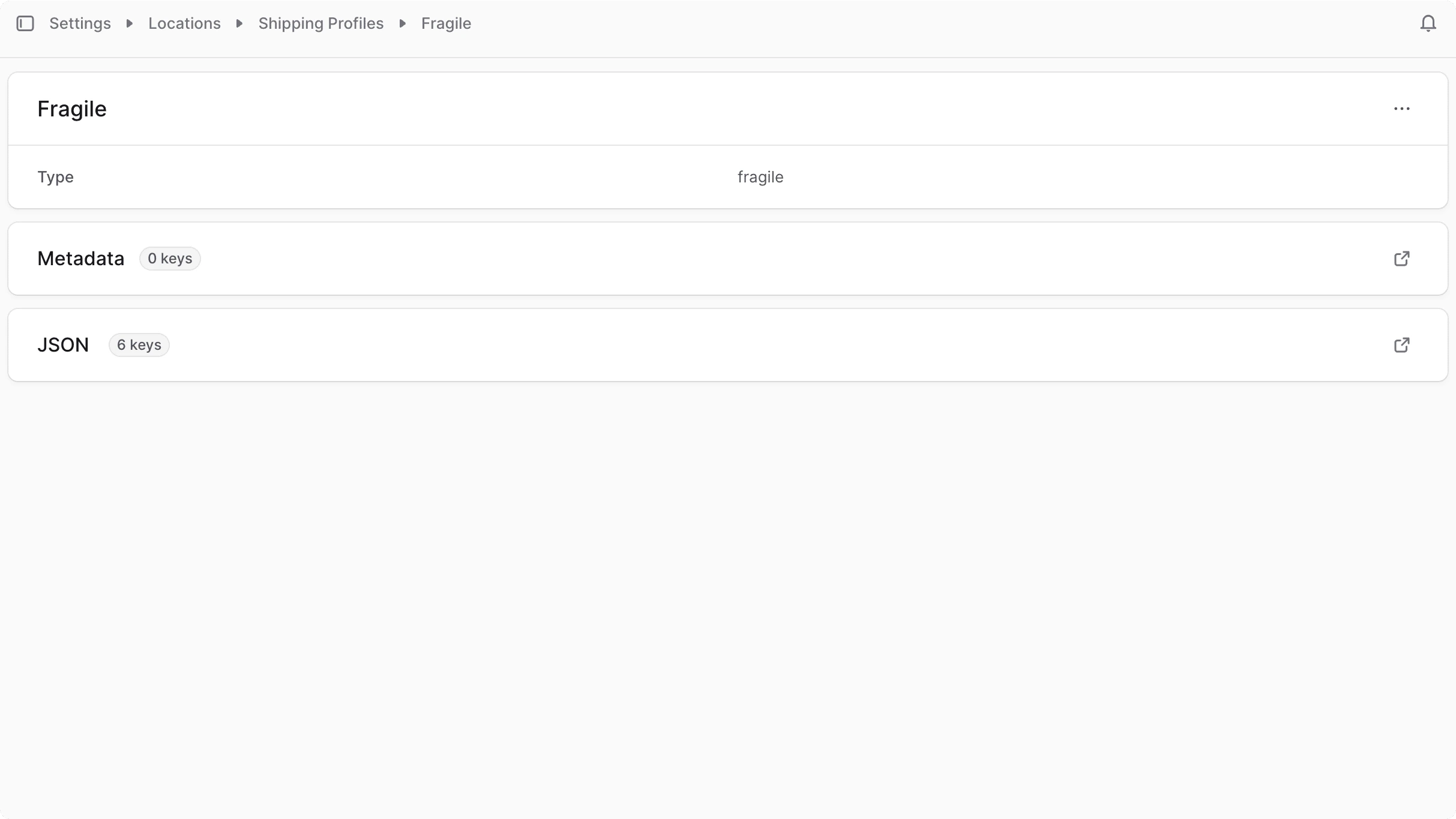
This opens the shipping profile's details page where you can also manage the shipping profile.
***
## View Shipping Profile Details
To view the details of a shipping profile:
1. Go to Settings → Location & Shipping -> Shipping Profiles.
2. Click on a shipping profile from the list.
This opens the shipping profile's details page where you can also manage the shipping profile.
 ***
## Manage Products of Shipping Profile
You can manage the shipping profile of a product in the [product's details page](/products/edit#edit-products-shipping-profile).
***
## Manage Shipping Profile Metadata
Metadata is custom data that can be associated with the shipping profile in key-value pairs. This is usually used by developers for custom integrations or to store additional information about the shipping profile.
To edit the shipping profile's metadata:
1. Click the icon at the right of the "Metadata" section.
2. In the side window that opens:
* Manage the key-value pairs in the table.
* To add a new row of key-value pairs before or after a row:
* Hover over the row and click the icon at its right.
* Choose "Insert row above" or "Insert row below" from the dropdown.
* To delete a row of key-value pairs:
* Hover over the row and click the icon at its right.
* Choose "Delete row" from the dropdown.
3. Once you're done, click the Save button.
***
## Delete Shipping Profile
Deleting a shipping profile is irreversible.
To delete a shipping profile:
1. Go to the shipping profile's details page.
2. Click the icon at the top right of the first section.
3. Choose Delete from the dropdown.
4. Confirm the deletion by entering the shipping profile's name in the pop-up and clicking the Delete button.
***
## Manage Products of Shipping Profile
You can manage the shipping profile of a product in the [product's details page](/products/edit#edit-products-shipping-profile).
***
## Manage Shipping Profile Metadata
Metadata is custom data that can be associated with the shipping profile in key-value pairs. This is usually used by developers for custom integrations or to store additional information about the shipping profile.
To edit the shipping profile's metadata:
1. Click the icon at the right of the "Metadata" section.
2. In the side window that opens:
* Manage the key-value pairs in the table.
* To add a new row of key-value pairs before or after a row:
* Hover over the row and click the icon at its right.
* Choose "Insert row above" or "Insert row below" from the dropdown.
* To delete a row of key-value pairs:
* Hover over the row and click the icon at its right.
* Choose "Delete row" from the dropdown.
3. Once you're done, click the Save button.
***
## Delete Shipping Profile
Deleting a shipping profile is irreversible.
To delete a shipping profile:
1. Go to the shipping profile's details page.
2. Click the icon at the top right of the first section.
3. Choose Delete from the dropdown.
4. Confirm the deletion by entering the shipping profile's name in the pop-up and clicking the Delete button.