> ## Documentation Index
> Fetch the complete documentation index at: https://docs.commert.com/llms.txt
> Use this file to discover all available pages before exploring further.
# Bulk Editor in Commert Admin
In this guide, you'll learn about different tips and shortcuts to using the bulk editor.
 ## Manage Large Data in Bulk
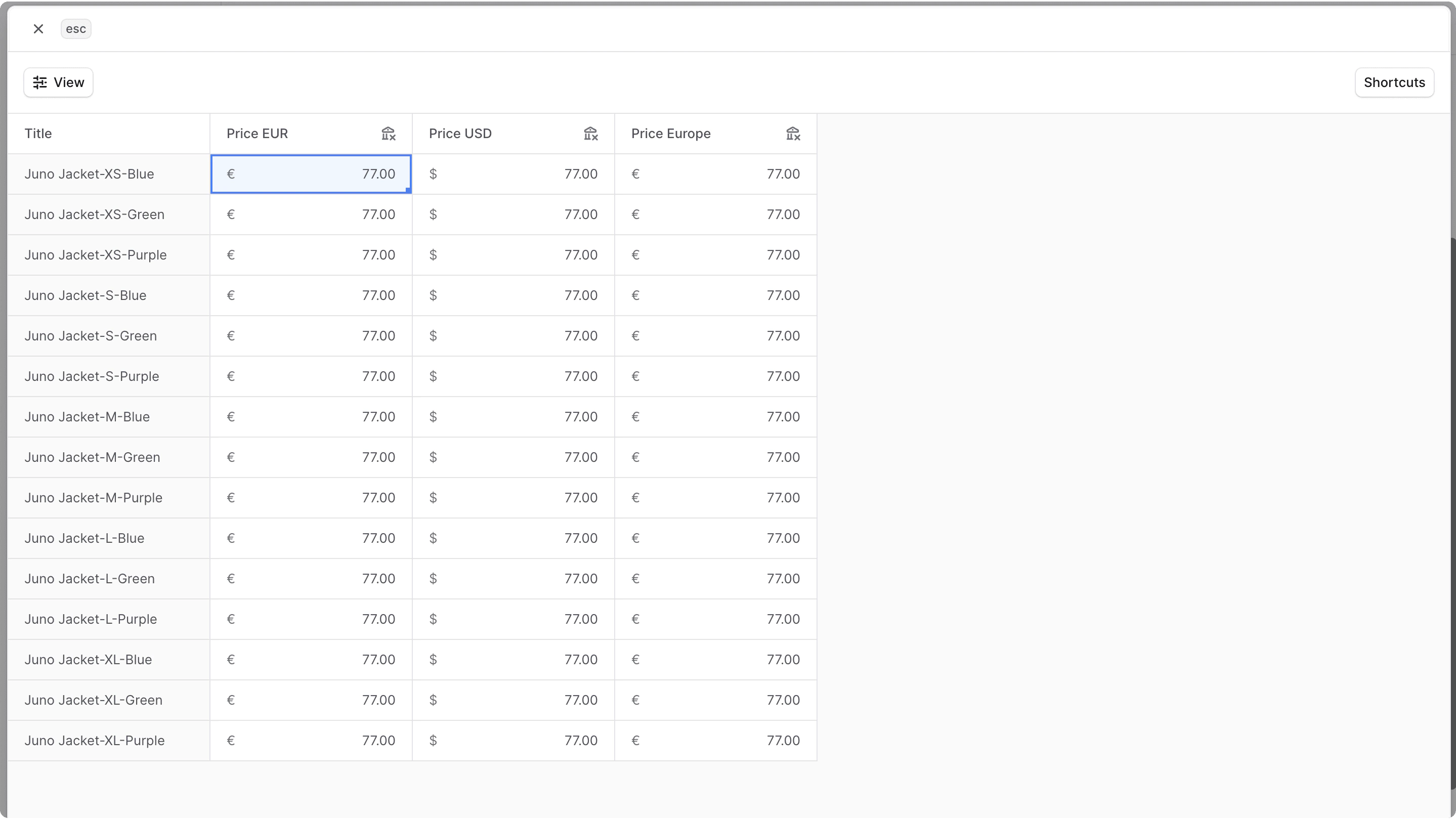
The bulk editor allows you to edit prices or values using a spreadsheet-interface. It simplifies the editing process when working with a large number of data, and provides you with an intuitive user experience.
### Where is the Bulk Editor?
The bulk editor is used in different areas of the Commert Admin:
* [Edit prices of product variants](../../products/variants#edit-product-variant-prices).
* [Edit inventory of a product variants](../../products/variants#manage-product-variant-inventory).
* [Edit prices in price lists](../../price-lists/manage#edit-prices-in-price-list).
* [Edit shipping option prices](../../settings/locations-and-shipping/locations#edit-shipping-option-prices)
***
## Toggle Columns View
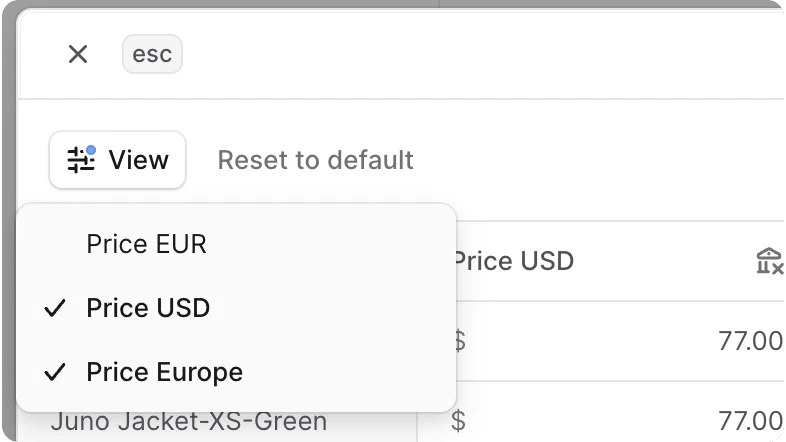
As the bulk editor may include a large number of columns, such as the different currencies supported in your store, you can toggle the columns' visibility to focus on a subset of columns.
To do that:
1. Click on the "View" button at the top left.
2. Check or uncheck a column by clicking on it in the dropdown.
## Manage Large Data in Bulk
The bulk editor allows you to edit prices or values using a spreadsheet-interface. It simplifies the editing process when working with a large number of data, and provides you with an intuitive user experience.
### Where is the Bulk Editor?
The bulk editor is used in different areas of the Commert Admin:
* [Edit prices of product variants](../../products/variants#edit-product-variant-prices).
* [Edit inventory of a product variants](../../products/variants#manage-product-variant-inventory).
* [Edit prices in price lists](../../price-lists/manage#edit-prices-in-price-list).
* [Edit shipping option prices](../../settings/locations-and-shipping/locations#edit-shipping-option-prices)
***
## Toggle Columns View
As the bulk editor may include a large number of columns, such as the different currencies supported in your store, you can toggle the columns' visibility to focus on a subset of columns.
To do that:
1. Click on the "View" button at the top left.
2. Check or uncheck a column by clicking on it in the dropdown.
 ***
## Perform Action on Multiple Cells
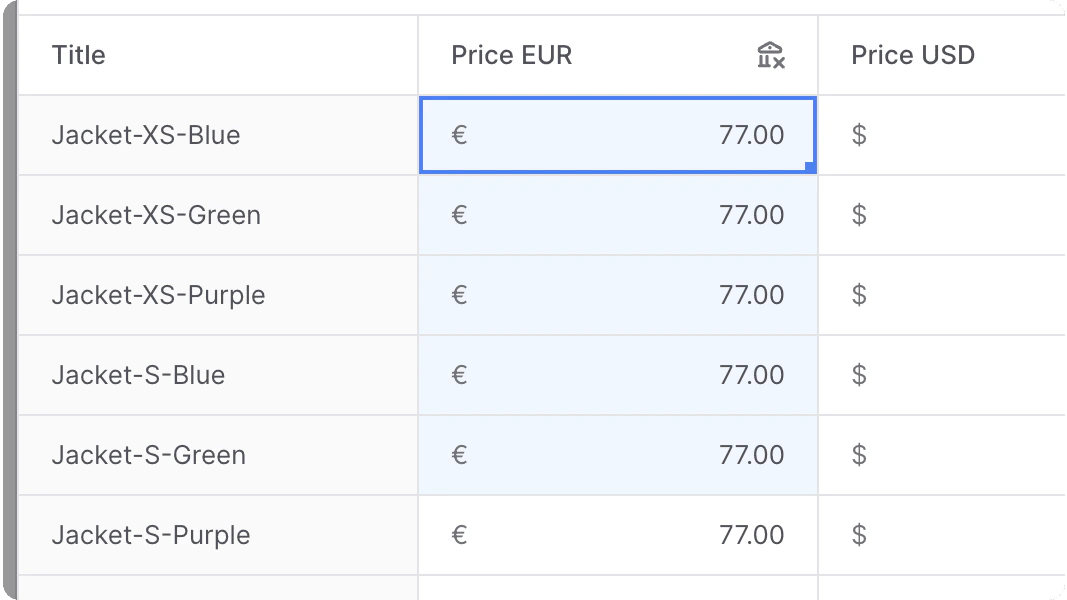
You can select multiple cells to perform an action on them. To do that:
1. Click and hold the mouse on a cell
2. Drag the mouse in the direction of the other cells you want to select.
3. Once you're done selecting, release the hold.
4. Perform the action on the cells:
* Press `backspace` to clear the values of the selected cells.
* Press `⌘` + `Z` to undo a change you made on the selected cells.
***
## Perform Action on Multiple Cells
You can select multiple cells to perform an action on them. To do that:
1. Click and hold the mouse on a cell
2. Drag the mouse in the direction of the other cells you want to select.
3. Once you're done selecting, release the hold.
4. Perform the action on the cells:
* Press `backspace` to clear the values of the selected cells.
* Press `⌘` + `Z` to undo a change you made on the selected cells.
 ***
## Editing Cell Values
There are multiple ways you can edit cells' values in a bulk editor:
1. To edit the value, click the cell, then enter your new value.
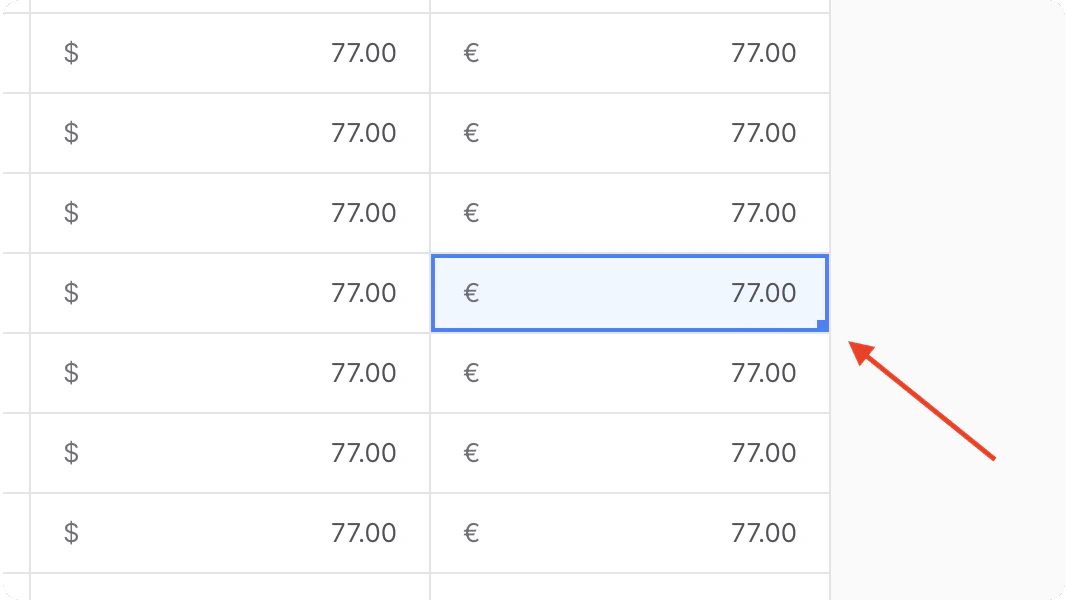
2. To apply a value of a cell to other adjacent cells:
1. Click on a cell
2. Hold and Drag the blue dot at the corner of that cell to the cells below it that you want to apply the value to.
3. Once you're done, release the hold on the blue dot. The value of the first cell will be applied to the other cells.
***
## Editing Cell Values
There are multiple ways you can edit cells' values in a bulk editor:
1. To edit the value, click the cell, then enter your new value.
2. To apply a value of a cell to other adjacent cells:
1. Click on a cell
2. Hold and Drag the blue dot at the corner of that cell to the cells below it that you want to apply the value to.
3. Once you're done, release the hold on the blue dot. The value of the first cell will be applied to the other cells.
 ***
## Shortcuts
You can use the following shortcuts while working with the bulk editor:
* `tab`: Persist the current cell's value and move focus to the next cell.
* `backspace`: Delete the value of the selected cell(s).
* `⌘` + `Z`: Undo a change you made
in the currently selected cell(s).
***
## Shortcuts
You can use the following shortcuts while working with the bulk editor:
* `tab`: Persist the current cell's value and move focus to the next cell.
* `backspace`: Delete the value of the selected cell(s).
* `⌘` + `Z`: Undo a change you made
in the currently selected cell(s).