> ## Documentation Index
> Fetch the complete documentation index at: https://docs.commert.com/llms.txt
> Use this file to discover all available pages before exploring further.
# Add Credits to Your Wallet in Commert Admin
In this guide, you’ll learn how to add credits to your wallet in the Commert Admin.
Keeping a healthy balance ensures your store keeps accepting orders and your services stay active. You can add credits using a payment gateway or by redeeming a promotional code.
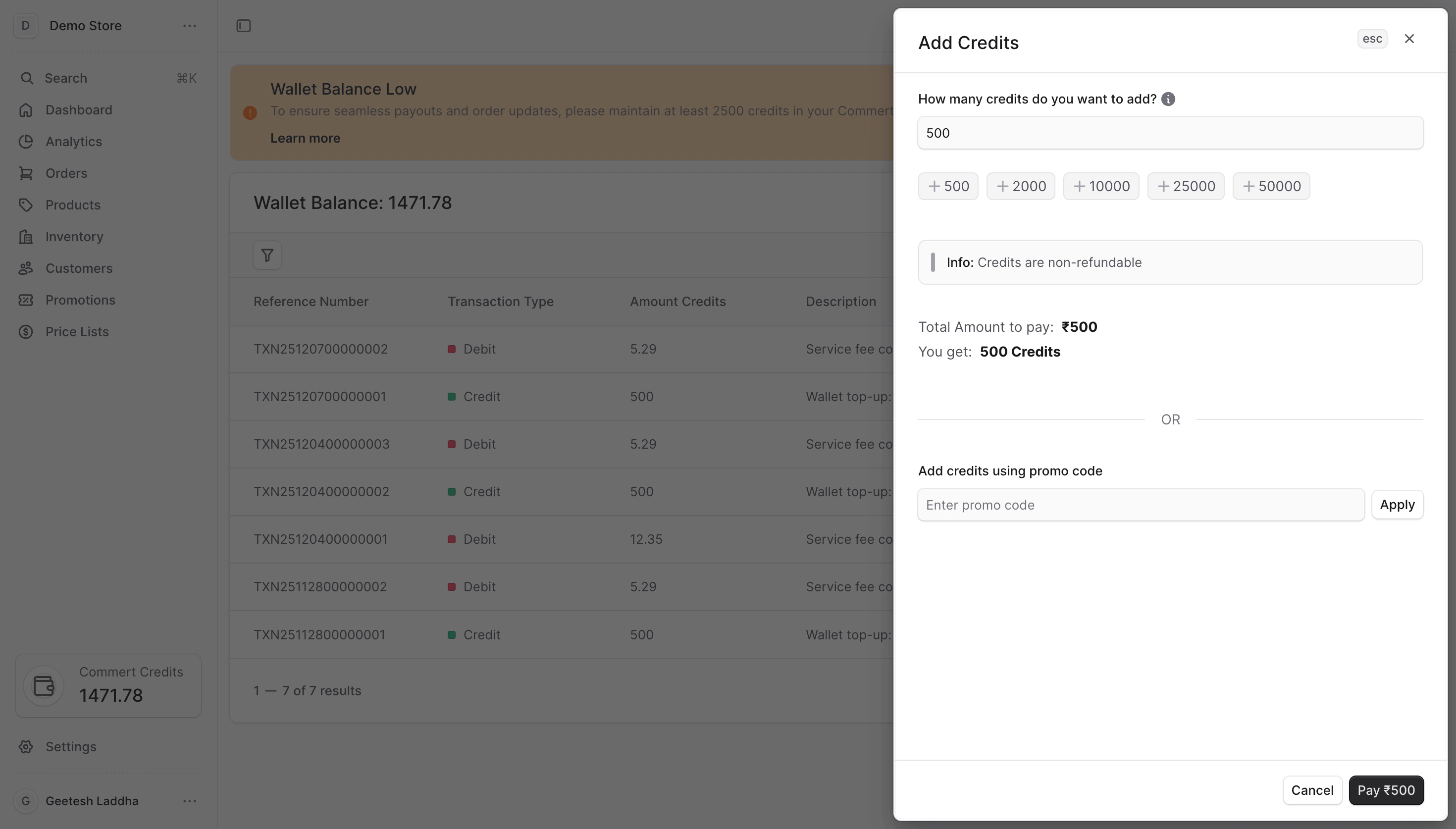 * Minimum top-up: **500 credits** (mandatory).
* Recommended balance: **2,500 credits** to avoid frequent pauses.
* Credits are **non-refundable**.
* Credits are currently set to **1 credit = ₹1**.
## Add credits flow
1. Click **Wallet Card** in the sidebar to open the Wallet page.
2. Select **Add credits**.
3. Choose your method:
* **Payment gateway** — pay online to add paid credits.
* **Promotional code** — redeem a code to add promotional credits.
4. Confirm and complete the flow; your wallet updates immediately after success.
### Choose a method
* **Payment gateway**: Best for regular top-ups. You pick an amount (minimum 500 credits), pay securely, and credits post after payment success.
* **Promotional code**: You can get promotional codes from the commert team, you can get from some influencers or other marketing campaigns. Enter the code; the system validates eligibility, usage limits, and expiry before granting credits.
## Related guides
* [Add Credits with Payment Gateway](./payment-gateway)
* [Add Credits with Promotional Code](./promotional-code)
* Minimum top-up: **500 credits** (mandatory).
* Recommended balance: **2,500 credits** to avoid frequent pauses.
* Credits are **non-refundable**.
* Credits are currently set to **1 credit = ₹1**.
## Add credits flow
1. Click **Wallet Card** in the sidebar to open the Wallet page.
2. Select **Add credits**.
3. Choose your method:
* **Payment gateway** — pay online to add paid credits.
* **Promotional code** — redeem a code to add promotional credits.
4. Confirm and complete the flow; your wallet updates immediately after success.
### Choose a method
* **Payment gateway**: Best for regular top-ups. You pick an amount (minimum 500 credits), pay securely, and credits post after payment success.
* **Promotional code**: You can get promotional codes from the commert team, you can get from some influencers or other marketing campaigns. Enter the code; the system validates eligibility, usage limits, and expiry before granting credits.
## Related guides
* [Add Credits with Payment Gateway](./payment-gateway)
* [Add Credits with Promotional Code](./promotional-code)