> ## Documentation Index
> Fetch the complete documentation index at: https://docs.commert.com/llms.txt
> Use this file to discover all available pages before exploring further.
# Wallet Transaction History in Commert Admin
In this guide, you’ll learn how to view the transaction history of your wallet in the Commert Admin.
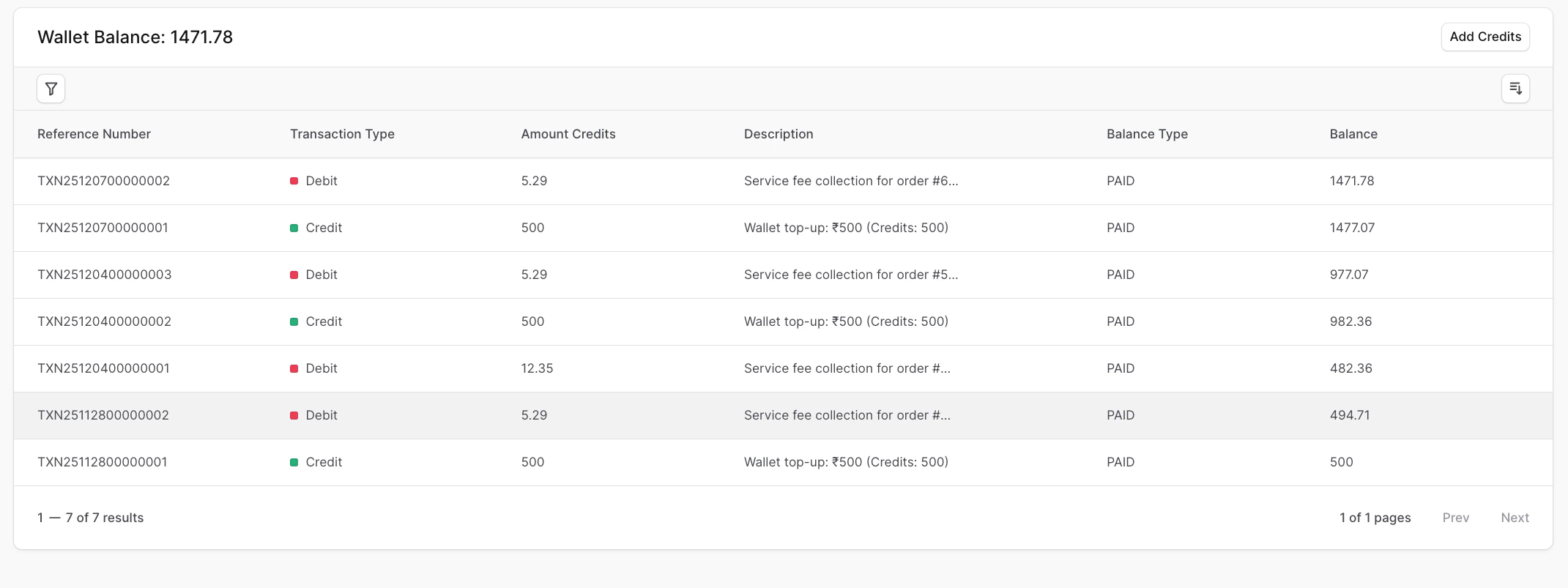
The Transaction History shows every credit and debit so you always know why your balance changed.
 ## Open the history
1. Go to **Wallet Page** by clicking the wallet card in the sidebar.
2. Scroll to the **Transaction History** table.
## What you’ll see
* **Reference**: Transaction reference number.
* **Type**: Credit or debit (for example, Top-up, Fee collection, Refund, Promotional grant).
* **Amount (credits)**: How many credits were added or deducted.
* **Description**: Plain-language reason (for example, “Order fee – Order #1234”).
* **Balance type**: Paid or Promotional.
* **Balance after**: Your wallet balance right after the transaction.
* **Date/Time**: When it happened.
## Filter and sort
* **Filter** by Balance Type (Paid or Promotional), Transaction Type, and Date Range to focus on specific activity.
* **Sort** by Transaction Type, Balance Type, or Balance to quickly spot large debits or credits.
* **Search tips**: Look for the order number or reference ID shown in the Description column.
## Examples
* A ₹100 order on a 3% plan shows a **debit of 3 credits** with “Order fee” in the description.
* A cancelled order shows a **credit** for the same percentage back.
* A promo code redemption shows a **credit** to the Promotional balance with the code name in the description.
If something looks unfamiliar, copy the Reference number and contact our support team using [discord](https://discord.gg/8zQdz8ZB3h) or email us at [support@commert.com](mailto:support@commert.com). They can trace the exact operation tied to that entry.
## Open the history
1. Go to **Wallet Page** by clicking the wallet card in the sidebar.
2. Scroll to the **Transaction History** table.
## What you’ll see
* **Reference**: Transaction reference number.
* **Type**: Credit or debit (for example, Top-up, Fee collection, Refund, Promotional grant).
* **Amount (credits)**: How many credits were added or deducted.
* **Description**: Plain-language reason (for example, “Order fee – Order #1234”).
* **Balance type**: Paid or Promotional.
* **Balance after**: Your wallet balance right after the transaction.
* **Date/Time**: When it happened.
## Filter and sort
* **Filter** by Balance Type (Paid or Promotional), Transaction Type, and Date Range to focus on specific activity.
* **Sort** by Transaction Type, Balance Type, or Balance to quickly spot large debits or credits.
* **Search tips**: Look for the order number or reference ID shown in the Description column.
## Examples
* A ₹100 order on a 3% plan shows a **debit of 3 credits** with “Order fee” in the description.
* A cancelled order shows a **credit** for the same percentage back.
* A promo code redemption shows a **credit** to the Promotional balance with the code name in the description.
If something looks unfamiliar, copy the Reference number and contact our support team using [discord](https://discord.gg/8zQdz8ZB3h) or email us at [support@commert.com](mailto:support@commert.com). They can trace the exact operation tied to that entry.