Order Claims Overview
If a customer receives faulty or incorrect items for an order, you can create a claim. A claim allows you to either replace or return an item for a customer, then issue a refund.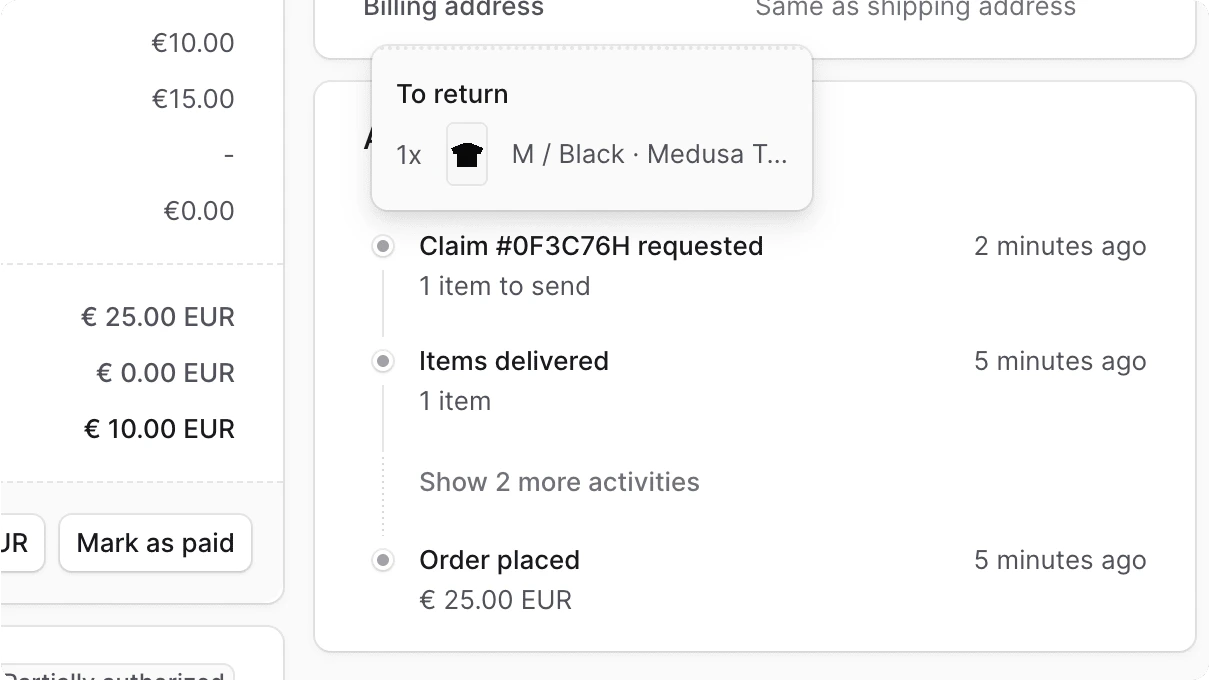
Create a Claim
Changes made by a claim can’t be canceled. Make sure to review the claim before confirming it.
- Go to an order’s details page.
- In the Summary section, click on the icon at the top right.
- Choose “Create Claim” from the dropdown.
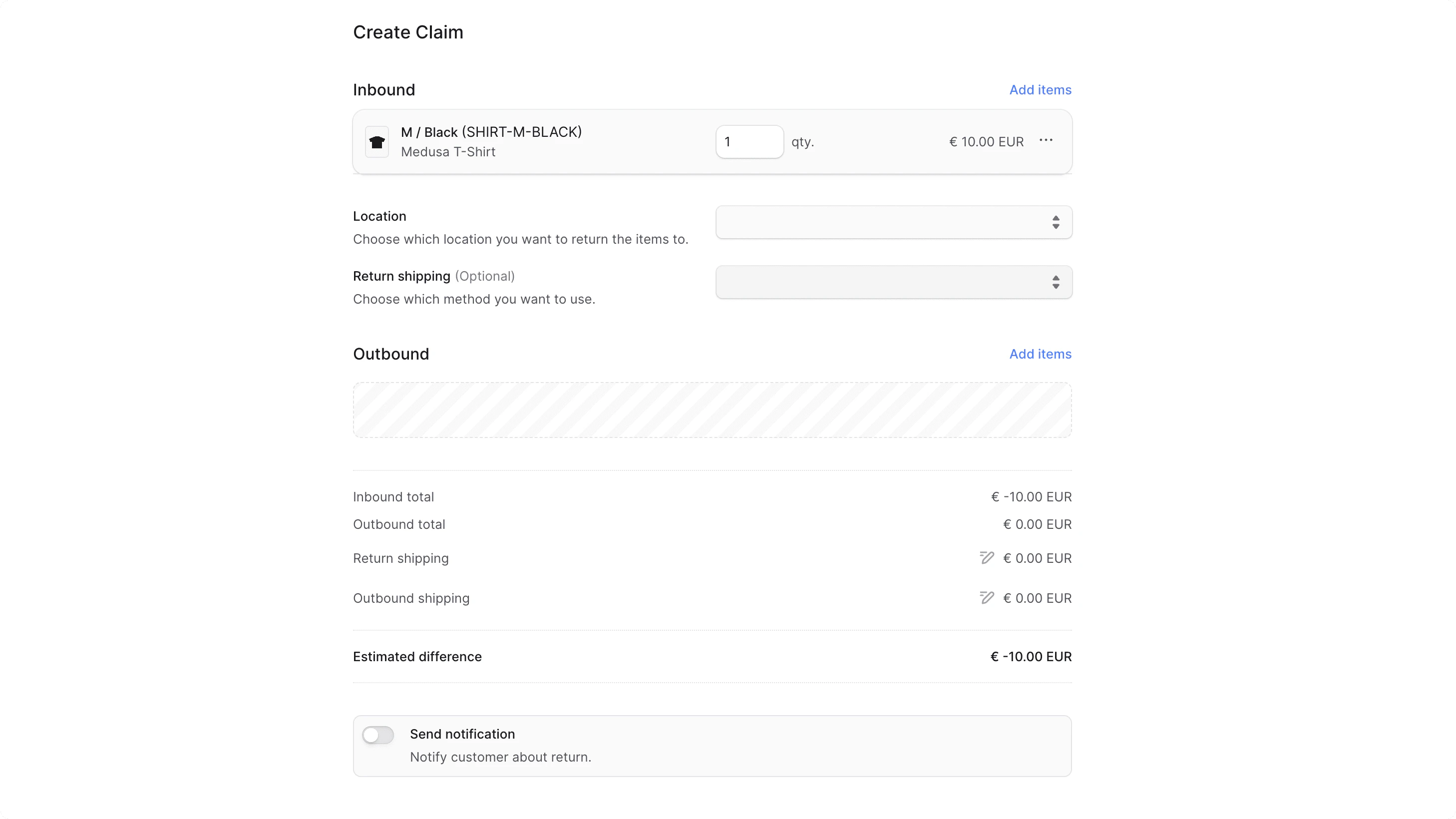
- In the form that opens:
- To add items to be returned:
- Click on the “Add items” button in the “Inbound” section.
- In the list that opens, click on the checkbox next to the items you want the customer to return.
- Once done, click on the “Save” button.
- You can then change the quantity to return or manage the item’s details by clicking the icon next to it.
- For the inbound items:
- For the Location field, choose the location to return the items to.
- For the Return Shipping field, you can optionally choose the shipping method to return the items with.
- Choosing a return shipping method adds its cost to the claim total. You can modify the cost by clicking the icon next to the Return Shipping total, then entering the new cost.
- You can optionally add an outbound item to be sent to the customer in replacement:
- Click on the “Add items” button in the “Outbound” section.
- In the list that opens, click on the checkbox next to the items you want to send to the customer.
- Once done, click on the “Save” button.
- You can then change the quantity to send or remove the item by clicking the icon next to it and choosing “Remove” from the dropdown.
- For outbound items, choose the shipping method used to send the items in the Outbound Shipping field.
- The shipping method’s cost is added to the claim total. To edit its cost:
- Click the icon next to the Outbound Shipping total.
- Enter the new cost in the input shown.
- The shipping method’s cost is added to the claim total. To edit its cost:
- If you want the customer to receive a notification that a claim has been created, check the “Send notifications” toggle.
- To add items to be returned:
- Once done, click on the “Confirm Claim” button, then confirm the action by clicking the “Continue” button in the pop-up.