

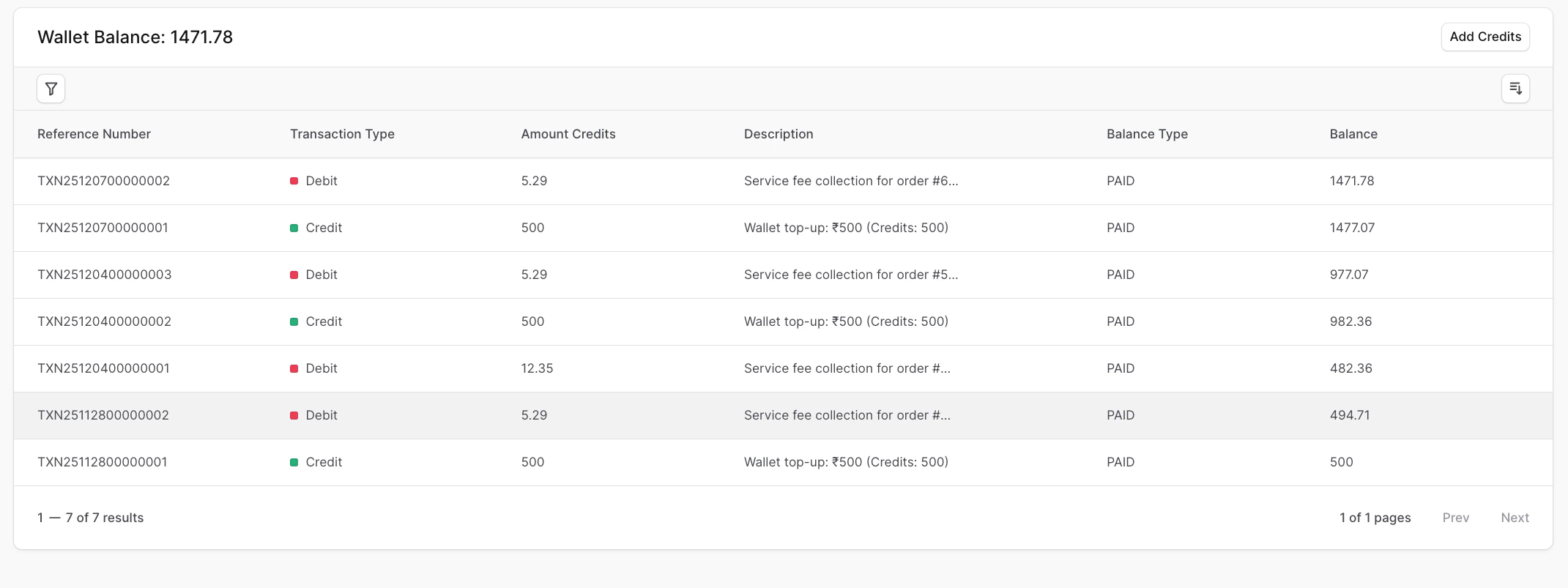
Open the history
- Go to Wallet Page by clicking the wallet card in the sidebar.
- Scroll to the Transaction History table.
What you’ll see
- Reference: Transaction reference number.
- Type: Credit or debit (for example, Top-up, Fee collection, Refund, Promotional grant).
- Amount (credits): How many credits were added or deducted.
- Description: Plain-language reason (for example, “Order fee – Order #1234”).
- Balance type: Paid or Promotional.
- Balance after: Your wallet balance right after the transaction.
- Date/Time: When it happened.
Filter and sort
- Filter by Balance Type (Paid or Promotional), Transaction Type, and Date Range to focus on specific activity.
- Sort by Transaction Type, Balance Type, or Balance to quickly spot large debits or credits.
- Search tips: Look for the order number or reference ID shown in the Description column.
Examples
- A ₹100 order on a 3% plan shows a debit of 3 credits with “Order fee” in the description.
- A cancelled order shows a credit for the same percentage back.
- A promo code redemption shows a credit to the Promotional balance with the code name in the description.
If something looks unfamiliar, copy the Reference number and contact our support team using discord or email us at [email protected]. They can trace the exact operation tied to that entry.