

What is a Domain?
A domain is the web address customers type to reach your store, likemystore.com. Your store can have more than one domain, but one of them is always the primary domain — the main address where your store is served.
The Domain You Get by Default
When your store is created, Commert automatically gives you a free subdomain in the formyour-store.commert.store. This subdomain is:
- Primary — your store opens on it right away, with no setup needed.
- The default domain — it can’t be deleted, so your store always has a working address to fall back on.
mystore.com) when you’re ready.
Domain Types
- Subdomain — a free address provided by Commert that ends in
.commert.store. It works instantly. - Custom Domain — a domain you already own (like
mystore.com). It needs a few DNS records before it goes live.
A store can have up to 2 domains in total, and at most 1 custom domain.
View Domains
To view the domains connected to your store, go to Settings → Domains. Here you can see every domain, its type, whether it’s the primary domain, and its status.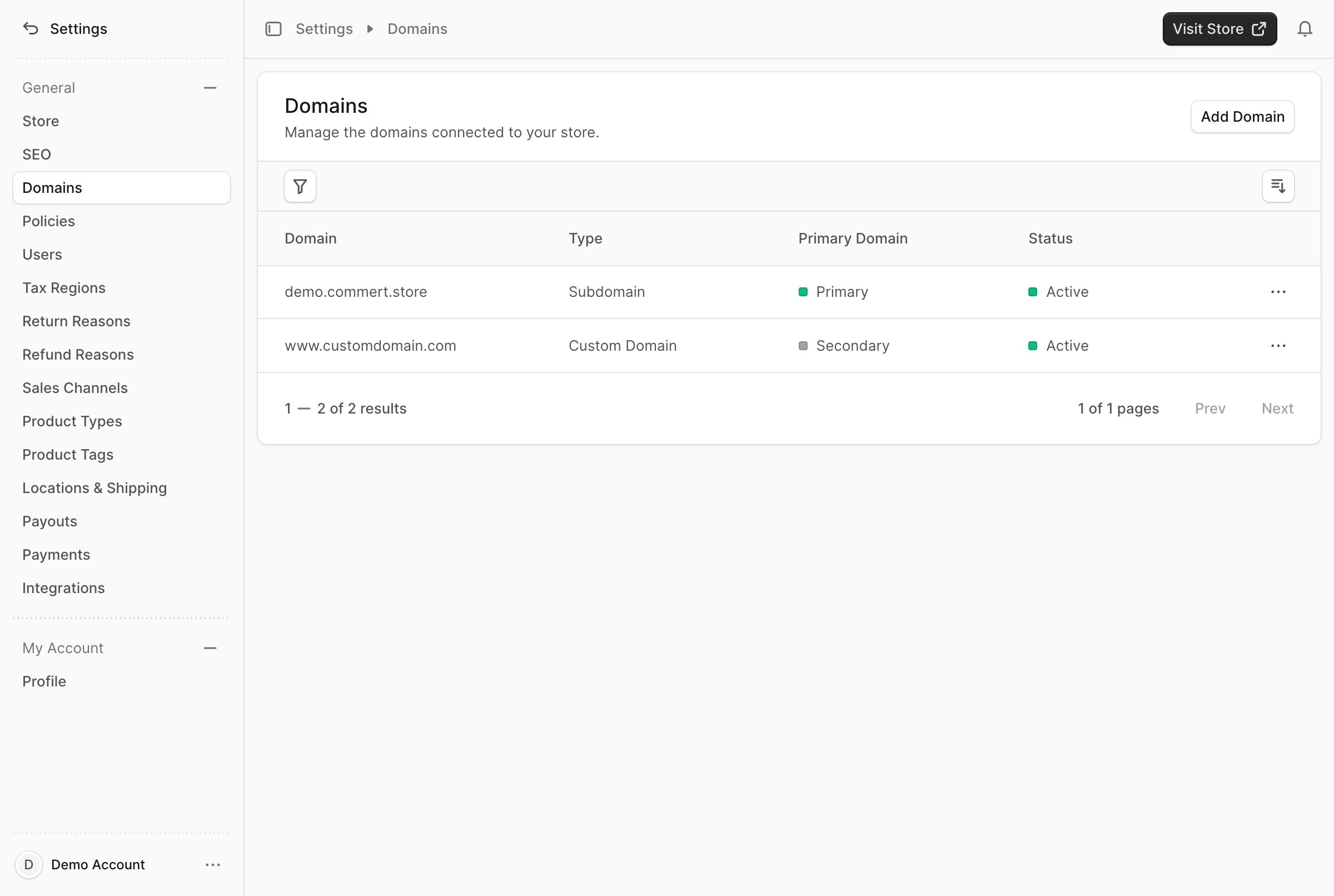
Add a Domain
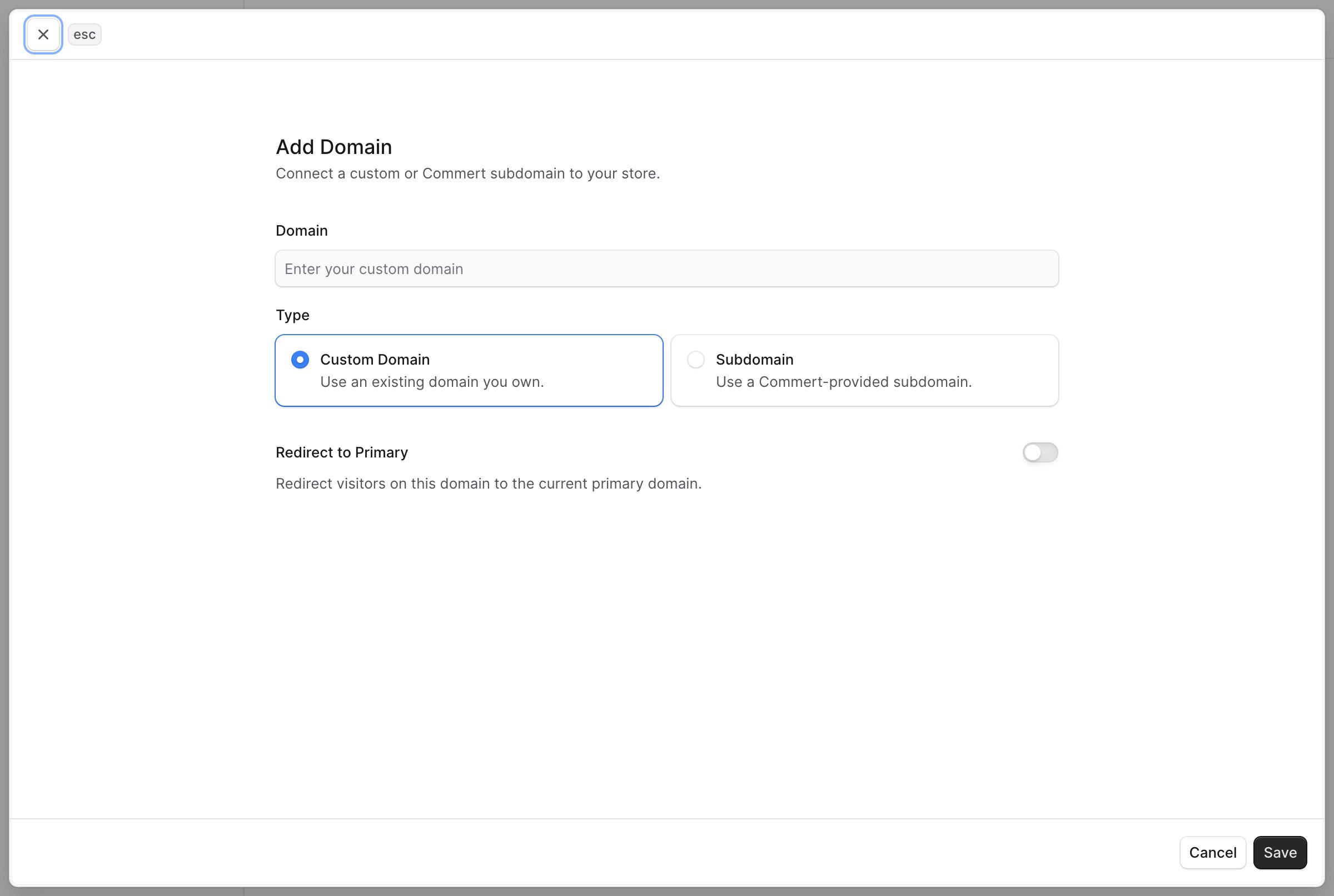
To add a domain:- Go to Settings → Domains.
- Click the “Add Domain” button at the top right.
- In the form that opens:
- In the Domain field, enter the domain. For a custom domain, enter the address you own (like
www.mystore.com). For a subdomain, enter the name you want before.commert.store. - Under Type, choose “Custom Domain” or “Subdomain”.
- Turn on “Redirect to Primary” if you want visitors on this domain to be sent to your primary domain instead. (More on this below.)
- In the Domain field, enter the domain. For a custom domain, enter the address you own (like
- Click the Save button.
Connect a Custom Domain
After you add a custom domain, open it from the list to see its DNS configuration. To make your domain point to your store, add the listed records at your domain registrar (the company you bought the domain from, like GoDaddy or Namecheap).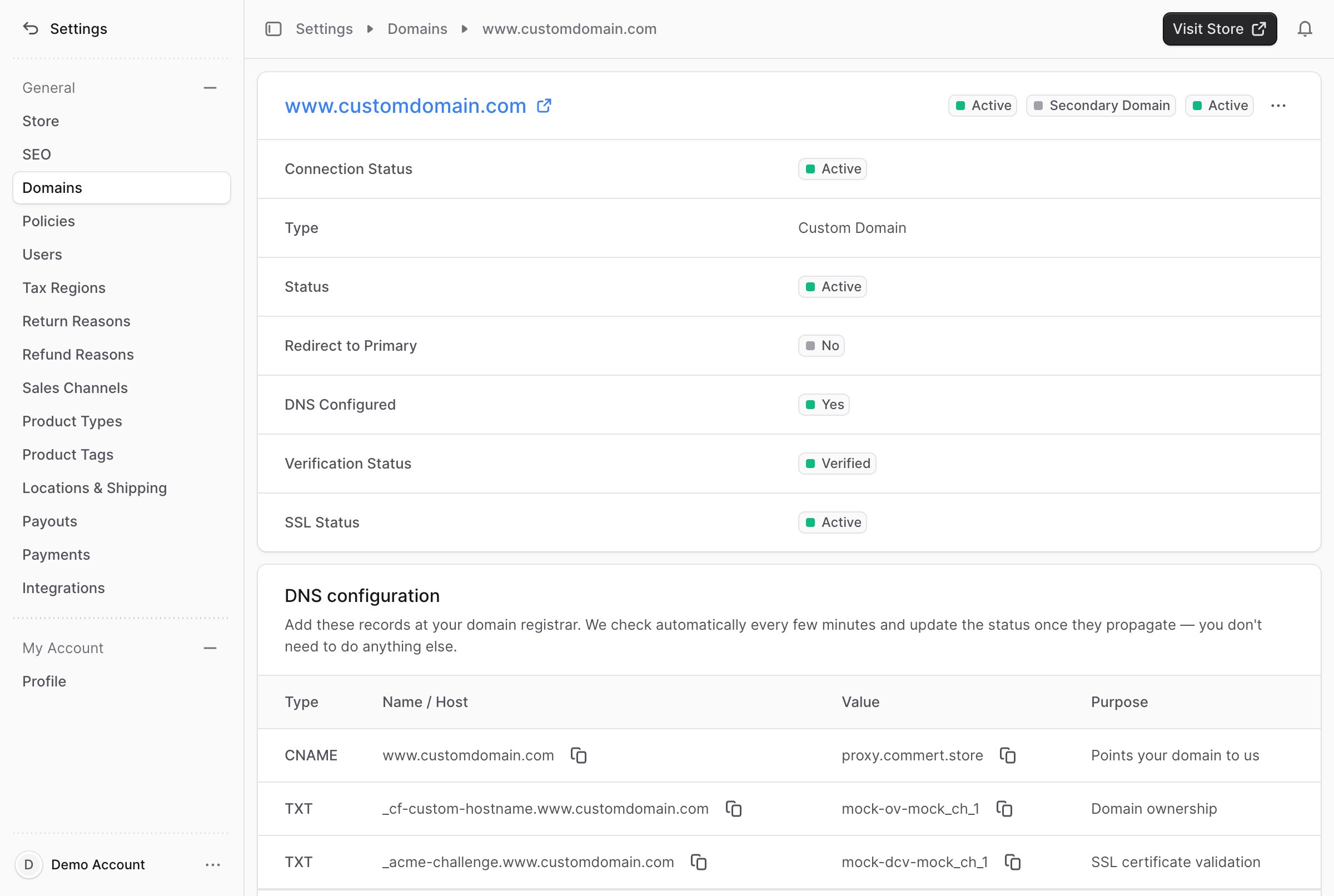
- A CNAME record that points your domain to Commert.
- TXT records that prove you own the domain and let Commert issue an SSL certificate (so your store loads securely over
https).
Redirect Your Root Domain to www
A root domain (also called the apex), likemystore.com without www, usually can’t point to us directly. So if a customer types mystore.com, set up a redirect to your www address so they still reach your store at www.mystore.com.
You set this up once at your domain registrar (where you bought the domain). On the custom domain’s details page, the “Redirect your root domain” section shows the exact settings to enter:
- Forward from:
mystore.com(your root/apex domain) - Forward to:
https://www.mystore.com(yourwwwaddress) - Redirect type: Permanent (301)
- URL masking / forwarding with masking: Off — it must be a real redirect, not a frame.
http://mystore.com should automatically take visitors to https://www.mystore.com.
This apex redirect is set up at your registrar, so Commert can’t verify it automatically. To confirm it works, open your root domain in a browser and check that it lands on the
www address.Domain Statuses
The details page shows a few statuses that tell you whether your domain is ready:- Connection Status — whether the domain is connected and serving your store.
- Verification Status — whether your DNS records have been confirmed (Pending, Verified, or Failed).
- SSL Status — whether the secure certificate is ready (Pending, Active, or Failed).
- DNS Configured — whether the required records are in place.
Set the Primary Domain
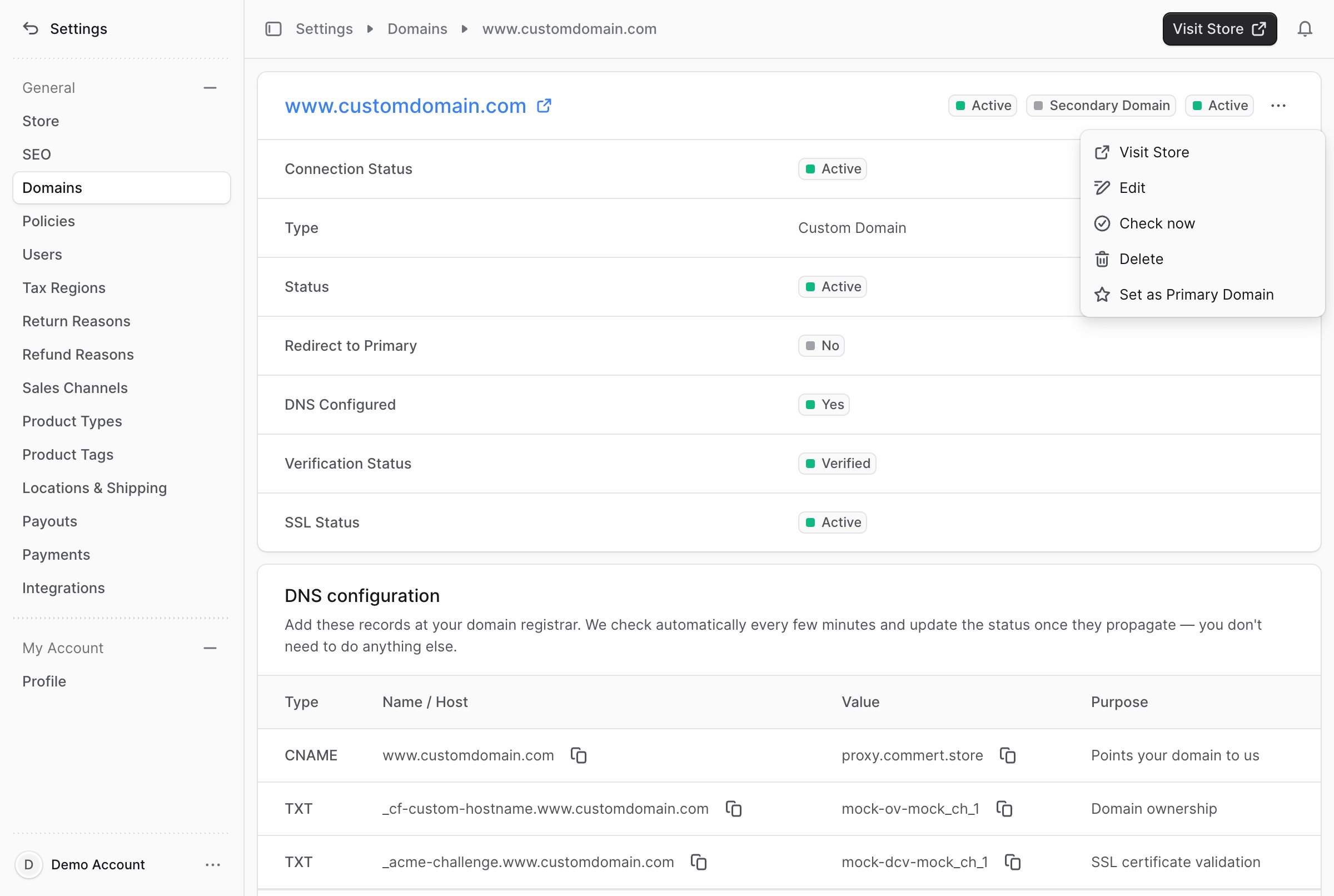
The primary domain is the main address where your store is served. Your store always has exactly one primary domain. To make another domain the primary:- Go to the domain’s details page.
- Click the icon at the top right of the first section.
- Choose “Set as Primary Domain”.
- A domain must be active before it can become primary.
- A custom domain must be verified with an active SSL certificate before it can become primary. This protects your store from going to an address that isn’t ready yet.
Redirect to Primary
If you have more than one domain, you can send visitors from a secondary domain to your primary one. Turn on “Redirect to Primary” for the secondary domain (while adding it or by editing it). For example, if your primary domain iswww.mystore.com and you turn this on for shop.mystore.com, anyone who opens shop.mystore.com is automatically taken to www.mystore.com. This keeps a single, consistent address for your store.
Edit a Domain
To edit a domain:- Go to the domain’s details page.
- Click the icon at the top right of the first section.
- Choose Edit from the dropdown.
- In the side window that opens, you can change whether the domain is active, and whether it redirects to the primary domain.
- Click the Save button.
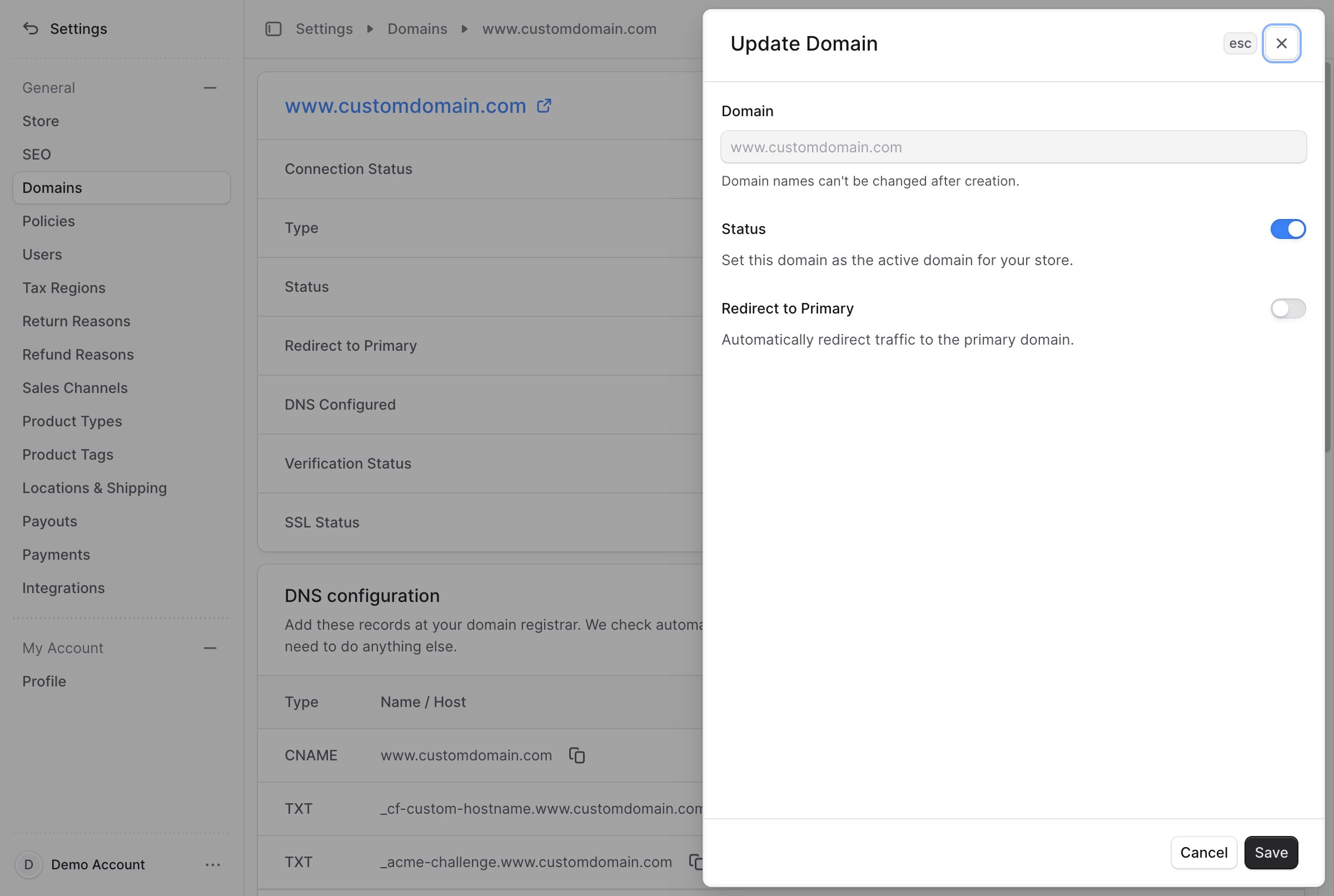
You can’t deactivate the primary domain. Make another domain primary first.
Delete a Domain
Deleting a domain is irreversible.
- Go to the domain’s details page.
- Click the icon at the top right of the first section.
- Choose Delete from the dropdown.
- Confirm the deletion in the pop-up.
- The primary domain. Set another domain as primary first, then delete this one.
- The default subdomain (
your-store.commert.store). It always stays so your store keeps a working address.