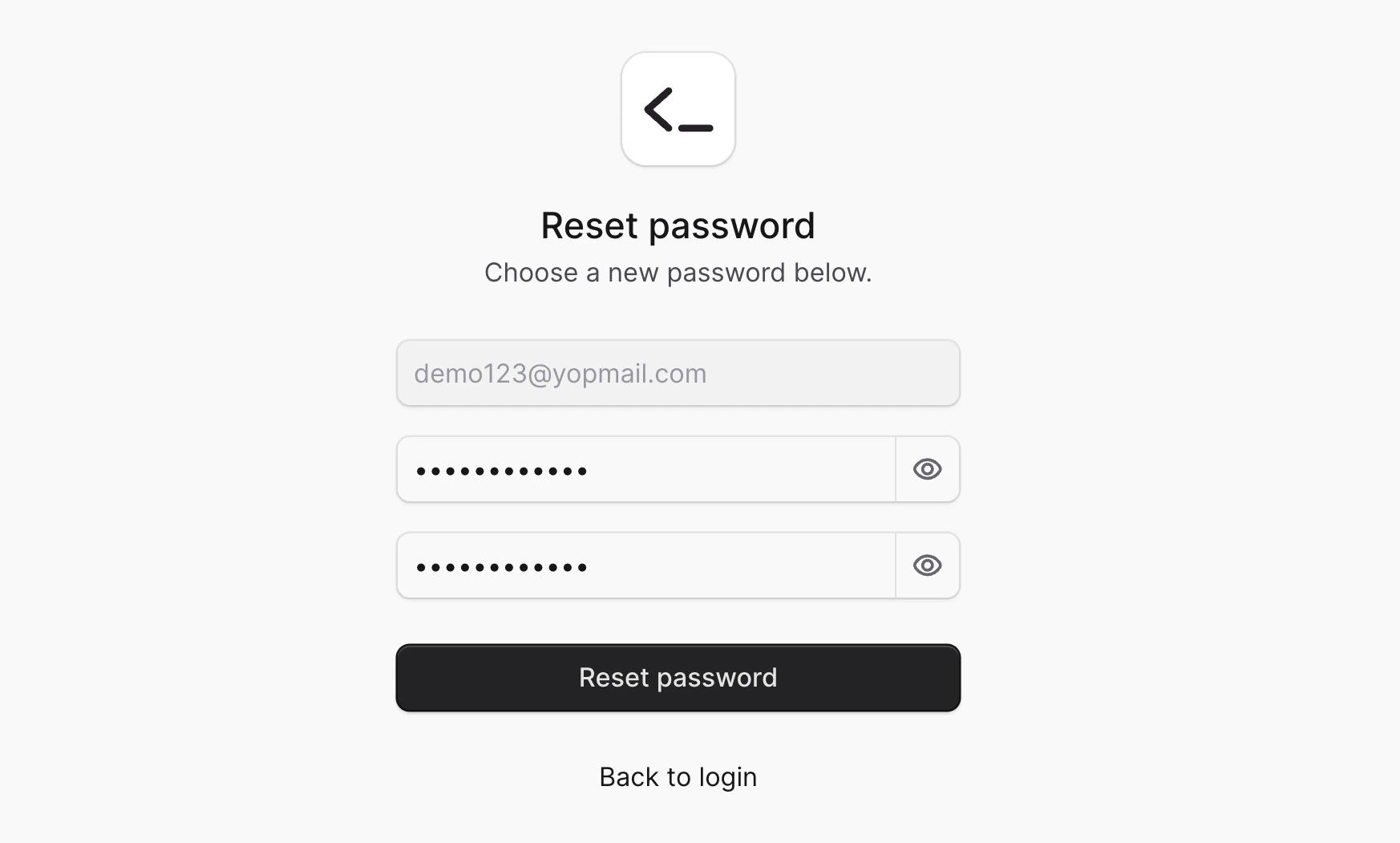
1. Request to Reset Password
Before resetting your password, you must request the reset, which will send you an email with instructions to reset your password. To reset your password:- Open the Commert Admin dashboard.
- Click on “Reset” below the login form.
- In the Reset Password form, enter your email address.
- Click the “Send reset instructions” button.
If you don’t receive an email, check with your technical team to ensure they have installed a Notification Module Provider and configured the password reset notification.
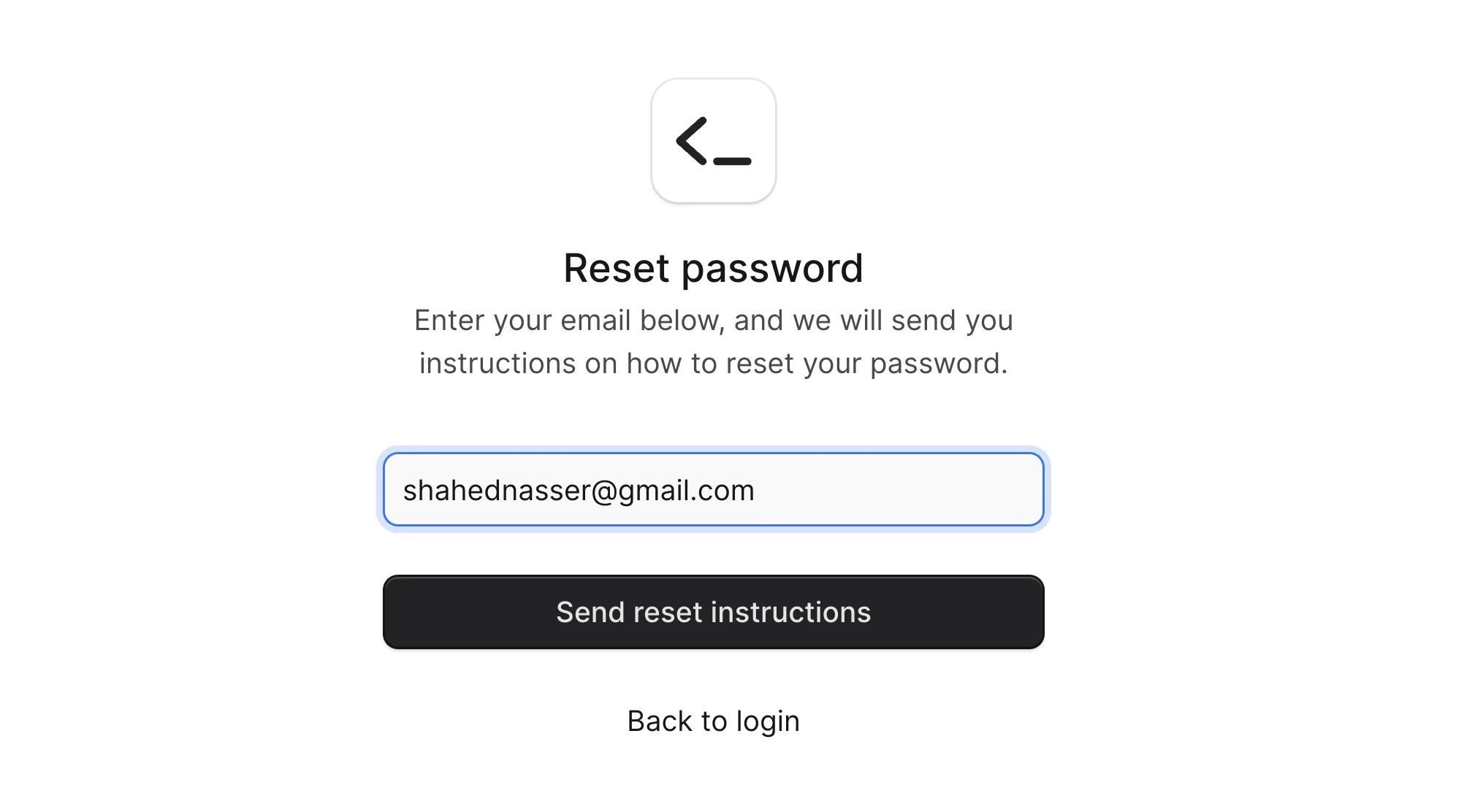
2. Reset Password
After you’ve requested to reset the password, you can reset your password using the link in the email you received. To reset your password:- Open the link in the email you received.
- In the Reset Password form, enter your new password and confirm it.
- Click the “Reset password” button.