Order Returns Overview
After items have been delivered to the customer, they can return the items for a refund. These items are added back to stock or marked as damaged.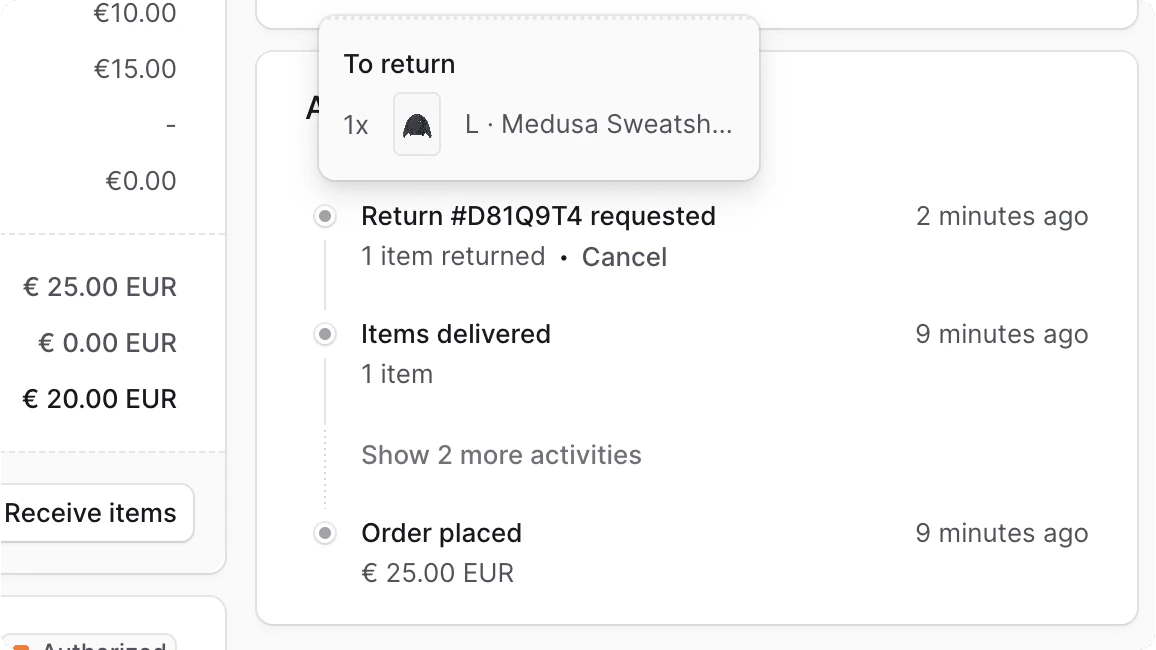
- The customer requests a return for an order through the storefront, which you can view in the Commert Admin dashboard;
- Or you can create a return and inform the customer about it.
Find Return Requests of an Order
To find return requests of an order:- Open the order’s details page.
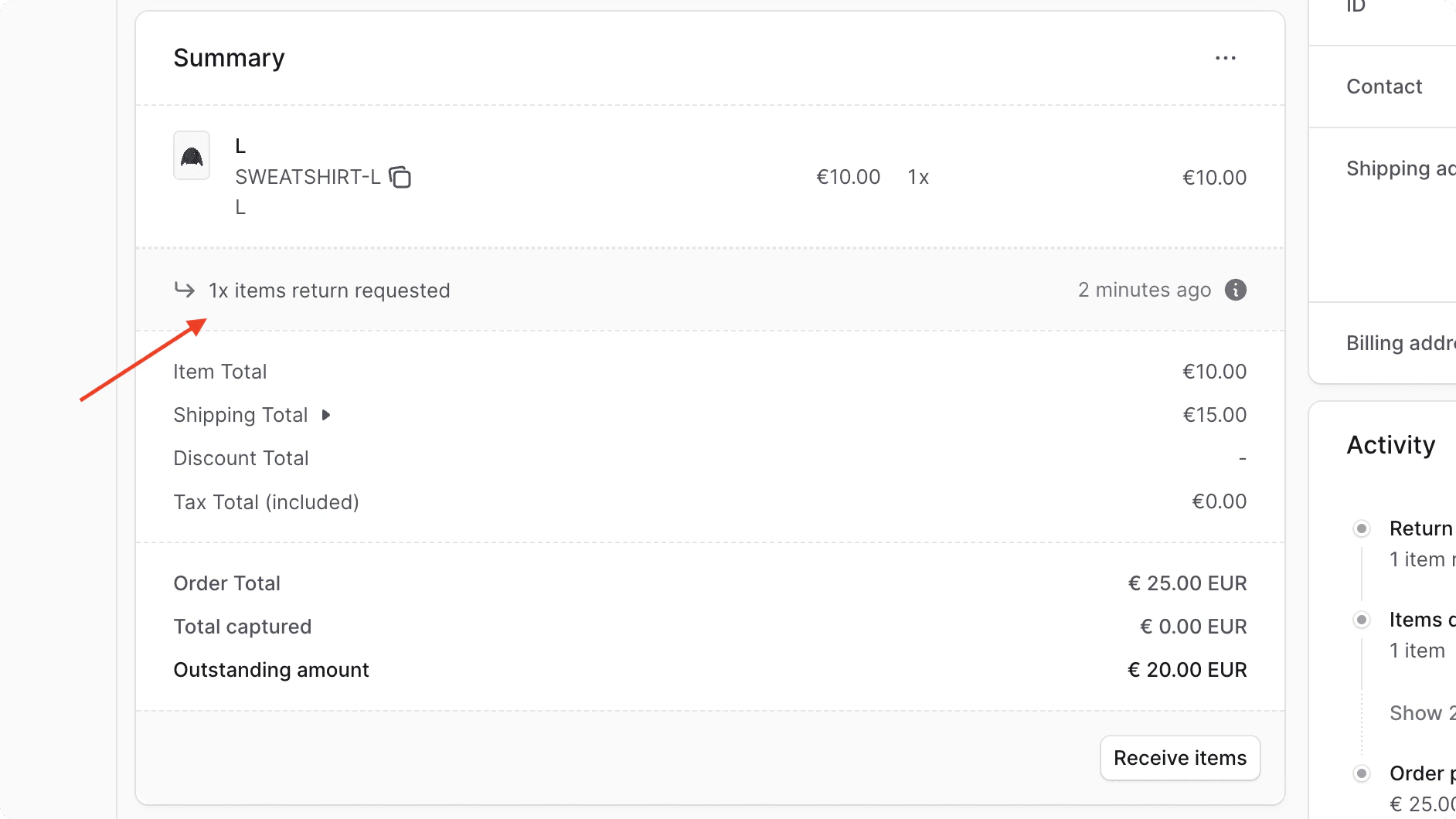
- In the Activity section, you’ll find that a return was requested, which you can manage.
Create an Order Return
You can create a return from the Commert Admin for delivered items in an order. To create a return for an order:- Open the order details page.
- In the Summary section, click on the icon at the top right.
- Choose “Create Return” from the dropdown.
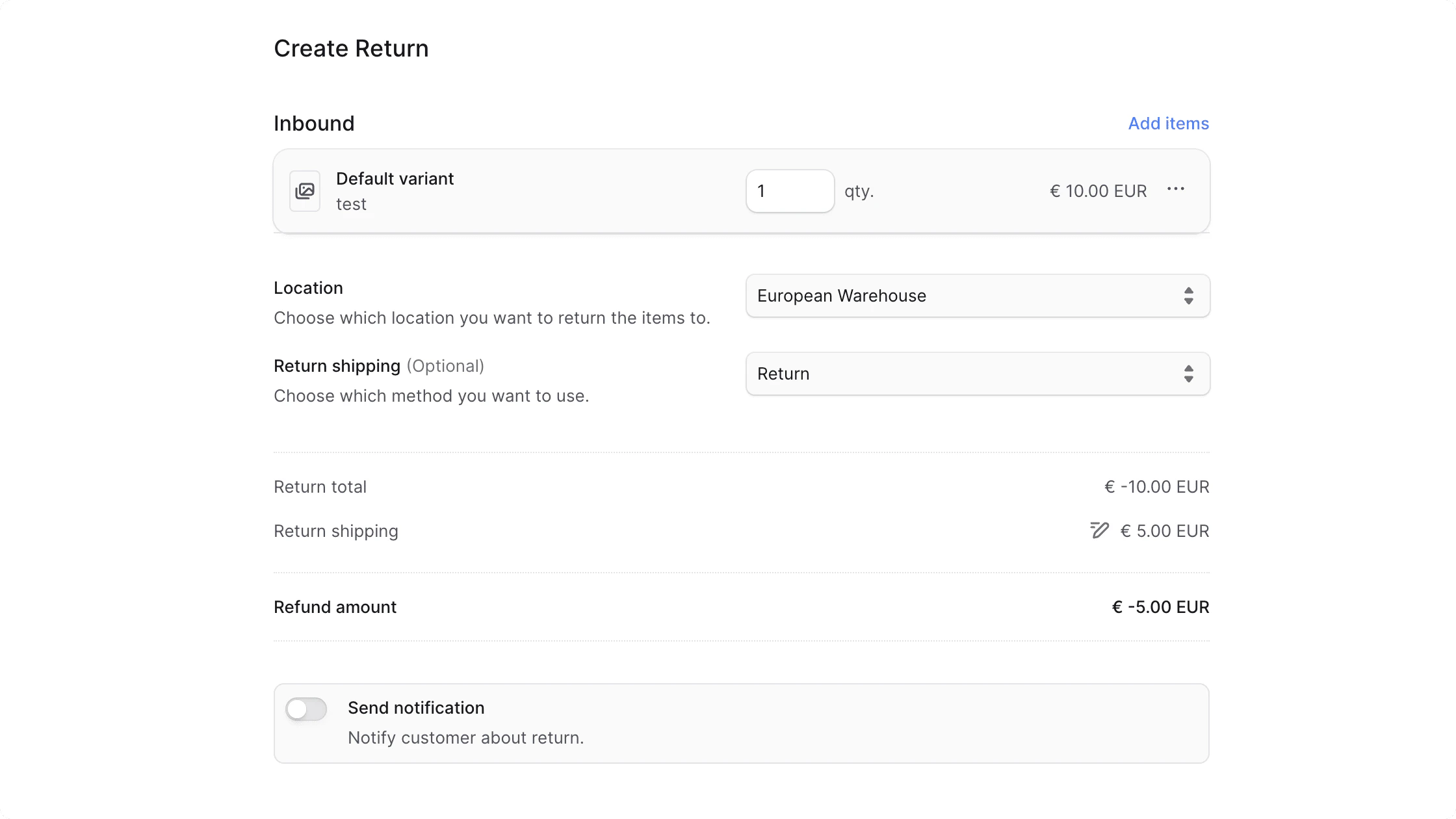
- In the form that opens:
- To add items to return:
- Click on “Add items” in the “Inbound section”.
- In the list that opens, click on the checkbox next to the items you want the customer to return.
- Once done, click on the “Save” button.
- You can edit the quantity of the items to return by editing the input next to the inbound item.
- To add a reason for the returned item:
- Click on the icon next to the item.
- Choose “Add Reason” from the dropdown.
- In the Reason select input shown, choose the reason for the return. You can add return reasons in the Settings to choose from.
- To add a note for the returned item:
- Click on the icon next to the item.
- Choose “Add Note” from the dropdown.
- To remove an inbound item from the return:
- Click on the icon next to the item.
- Choose “Remove” from the dropdown.
- For the Location input, specify the location to return the items to.
- While you can choose a location that the item doesn’t have inventory in, later, you can’t receive the item unless you add inventory for the item’s variant in the chosen location.
- For the “Return shipping” field, you can optionally choose a shipping option to use to return the item, subtracting the shipping cost from the return total, which is refunded to the customer.
- To modify the return shipping’s cost:
- Click the icon next to the Return Shipping total.
- Enter the new cost in the input shown.
- To modify the return shipping’s cost:
- If you don’t want the customer to receive a notification that a return has been created, uncheck the “Send notifications” toggle.
- To add items to return:
- Once you’re done, click the “Confirm Return” button to create the return, then confirm the action by clicking the “Continue” button in the pop-up.
Mark Return Items as Received
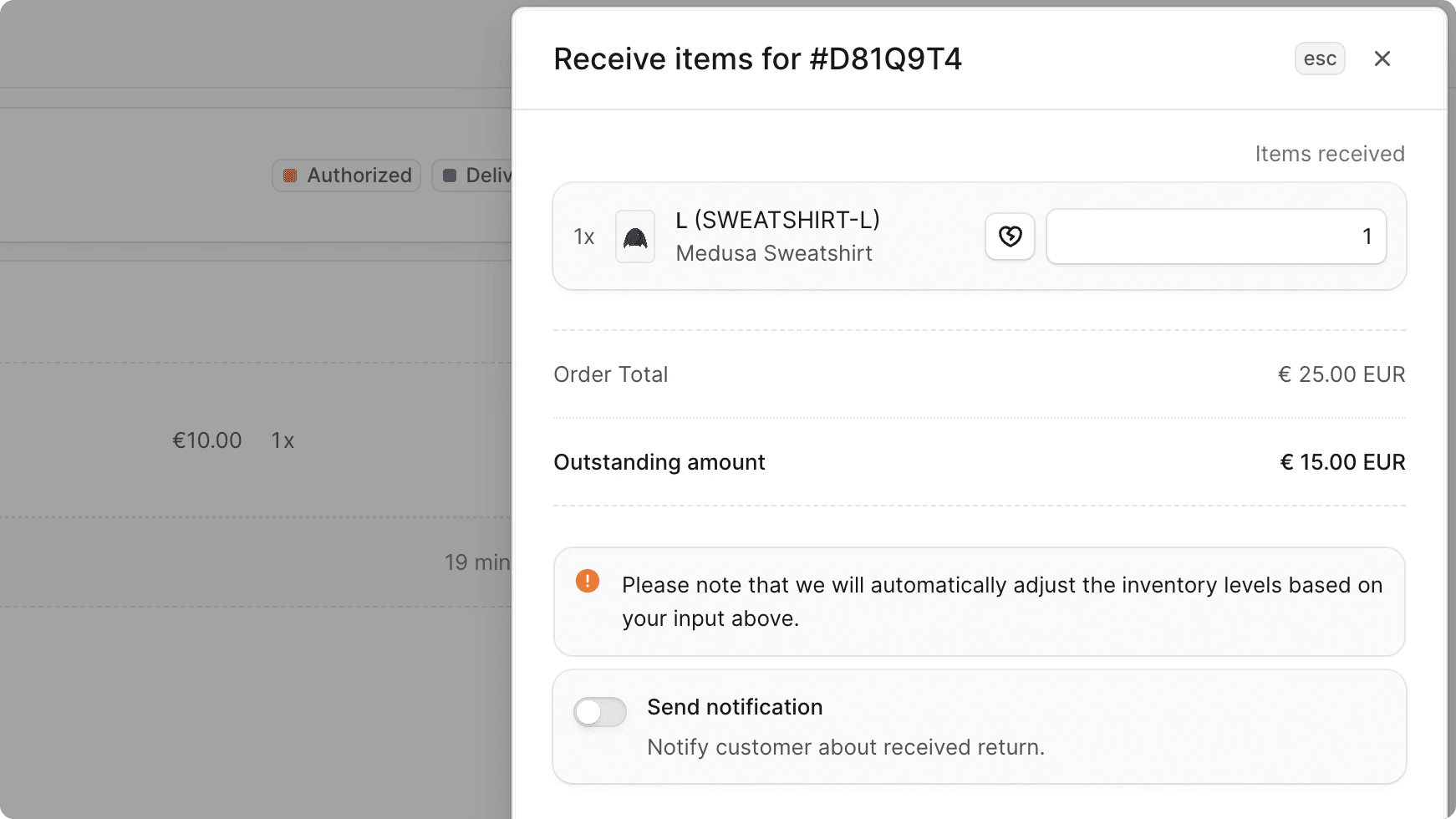
Once the customer returns the item, you can mark it as received. This triggers a refund to the customer and the non-damaged item quantity is added to the stock quantity in the inventory. To mark return items as received:- Open the order’s details page.
- In the Summary section, click on the “Receive items” button.
- In the side window that opens:
- For each item part of the return:
- Enter the quantity that isn’t damaged and can be added back into the stock in the input shown next to the item.
- To add damaged quantity:
- Decrement the quantity that isn’t damaged by the damaged amount.
- Click on the button next to the item.
- Enter the damaged quantity.
- To notify the customer that the return is received, check the “Send notifications” toggle.
- For each item part of the return:
- Once done, click on the “Save” button.
Cancel Requested Return
You can cancel a return, whether requested by the customer or that you created.Canceling a return is irreversible. The customer would have to request a new return or you can create a return request.
- In the Activity section, click on Cancel next to the Return Request item.
- Confirm the cancellation by clicking on the “Confirm” button in the pop-up.
Refund Customer for a Return
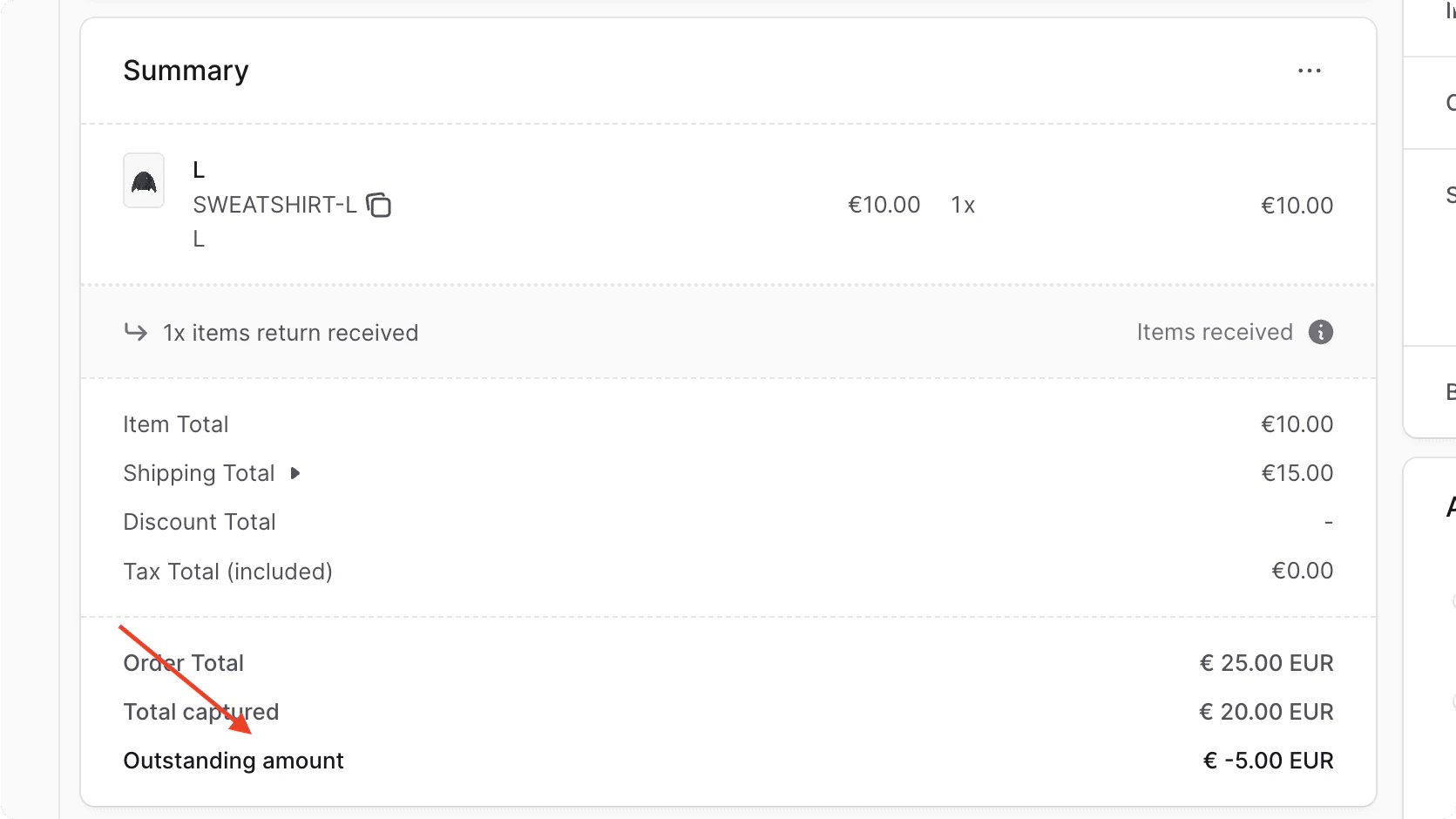
If a return causes an outstanding amount, you can see it in the Summary section of an order. To learn how to refund the payment, refer to this guide.