

What’s a Return Reason?
A return reason is useful when returning an item in an order. It’s used to specify why an item is being returned. For example, a customer might return an item because it’s damaged, the wrong size, or they changed their mind. To specify the return reason when creating a return, exchange, or claim, you can choose from a list of return reasons that you’ve set up in your settings.View Return Reasons
To view return reasons in your store, go to Settings → Return Reasons. Here, you can see a list of all the return reasons you have set up in your store. You can also search, filter, and sort the return reasons to find the one you are looking for.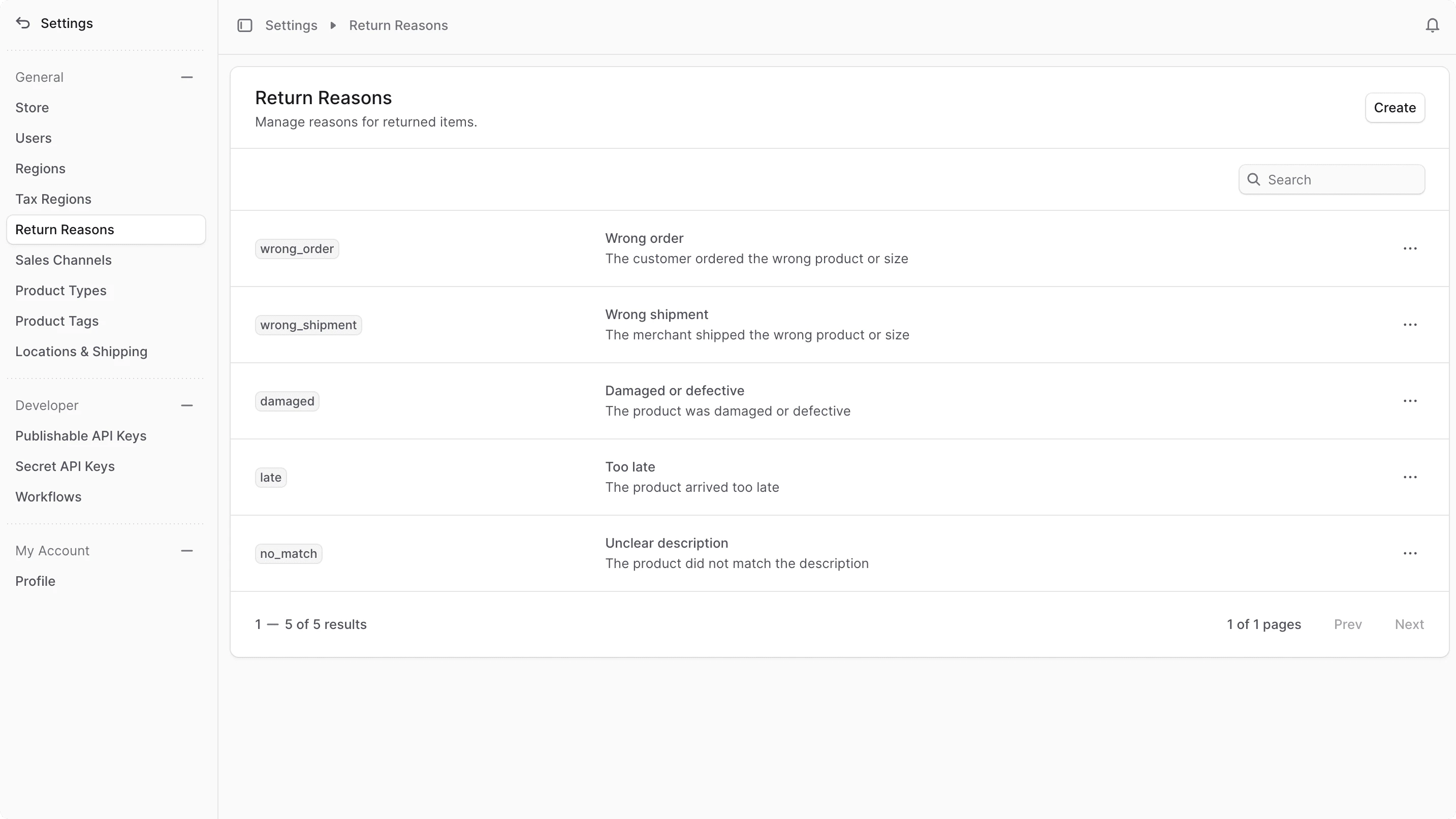
Create Return Reason
To create a return reason:- Go to Settings → Return Reasons.
- Click the Create button at the top right.
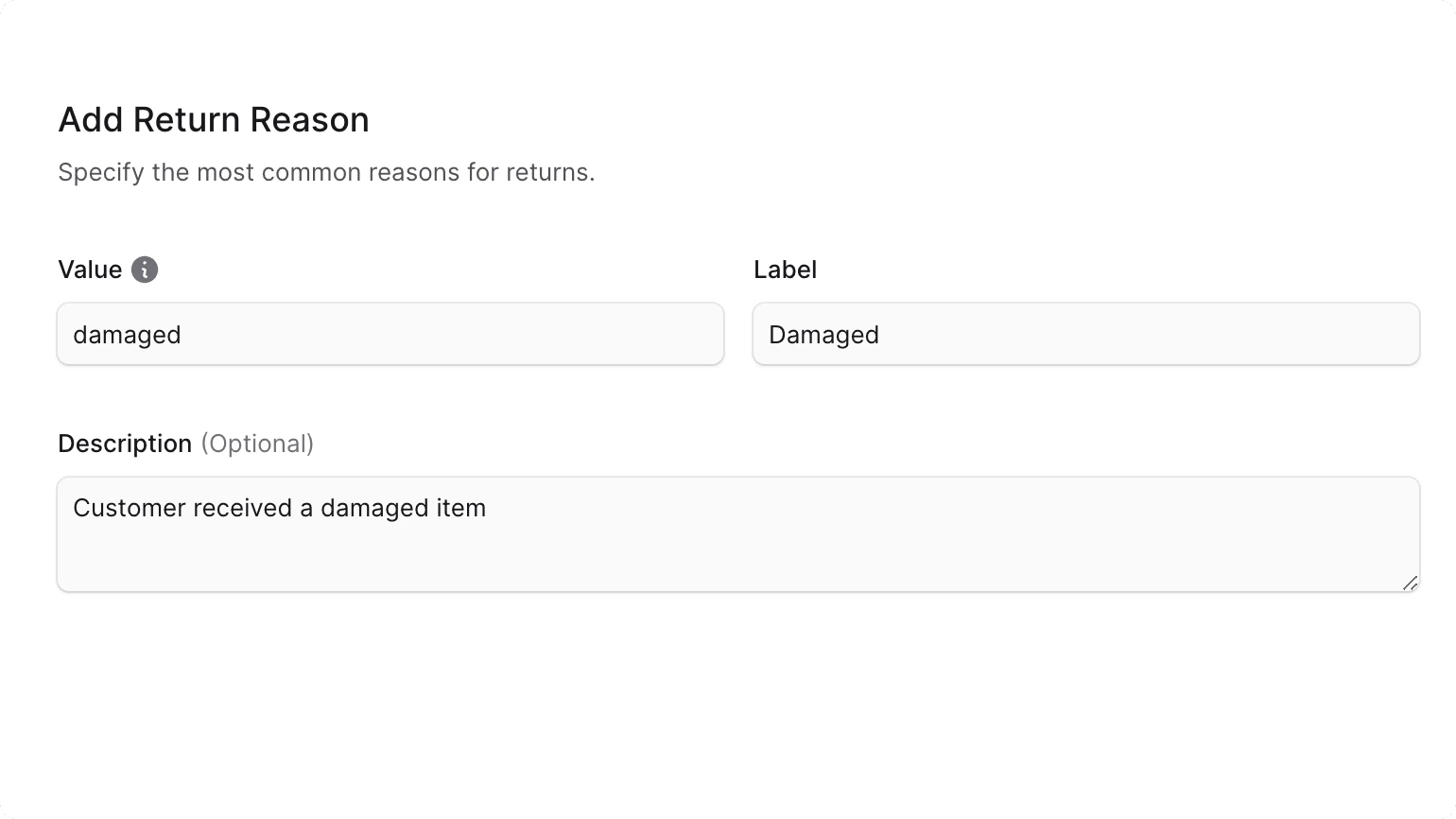
- In the form that opens:
- Enter in the Value field a unique identifier for the reason that’s used internally. It’s recommended to use only lowercase letters and underscores (
_). For example, “damaged” or “wrong_size”. - Enter in the Label field what is shown to customers or admin users.
- You can optionally enter a description of the return reason in the Description field.
- Enter in the Value field a unique identifier for the reason that’s used internally. It’s recommended to use only lowercase letters and underscores (
- Once done, click the Save button.
Edit a Return Reason
To edit a return reason:- Go to Settings → Return Reasons.
- Find the return reason to edit and click the icon at its right.
- Choose Edit from the dropdown.
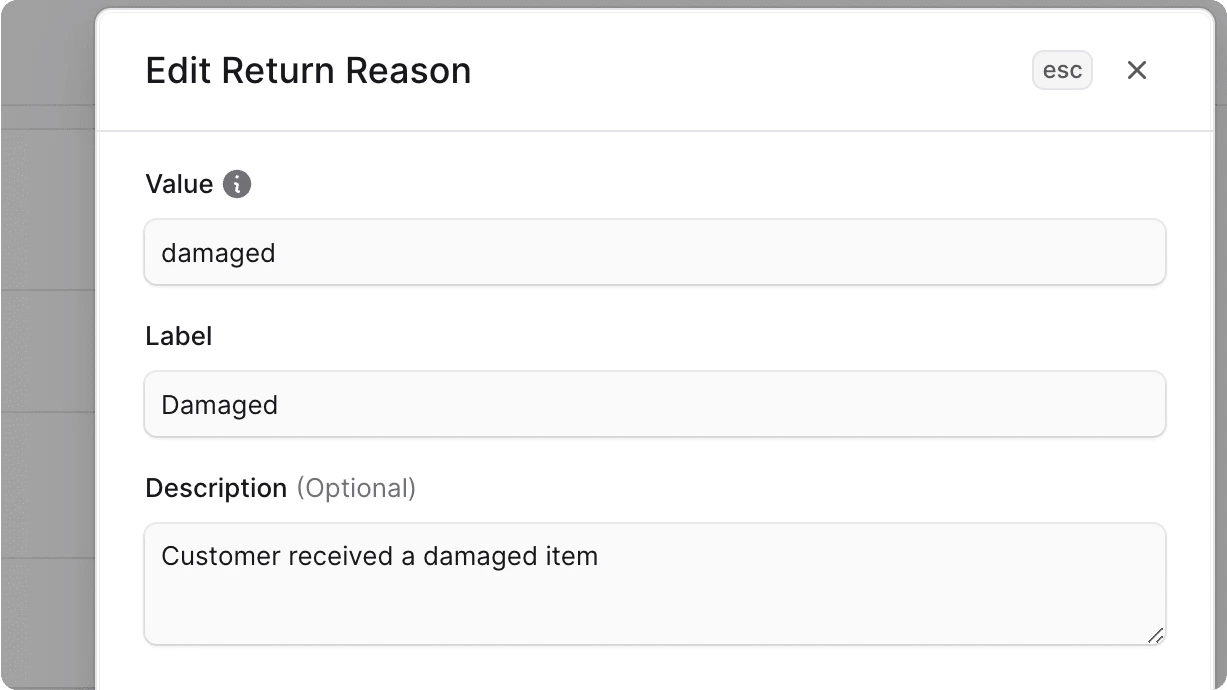
- In the side window that opens, you can edit the return reason’s value, label, and description.
- Once you’re done, click the Save button.
Delete a Return Reason
Deleting a return reason is irreversible.
- Go to Settings → Return Reasons.
- Find the return reason to delete and click the icon at its right.
- Choose Delete from the dropdown.
- Confirm deleting the return reason by clicking the Delete button in the pop-up.