

Find Your Theme
- Go to Settings → Themes.
- The theme your store uses has a green Currently applied badge.
Pick Your Theme’s Guide
Each guide follows that theme’s home page from top to bottom, says what fills each section and where you set it in the admin, and shows a demo store on that theme. Each demo store sells something that suits its theme: shoes on Mania, winter outerwear on Fleek, home and lifestyle products on Minimal, fashion on Nora and art on Impression. The Pebble guide uses a children’s clothing store called little PEBBLE. (little PEBBLE is the store’s name. It isn’t the Pebble theme.)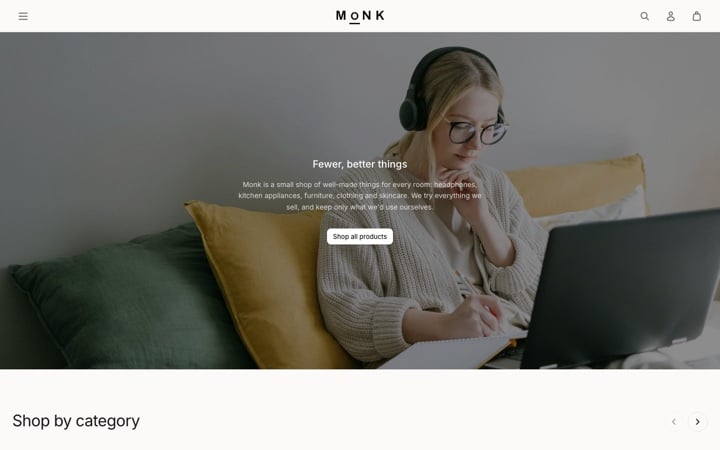
Minimal
The simplest layout: a banner, category cards and up to three collection rows.
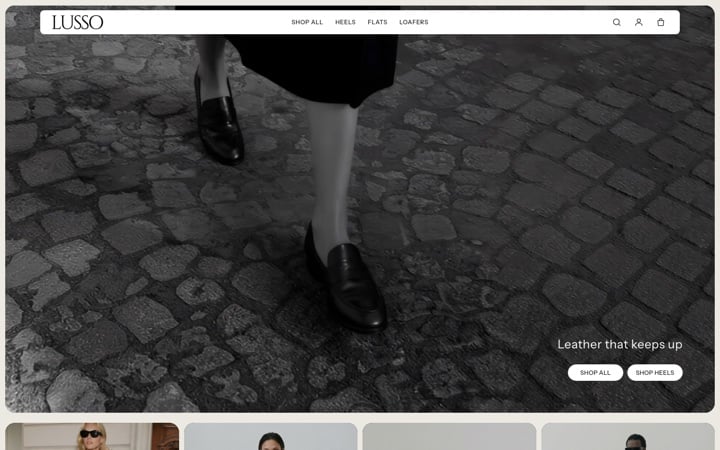
Mania
Warm background, rounded photo cards and pill buttons. Every collection with products gets a
row.
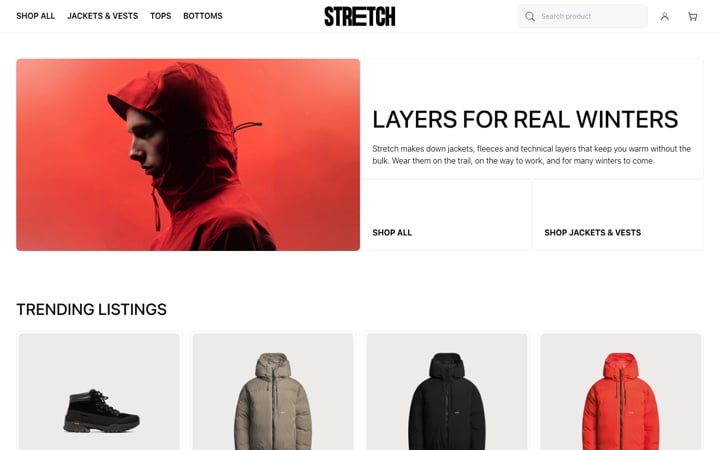
Fleek
Big uppercase headings and bold colour blocks, with your newest products right under the
banner.
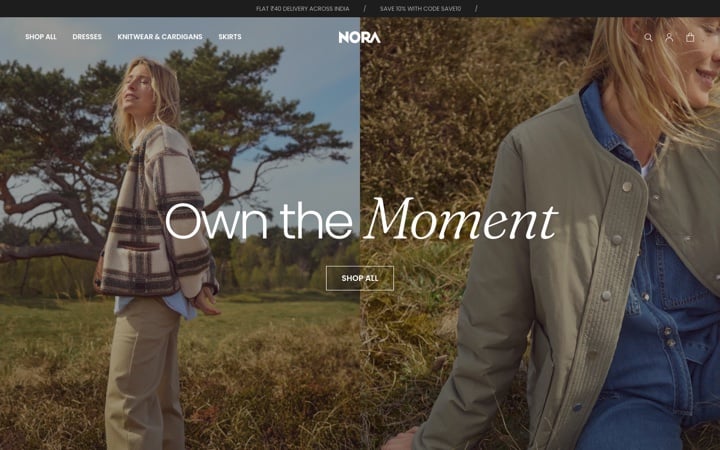
Nora
White and near-black, with a full-screen banner and your description as a large statement.
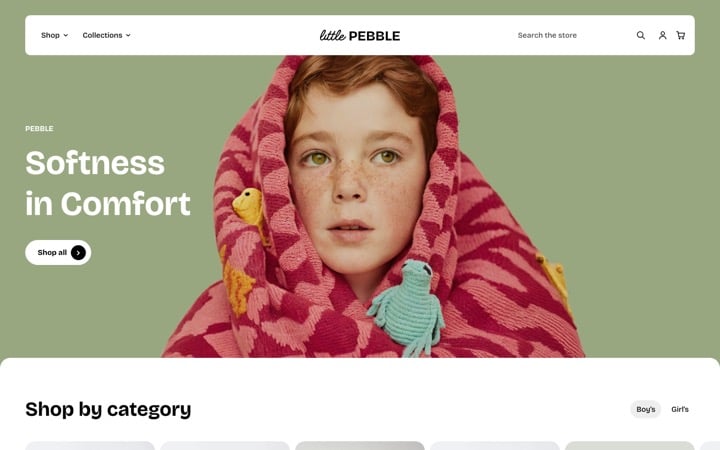
Pebble
Soft pastel sections and round buttons. It has more home page sections than any other theme.
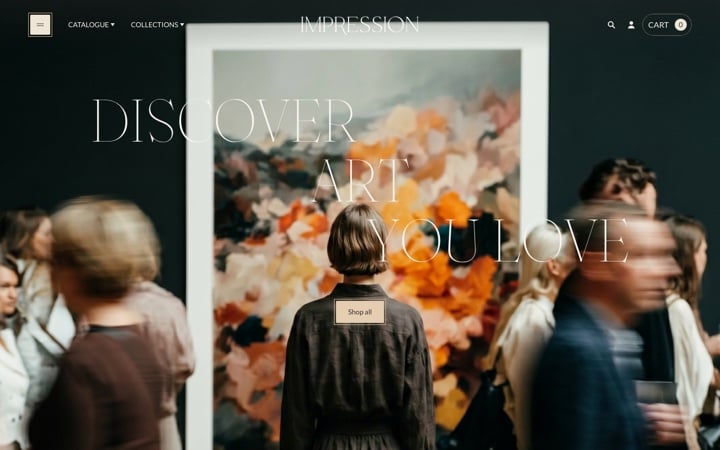
Impression
A gallery look: very large light headings, linen backgrounds and photos shown uncropped.
Start Here, Whatever Your Theme
These six things show up in every theme, so they’re worth doing before anything else. Each theme’s guide explains exactly where they appear.- Logo. Go to Settings → Store and click the square logo tile next to the “Store” heading.
- Hero banners. In Settings → Store, find the Hero banners section and upload a Desktop banner (16:9, at least 1920 × 1080 px) and a Mobile banner (4:5, at least 1080 × 1350 px).
- Tagline and description. In Settings → Store, click the icon and choose Edit. The tagline is the big heading on the banner in every theme.
- Categories with photos. Only categories that have at least one product appear on the home page. See Manage Product Categories.
- Collections with photos. See Manage Product Collections.
- A thumbnail for every product. Product cards show the product’s thumbnail in every theme. See Set Thumbnail Image.
If you haven’t uploaded a hero banner but you have set a Social sharing image in Settings → SEO, every theme uses that image as the banner. It’s sized for link previews (1200 × 630 px), so it usually looks blurry or badly cropped at the top of the home page. Upload real banners to replace it.
What’s Different Between Themes
Some admin details only matter in some themes. If you set something up and can’t find it on your home page, check this table.
The customer promises (“Secure checkout”, “Shipped with care” and “Easy returns”) are the same default text in every theme that shows them. The admin has no field to change that wording yet.