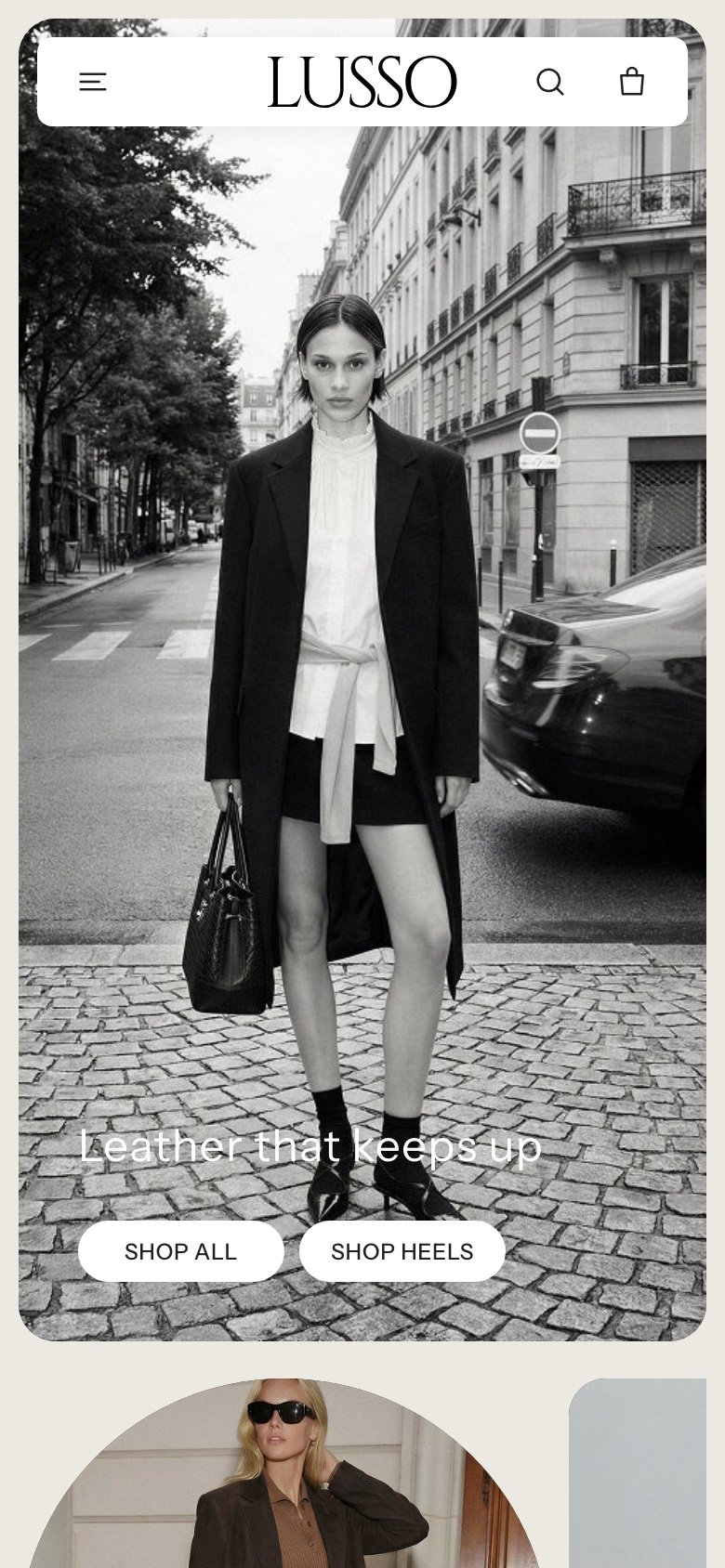
See the whole demo home page
See the whole demo home page
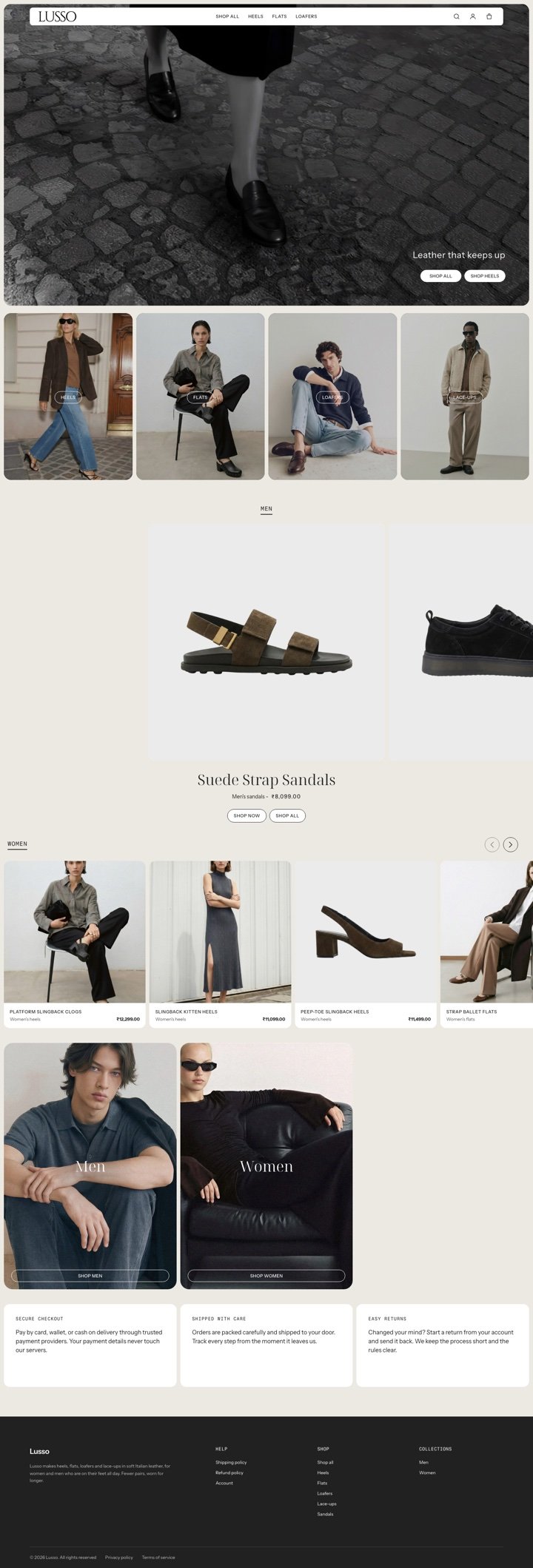
Not sure your store uses Mania? See Find Your Theme.
The Page at a Glance
The section order is fixed, and so are the button labels such as “Shop all” and “Shop now”. What you control is what goes into each section.
Get Your Photos Ready
Mania crops every photo to fill its card. Keep the subject near the middle of each photo and it will survive the crop.Announcement Bar
Mania can show a thin black strip above the header with short messages, such as a delivery offer. With two or more messages, it rotates through them every few seconds. The admin has no field for these messages yet, so on a new store the bar doesn’t appear and the header moves up to take its place. The demo store in the screenshots has no messages either.Header
The header floats as a white card over the top of the banner. It shows your logo, then SHOP ALL and your first three top-level categories that have products, in your category ranking. On the right are search, account and cart. When a category in the header has sub-categories, pointing at it opens a menu with its sub-categories and your first six collections. Without a logo, Mania writes your store name in its place. To add a logo:- Go to Settings → Store.
- Click the square logo tile next to the “Store” heading. It has a small pencil badge.
- Upload your logo and click Save.
Hero Banner
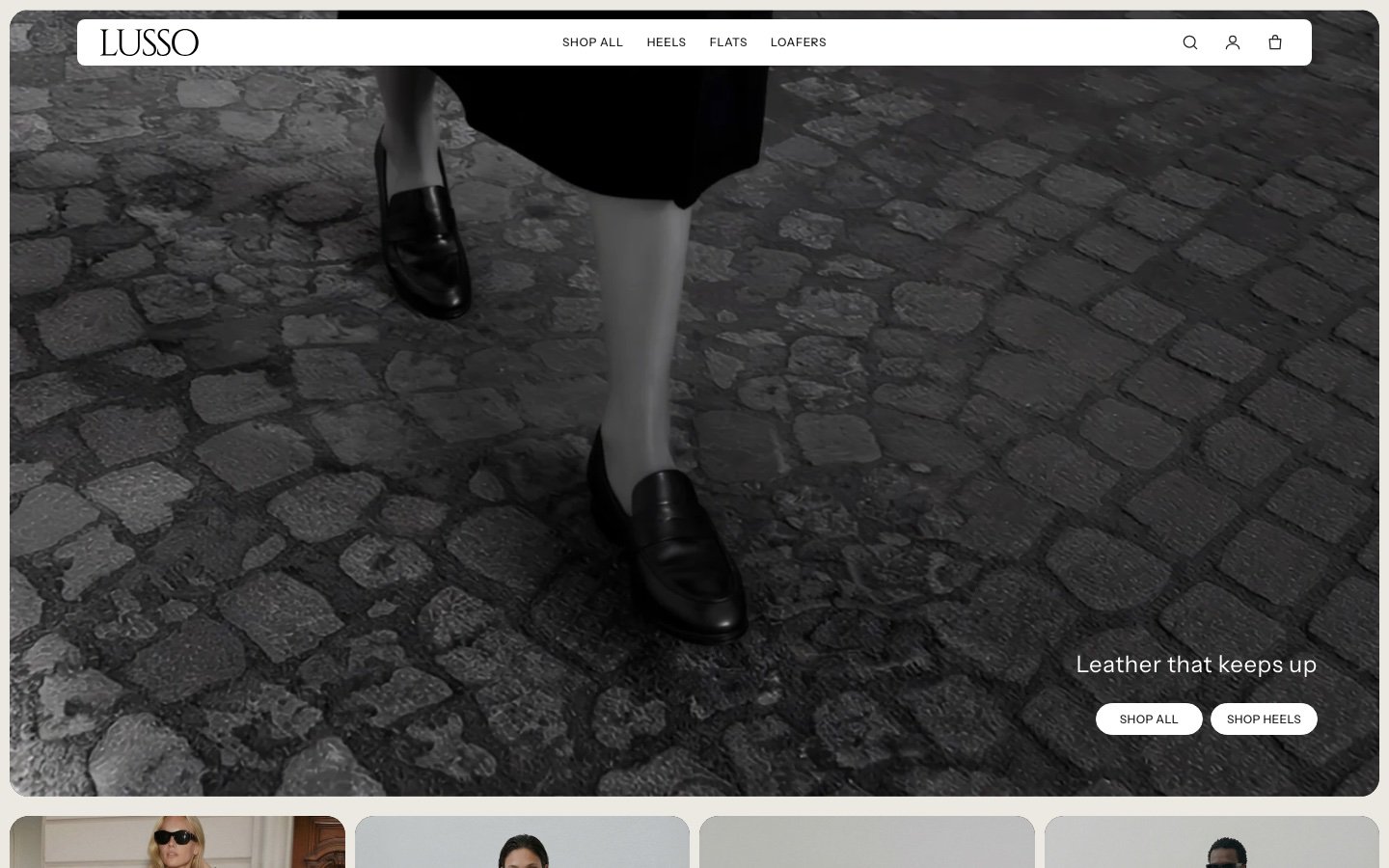
- The photo. Go to Settings → Store and find the Hero banners section. Click the icon and choose Edit (or click Add banners if you have none yet). Upload a Desktop banner and a Mobile banner, then click Save.
- The heading. This is your Tagline, from Settings → Store → → Edit. Without a tagline, it’s your store name.
- Two buttons. SHOP ALL opens your full product list. The second button names your first top-level category with products, such as SHOP HEELS in the demo, and opens that category. To change which category it names, change your category ranking.
Category Tiles
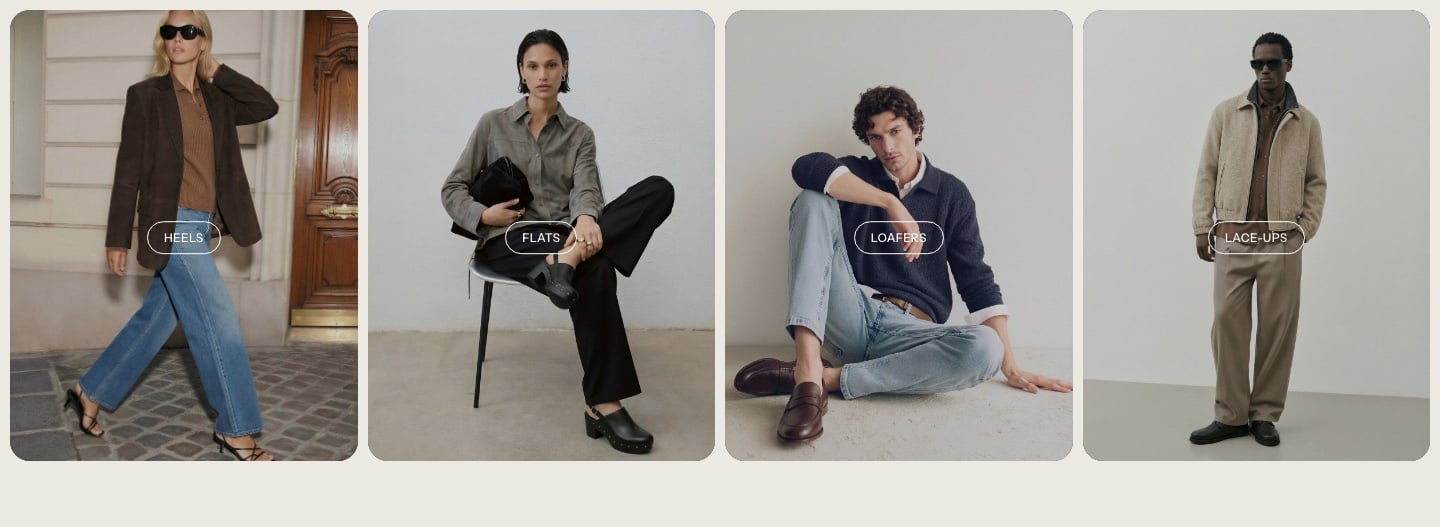
- Only categories with at least one product appear, in your category ranking, and only the first four. See Manage Product Categories.
- When two or more top-level categories have sub-categories, the row switches to tabs, one per parent. Each tab shows up to four of that parent’s sub-categories. In this mode, a top-level category without sub-categories doesn’t appear.
- Go to Products → Categories and open the category.
- In the Images section, click the icon and choose Edit.
- Upload the photo and click Save. If you upload several, use Set as thumbnail to choose the one the tile shows.
Spotlight
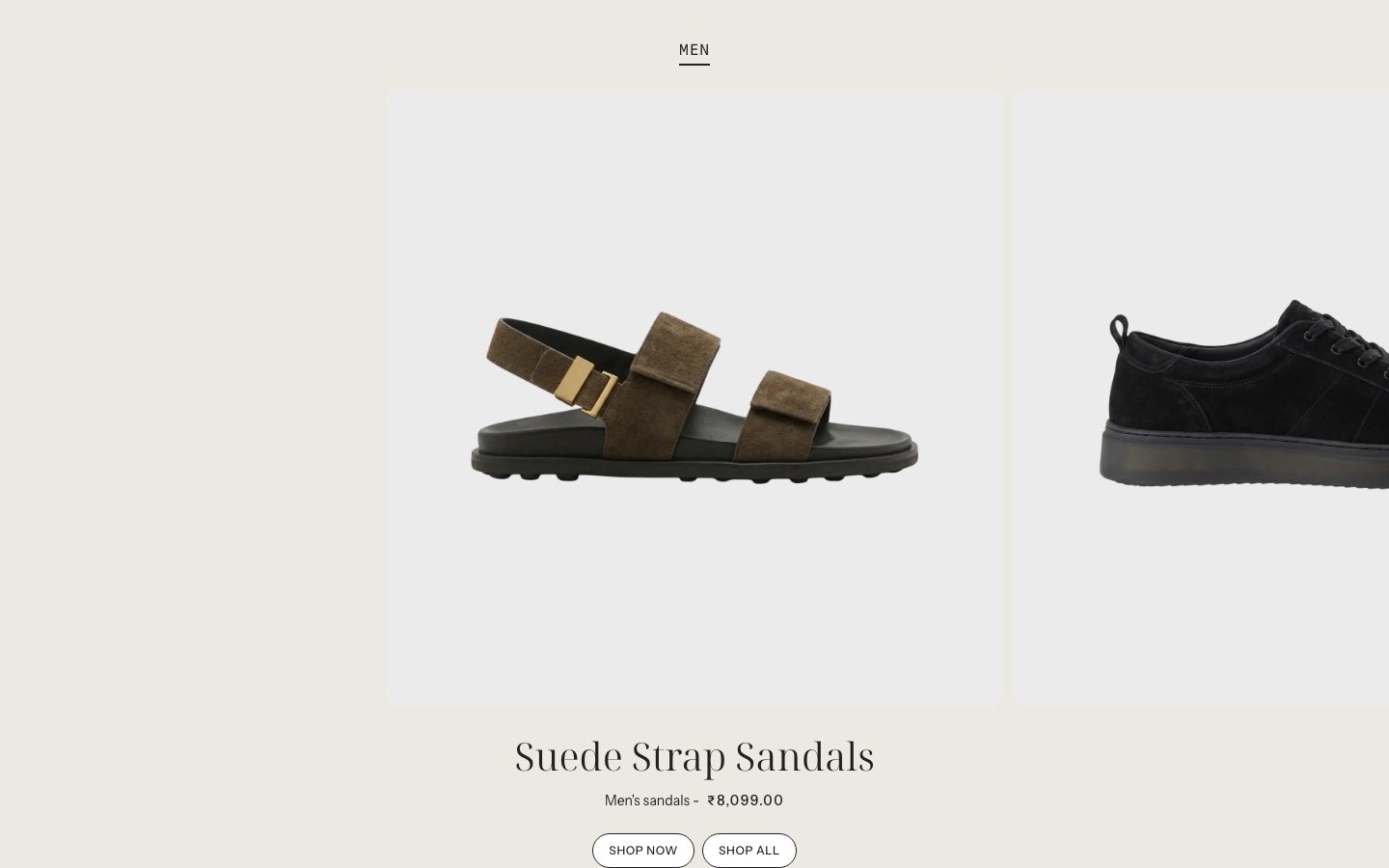
- You can’t choose which collection gets the spotlight. Mania takes the first one with products, and there’s no setting to change the order.
- The product’s subtitle shows just before the price, in small capital letters. Without one, only the price shows, so the subtitle is worth filling in for your main products. You set it when you edit the product.
- If none of your collections has products, the spotlight is titled “New arrivals” and shows your eight newest products instead.
Collection Rows
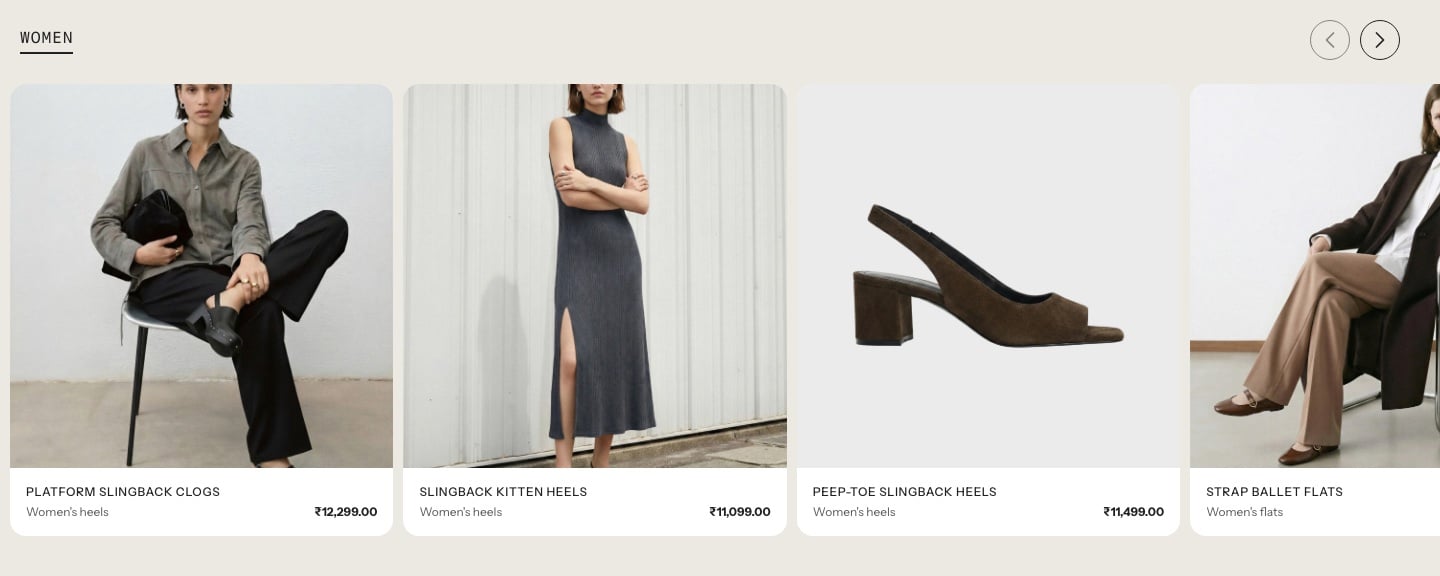
What makes a product card look good
- A thumbnail. Cards show the product’s thumbnail, cropped square. A product without a thumbnail gets an empty white square, even if it has other photos. See Set Thumbnail Image.
- A subtitle. It shows in small grey type under the title.
- Sale prices. A product priced by a Sale price list shows the new price in red and the old price crossed out.
- Sold out. A product with every variant out of stock gets a “SOLD OUT” label.
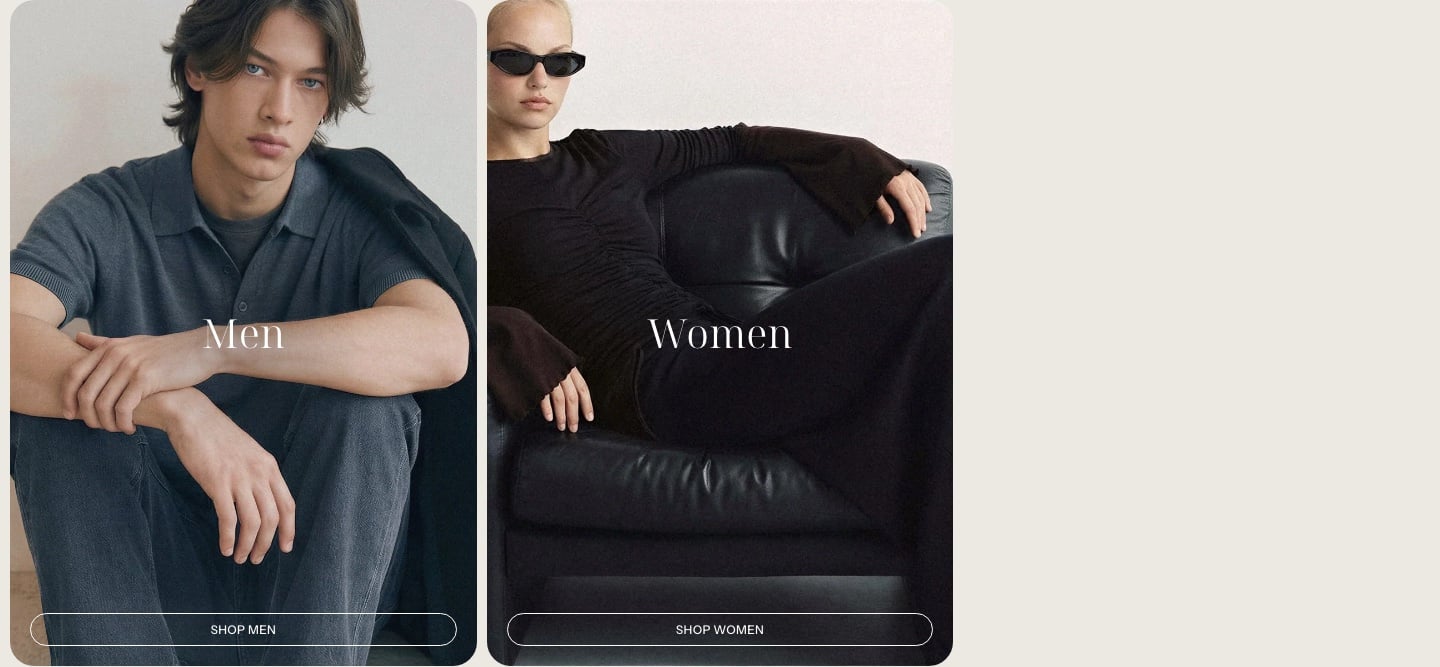
Collection Cards
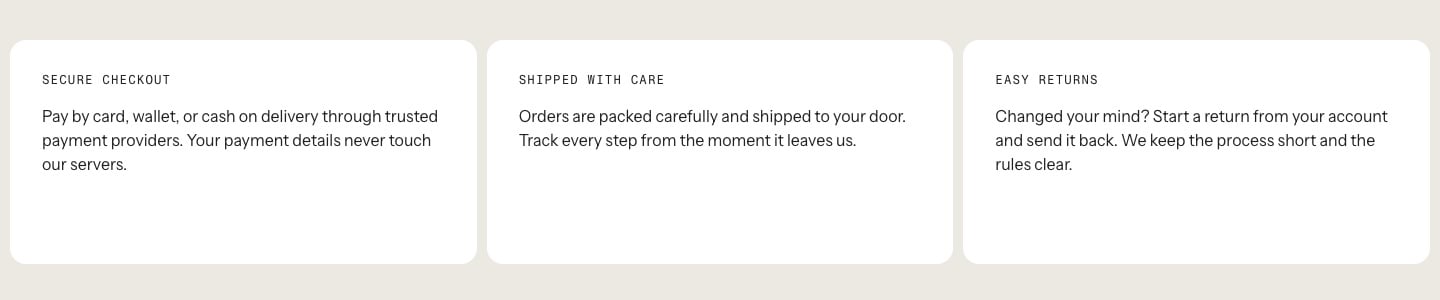
Customer Promises
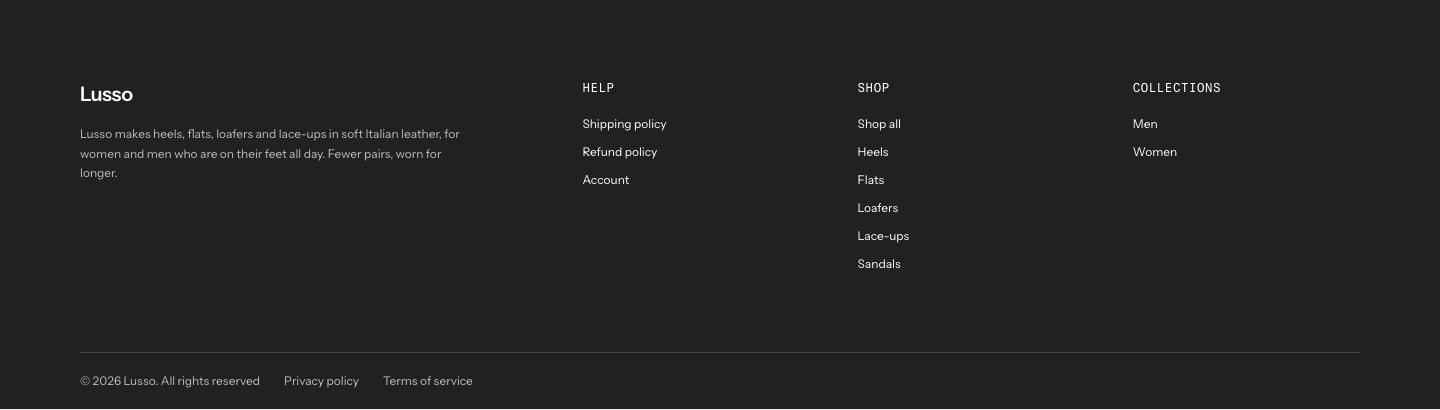
Footer
Check It on Your Phone
Open your store address on your own phone and look at the first screen.