Fleek uses big uppercase headings, thin outlines and solid blocks of colour. Right under the banner it shows your four newest products, so the top of the page changes every time you add something. This guide follows the page from top to bottom. For each part it says what fills it and where you set that in the Commert Admin. The screenshots show Stretch, a demo store on the Fleek theme that sells winter jackets, layers and accessories.
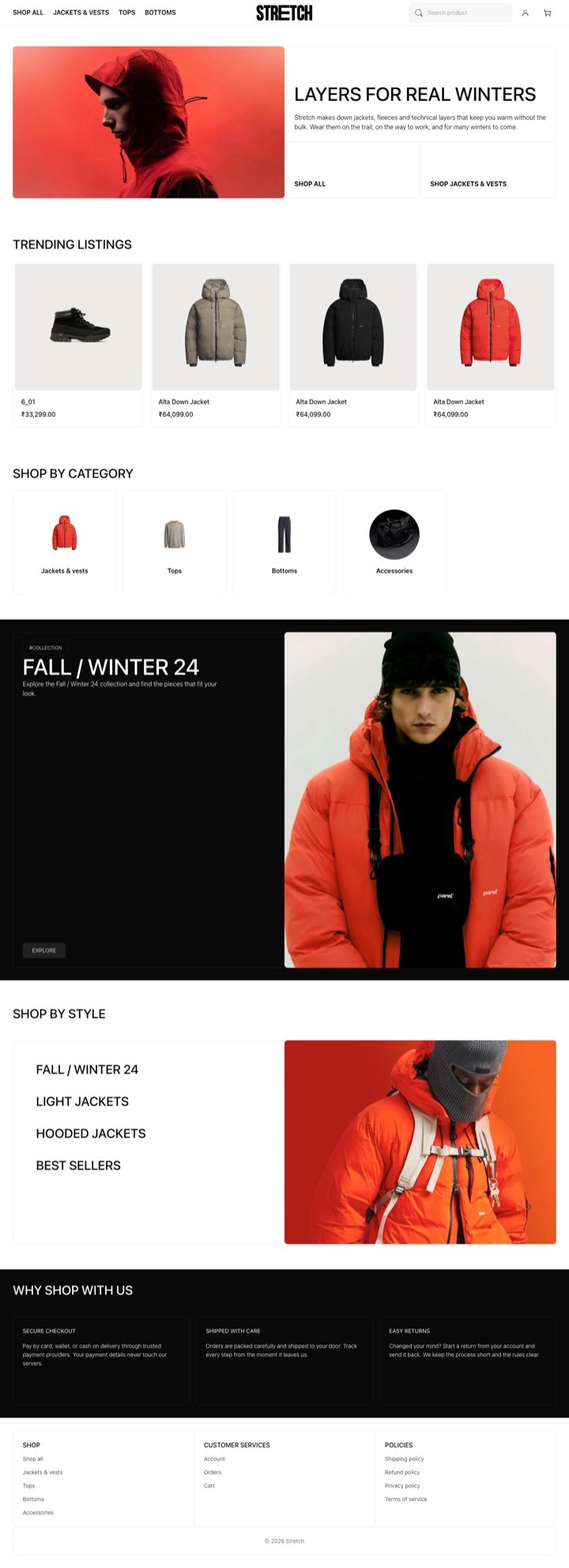
The full Fleek home page of the demo store
Not sure your store uses Fleek? See Find Your Theme.

The Page at a Glance

The section order and headings are fixed. What you control is what goes into each section.

Get Your Photos Ready

Fleek shows some photos whole and crops others, so the shapes matter less than in other themes, with two exceptions: category photos become circles, and product photos become squares.
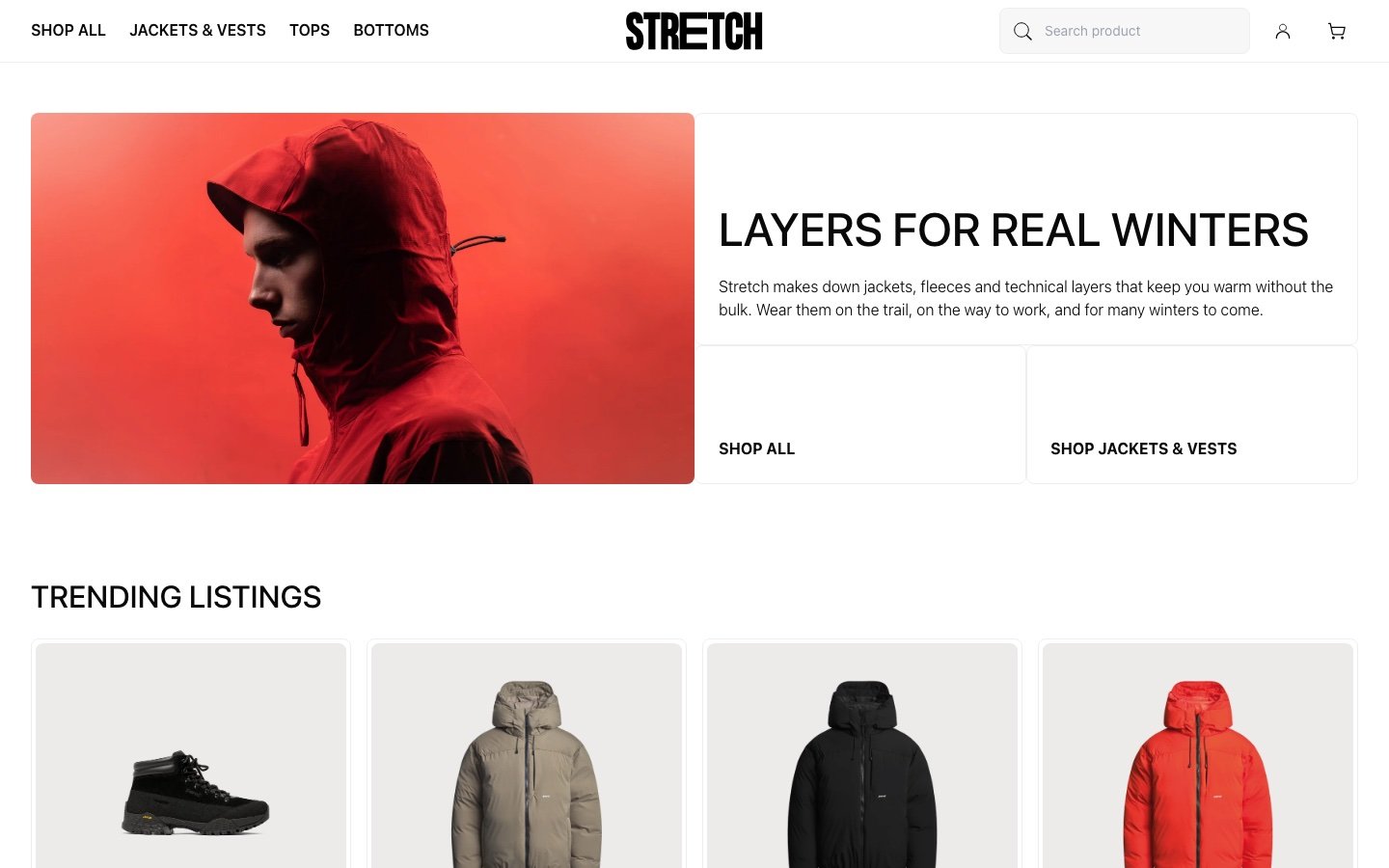
The header shows SHOP ALL and your first three top-level categories with products on the left, your logo in the middle, and a search box, account and cart on the right. Categories follow your category ranking. On phones, a menu button lists all your categories instead. Without a logo, Fleek writes your store name in bold. To add a logo:
  1. Go to Settings → Store.
  2. Click the square logo tile next to the “Store” heading. It has a small pencil badge.
  3. Upload your logo and click Save.

Hero

The first screen of the Fleek home page on a computer On computers, the hero is split in two: your banner on the left, and a text box on the right.
  • The photo is your desktop banner. Go to Settings → Store and find the Hero banners section. Click the icon and choose Edit (or click Add banners if you have none yet), upload a Desktop banner and click Save. Fleek shows it whole, at its own shape, so nothing is cut off.
  • The heading is your Tagline, in capital letters, from Settings → Store → → Edit. Without a tagline, it’s your store name.
  • The paragraph is your store Description, from the same form. Keep it to two or three sentences, because it sits right beside the banner.
  • Two buttons. SHOP ALL opens your full product list. The second button names your first top-level category with products, such as SHOP JACKETS & VESTS in the demo. To change which category it names, change your category ranking.
Fleek doesn’t use the mobile banner. Phones show the desktop banner too, full width under the text. (The mobile banner is used only if you have no desktop banner, and then on every screen size.) With no banner at all, the photo side is a plain teal block.
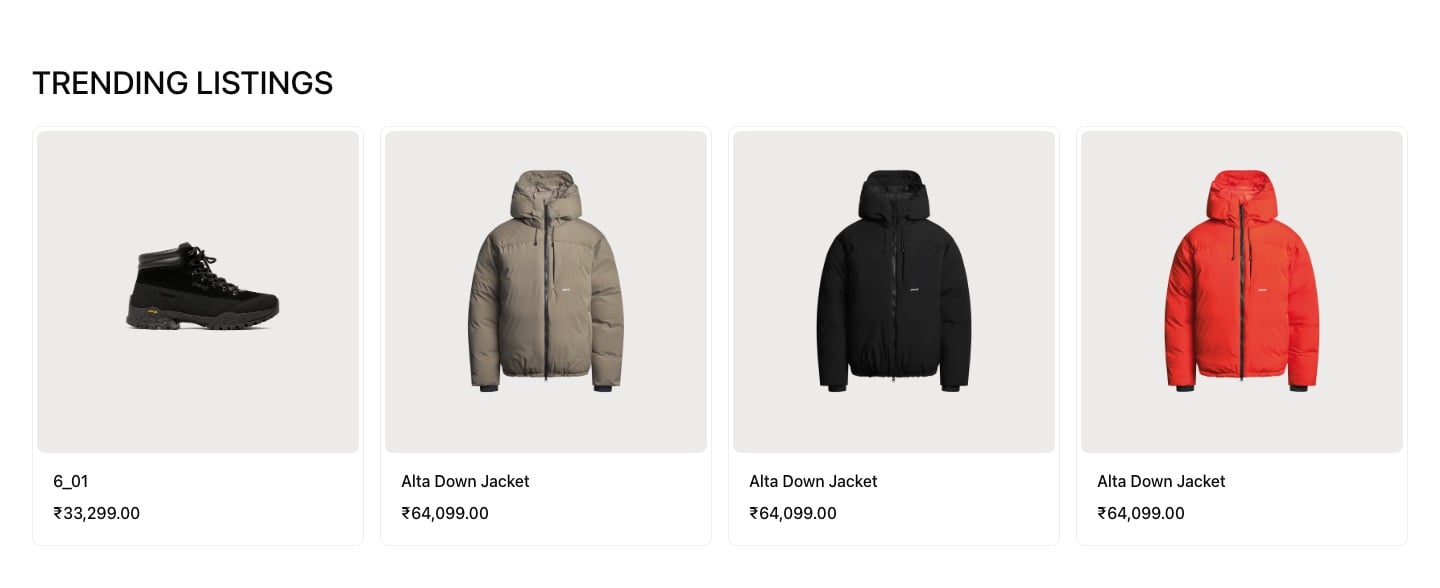
The Trending listings section Despite its name, this row isn’t based on sales. It shows your four newest products, newest first, and you can’t pick them. So the last product you add is the first one customers see under the banner. Before you add a product, make sure its photos and price are ready. Fleek doesn’t skip sold-out products here.

What makes a product card look good

  • A thumbnail. Cards show the product’s thumbnail, cropped square. A product without a thumbnail shows a placeholder image, even if it has other photos. See Set Thumbnail Image.
  • A short title. Titles are cut to one line.
  • Sale prices. A product priced by a Sale price list shows the old price crossed out.
  • Sold out. A product with every variant out of stock gets a “SOLD OUT” label.
On computers, pointing at a card shows a SEE MORE button. Fleek’s cards don’t show color swatches, a “New” label or a second photo.

Shop by Category

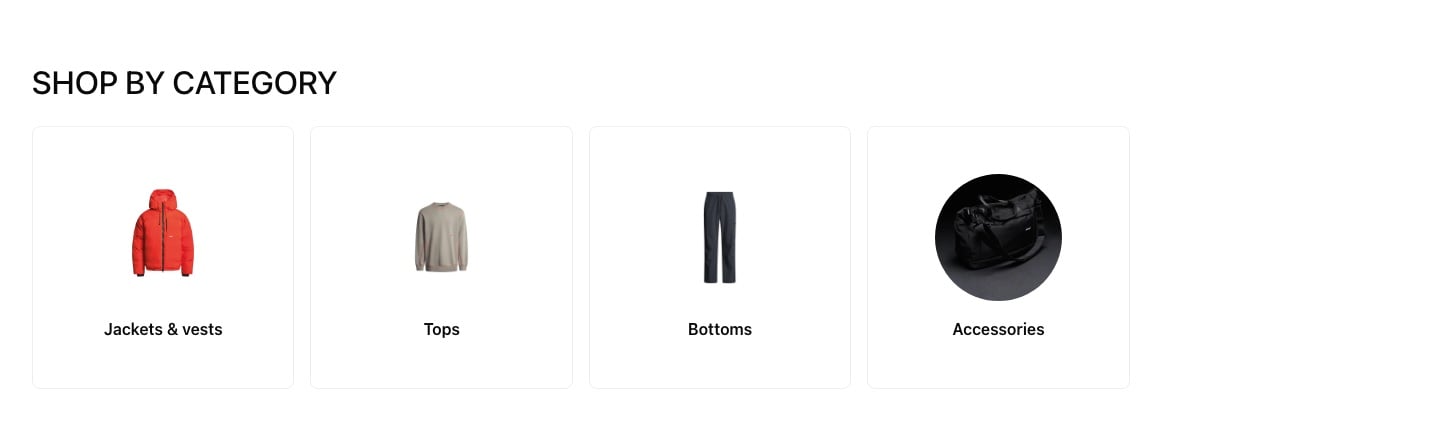
The Shop by category section A row of cards, one for each top-level category, with the category’s photo cropped into a circle and its name underneath. Five fit across a large screen; with more, a bar and arrows let customers scroll. What decides what shows up:
  • Only categories with at least one product appear, in your category ranking. See Manage Product Categories.
  • When two or more top-level categories have sub-categories, the section switches to tabs, one per parent. Each tab shows that parent’s sub-categories. In this mode, a top-level category without sub-categories doesn’t appear.
To add a category photo:
  1. Go to Products → Categories and open the category.
  2. In the Images section, click the icon and choose Edit.
  3. Upload the photo and click Save. If you upload several, use Set as thumbnail to choose the one the card shows.
A category without a photo gets a card filled with a solid colour instead: yellow, coral, green, blue or lilac, depending on its place in the row. That can look deliberate, but a mix of photos and colour cards looks unfinished.

Collection Banner

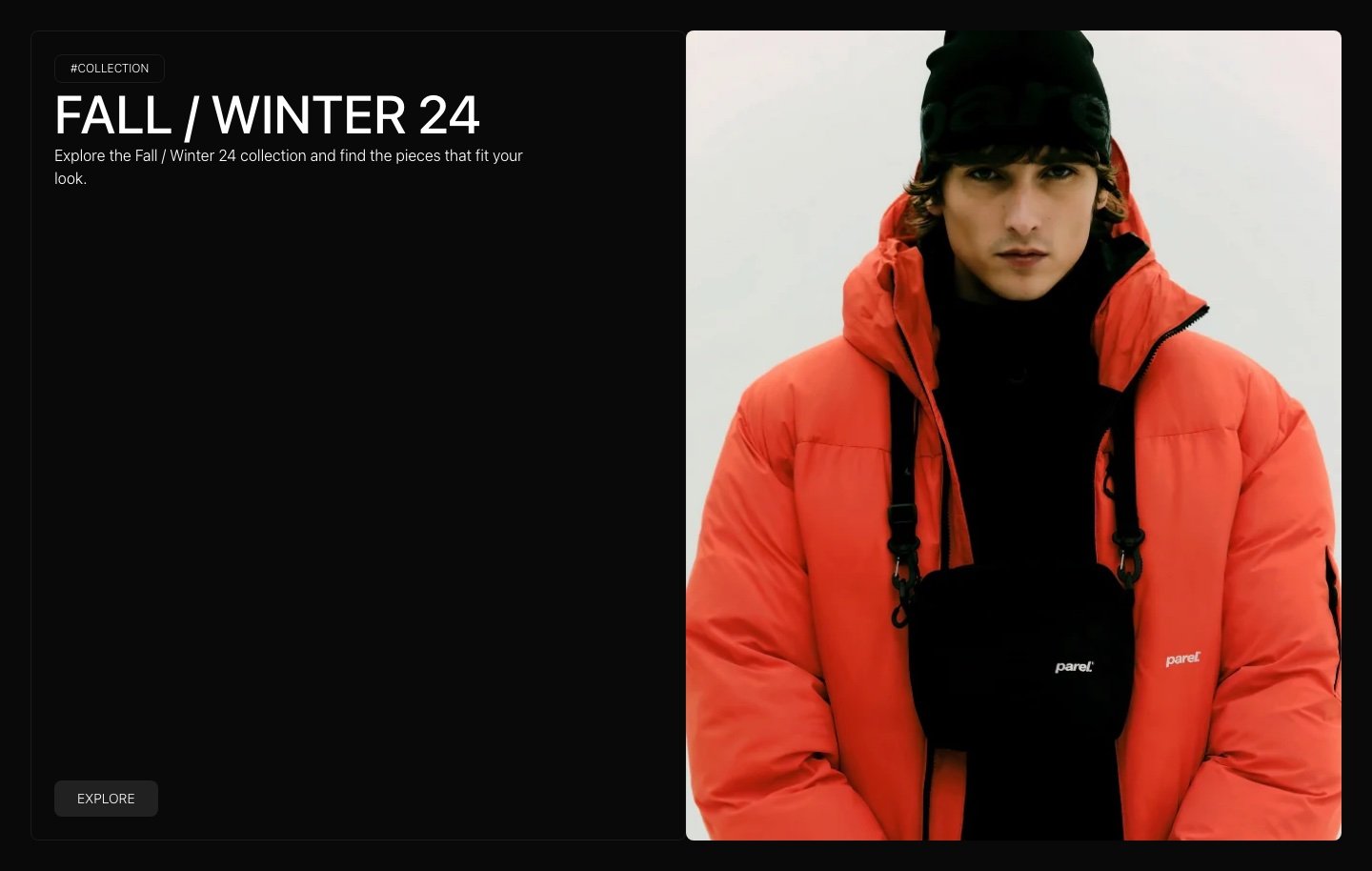
The collection banner A black section that features one of your collections: a “#COLLECTION” tag, the collection’s title in large letters, a fixed line (“Explore the Fall / Winter 24 collection and find the pieces that fit your look.” in the demo), an EXPLORE button and the collection’s photo on the right. You can’t choose which collection Fleek features, and it doesn’t check that the collection has products. If you have collections you’re still filling, keep them empty for as short a time as you can. To add a collection photo, go to Products → Collections, open the collection, click the icon in the Images section and choose Edit. Fleek crops the photo from the top down, so keep faces in the upper part. Without a photo, the right side is a plain pink block.

Shop by Style

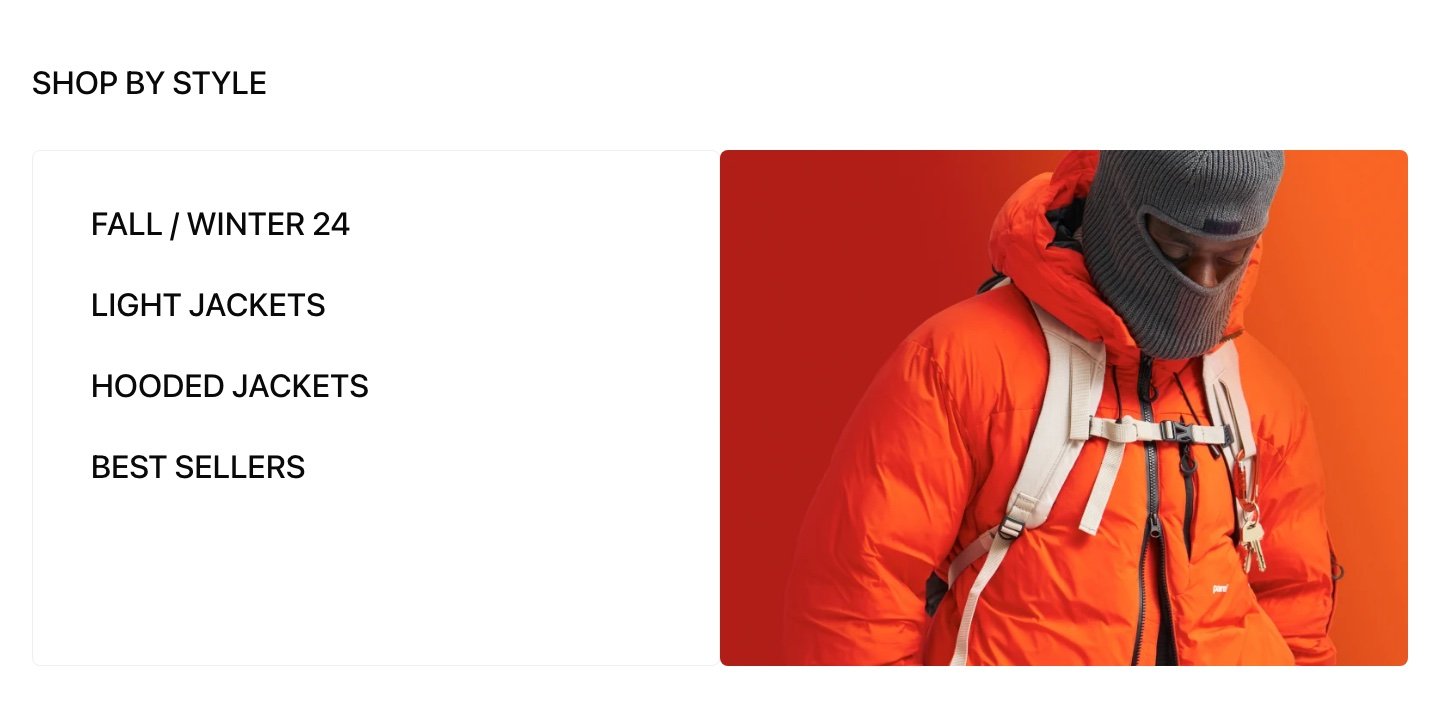
The Shop by style section Up to five of your collections, listed by title in large capital letters, each linking to its collection. Next to the list, Fleek shows the photo of the last collection in it: the fifth, or the last one if you have fewer. The photo appears on computers only; phones see just the list. Keep collection titles short so each fits on one line. For creating collections, see Manage Product Collections.

Why Shop with Us

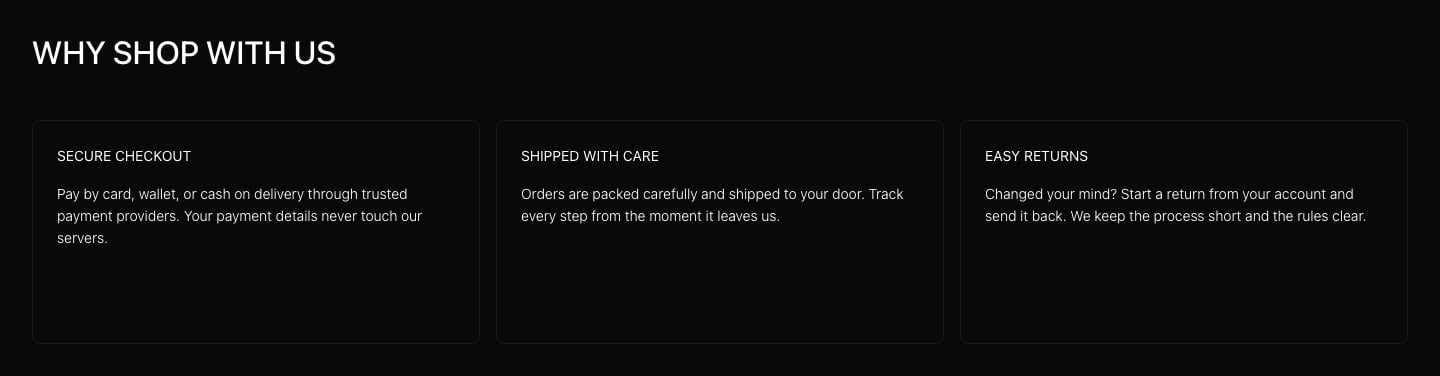
The Why shop with us section Three short promises to the customer on a black background. By default they read “Secure checkout”, “Shipped with care” and “Easy returns”, and “Easy returns” shows only when your store accepts returns. The screenshot shows these defaults. The admin has no field for this wording yet. Note that the default “Secure checkout” text mentions cash on delivery, whichever payment methods you actually offer.
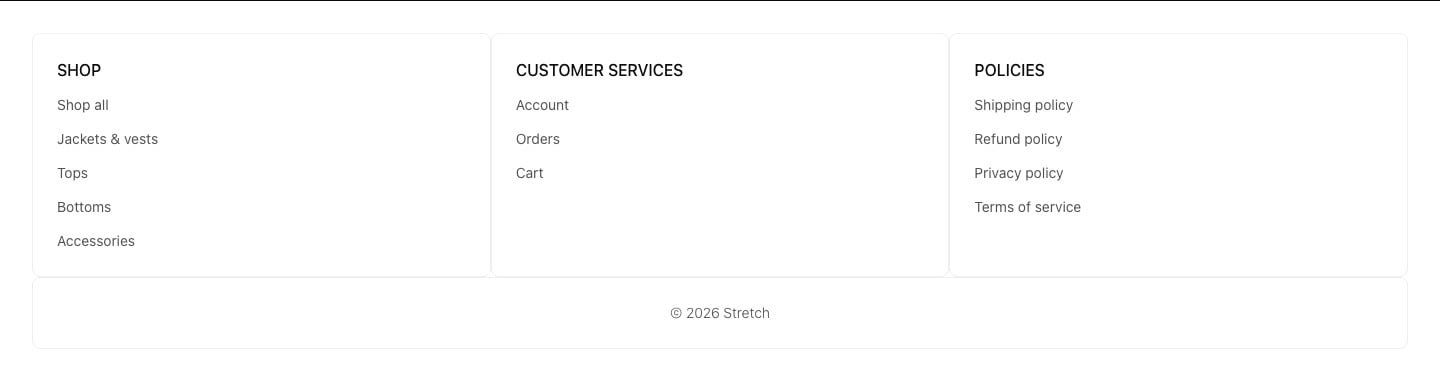
The footer Three columns: SHOP (Shop all and your top-level categories), CUSTOMER SERVICES (Account, Orders, Cart, and Contact us when your store has contact details) and POLICIES (the policies you’ve published in Settings → Policies). See Manage Policies. Fleek’s footer has no logo and no description, only the copyright line with your store name.

Check It on Your Phone

Open your store address on your own phone and look at the first screen.
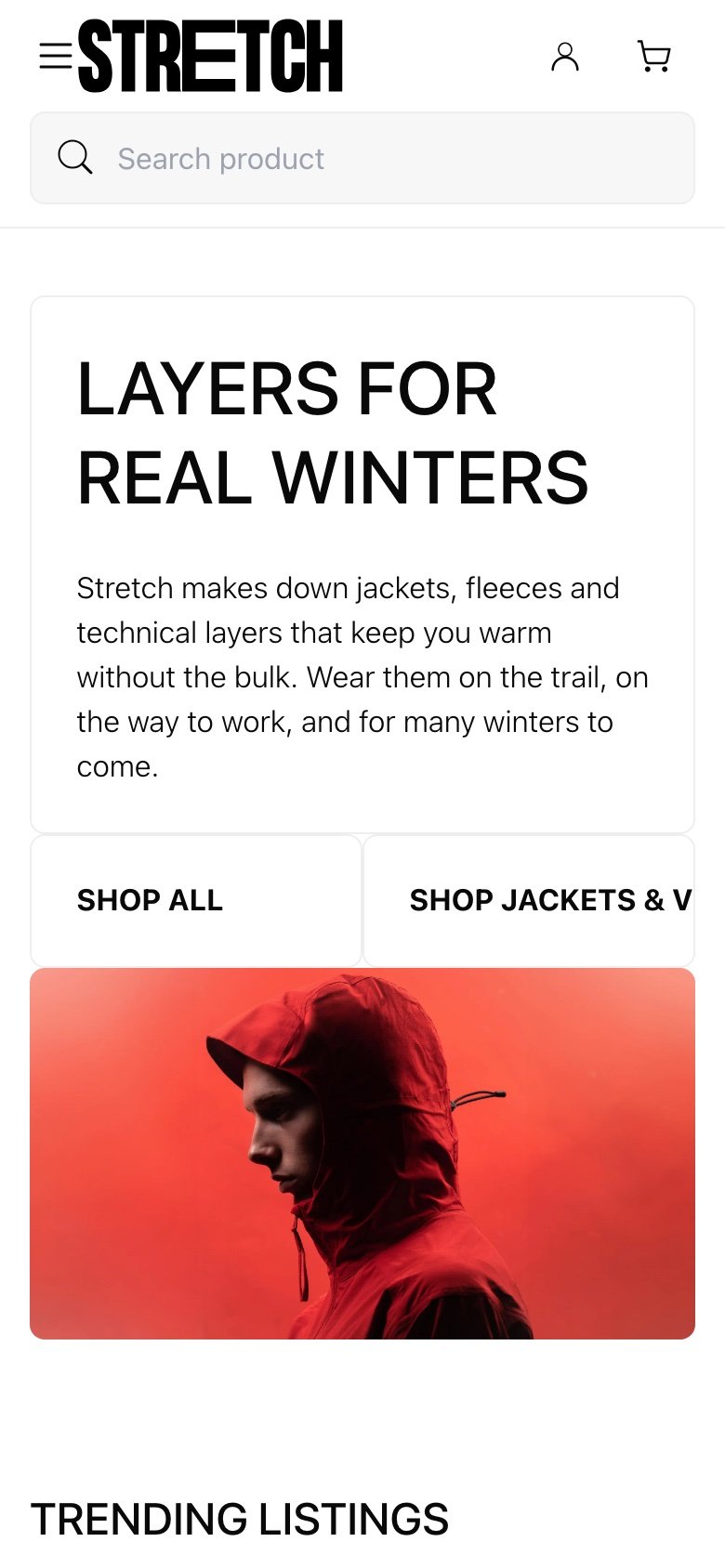
The first screen of the Fleek home page on a phone
On a phone, the heading, description and buttons come first and the banner sits under them, so a long tagline or description pushes the photo off the first screen. Two to five words for the tagline and two or three sentences for the description keep the photo in view. Also check the second button: a long category name gets cut off, as with SHOP JACKETS & V in the demo.