

Steps to add credits
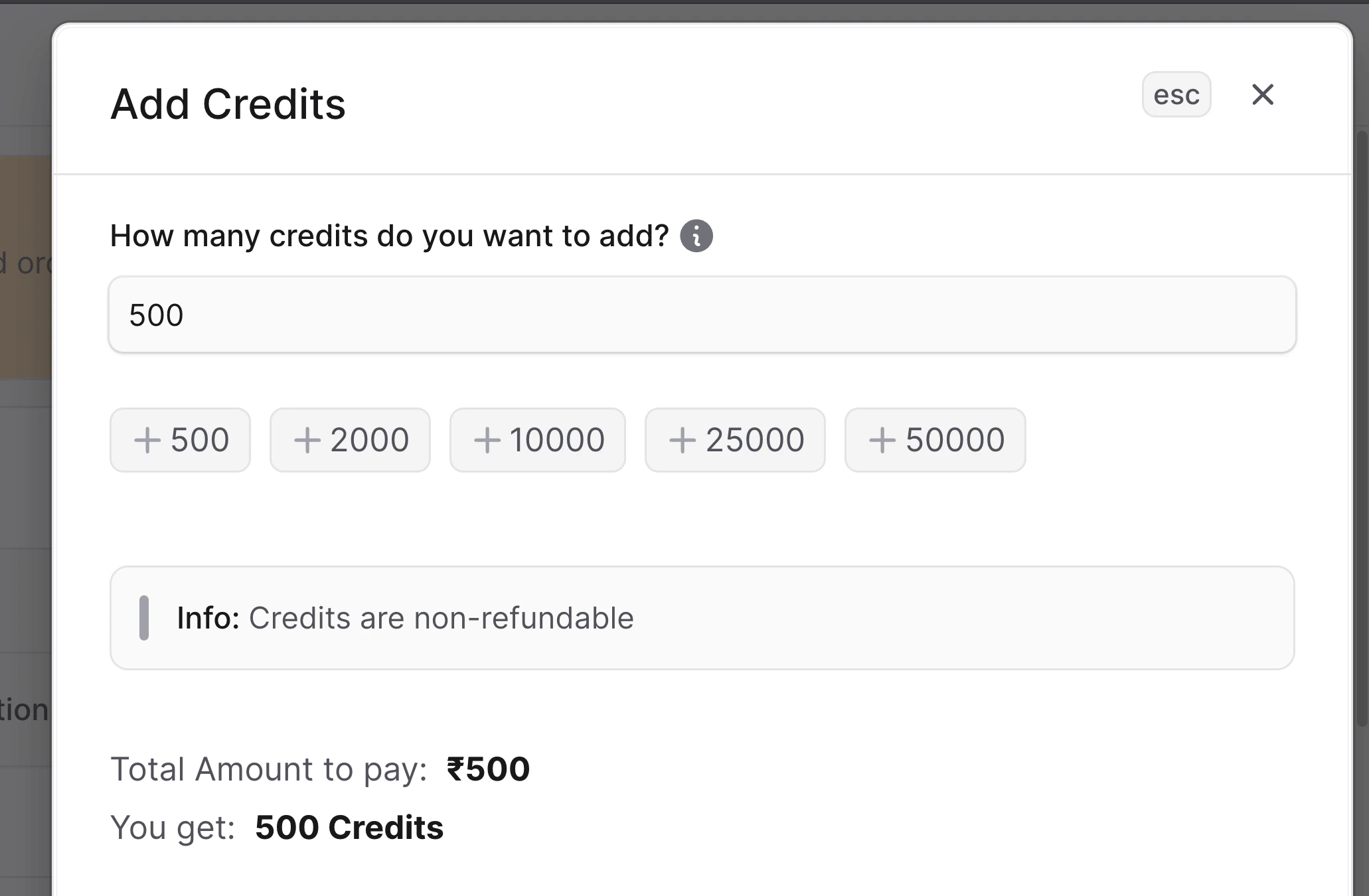
- Go to Wallet Page → Add credits.
- Enter the credits you want to add (minimum 500). Example: type 500 to add 500 credits.
- Click Pay (₹500). The amount shown matches the credits you’ll receive (1 credit = ₹1).
- Choose a payment method in the gateway (card, UPI, net banking, etc.) and complete payment.
- After success, the wallet balance updates and a new transaction appears in history. If payment fails, you’ll see an error message and no credits are added.
If your services were on hold, they resume automatically once the new credits clear pending charges.
What to expect
- Instant balance update: Credits appear as soon as the gateway confirms payment.
- Receipt: Check Wallet → Transaction History for the reference and description (for example, “Wallet top-up via Razorpay”).
- Pending charges: Any queued fees deduct right after the top-up, so available credits may reduce if holds were active.
Troubleshooting
- Balance not updating: If the wallet balance is not updating, please check the following:
- Check if the payment is successful.
- If the payment is successful, try refreshing the page.
- If not credited, please contact our support team using discord or email us at [email protected].