

Integrations you can connect
Open the Integrations page
Go to Settings → Integrations. Every integration you can connect is listed under Available. Each one shows a short description and a button to connect it.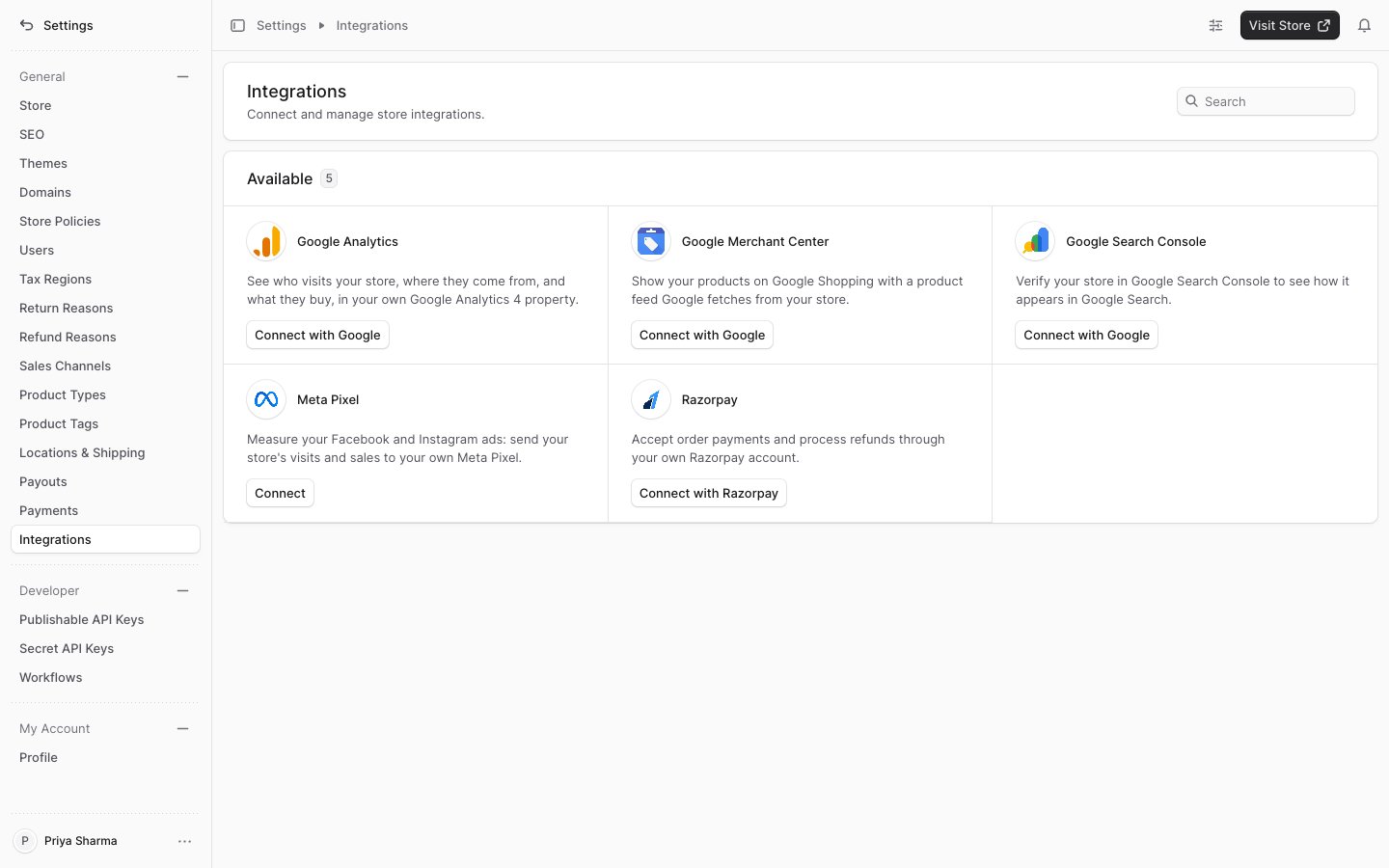
How the list is grouped
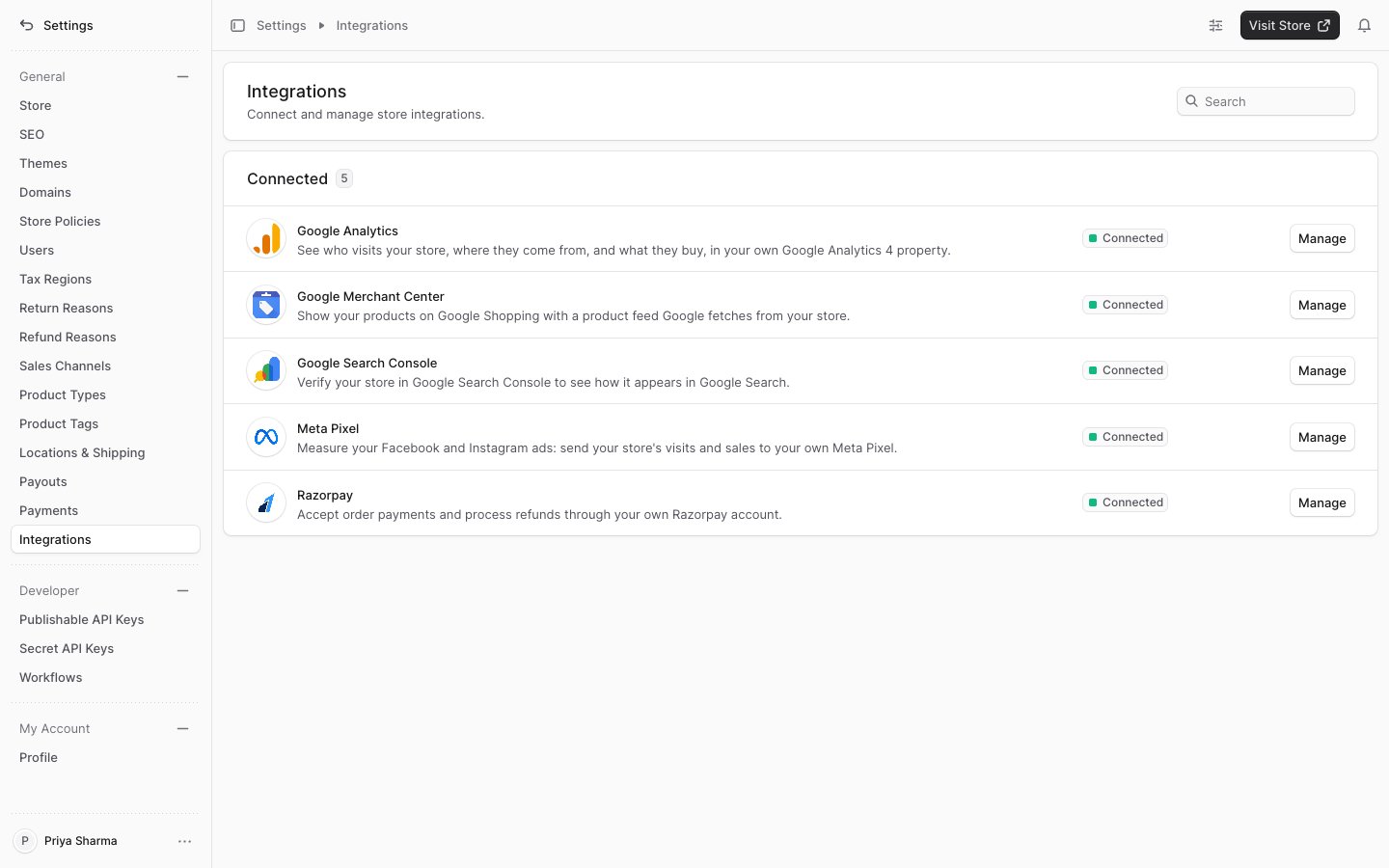
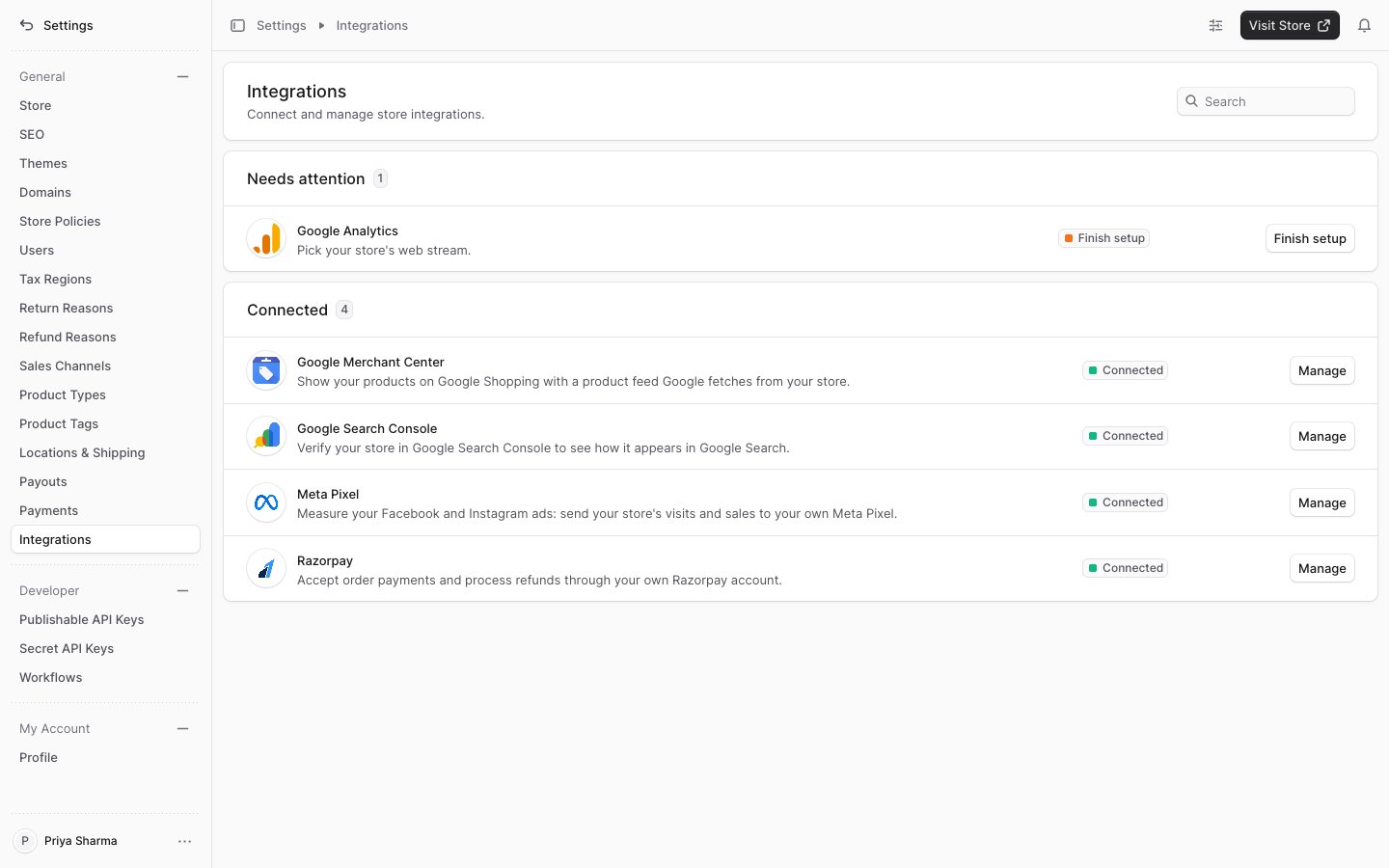
Once you start connecting integrations, the page sorts them into groups:- Needs attention — integrations that need something from you, such as a step you haven’t finished.
- Connected — integrations that are set up and working.
- Available — integrations you haven’t connected yet.
Statuses
Each integration in the list shows a status:
The line under an integration’s name tells you what’s left, for example “Pick your store’s web stream.”
Connect an integration
- Go to Settings → Integrations.
- Click the button on the integration you want, such as Connect, Connect with Google or Connect with Razorpay.
- A setup panel opens on the right. Follow the steps in it.
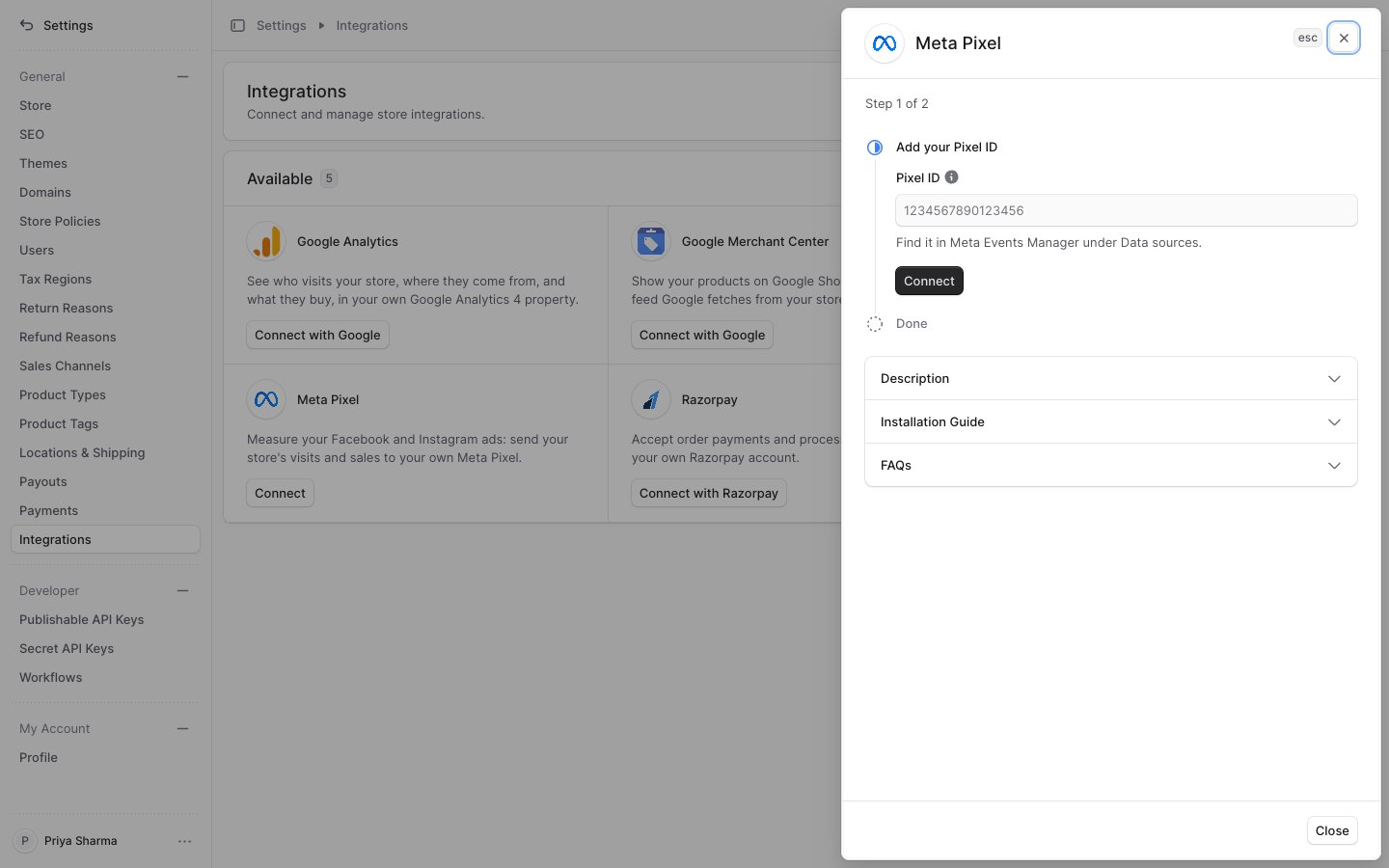
- Step 1 of 2 (or similar) at the top, so you know how far you are.
- Each step in order. The current step is open, finished steps have a blue tick, and steps still to come are greyed out.
- Description, Installation Guide and FAQs at the bottom. Click any of them to read more about the integration before you connect it.
Two ways to connect Google integrations
Google Analytics, Google Search Console and Google Merchant Center give you two ways to connect:- Connect with Google (recommended) — you sign in with your Google account, and Commert sets up the rest for you. You don’t need to copy any codes.
- Or paste it yourself — you copy a value from Google, such as a Measurement ID or a verification tag, and paste it into the panel.
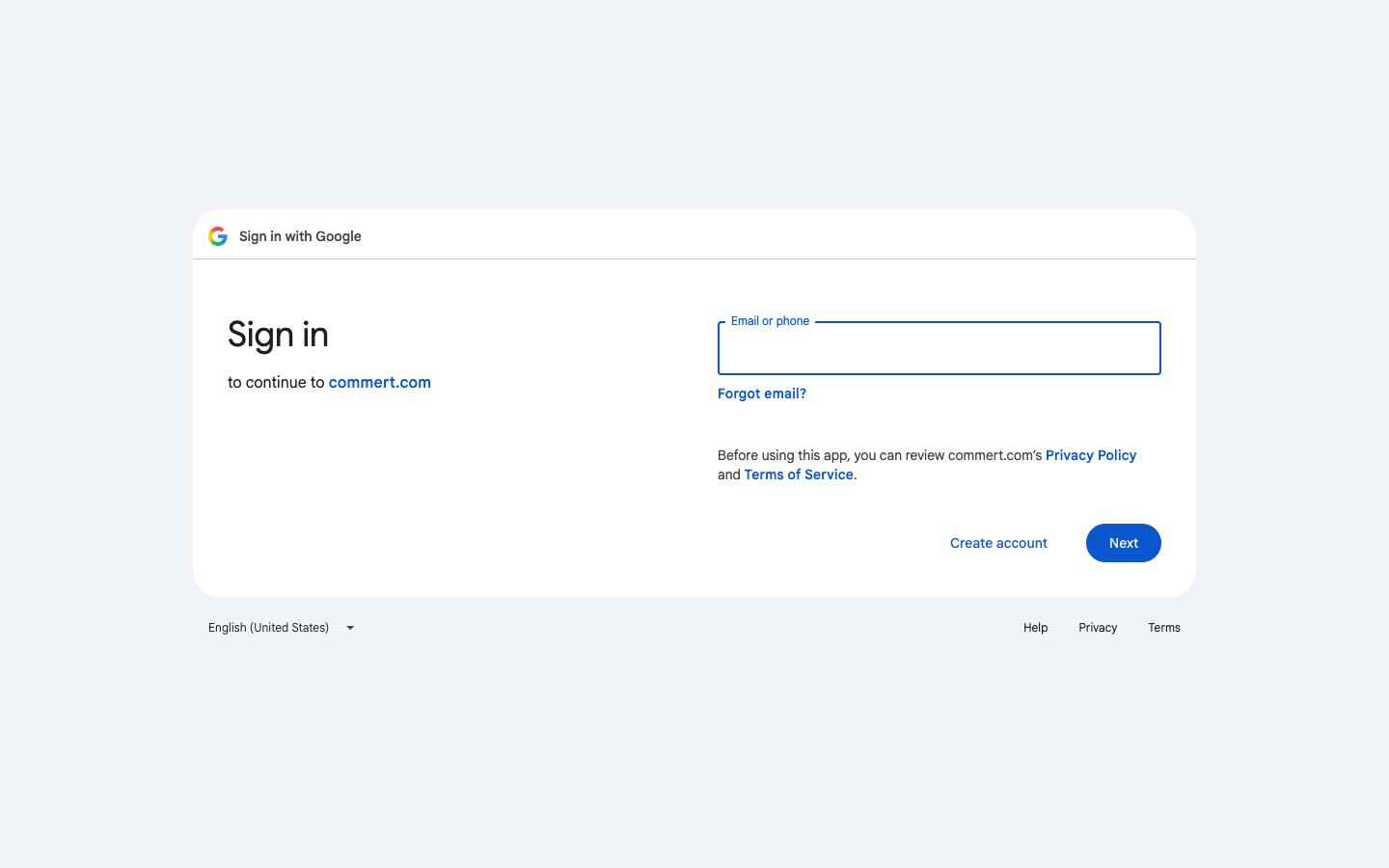
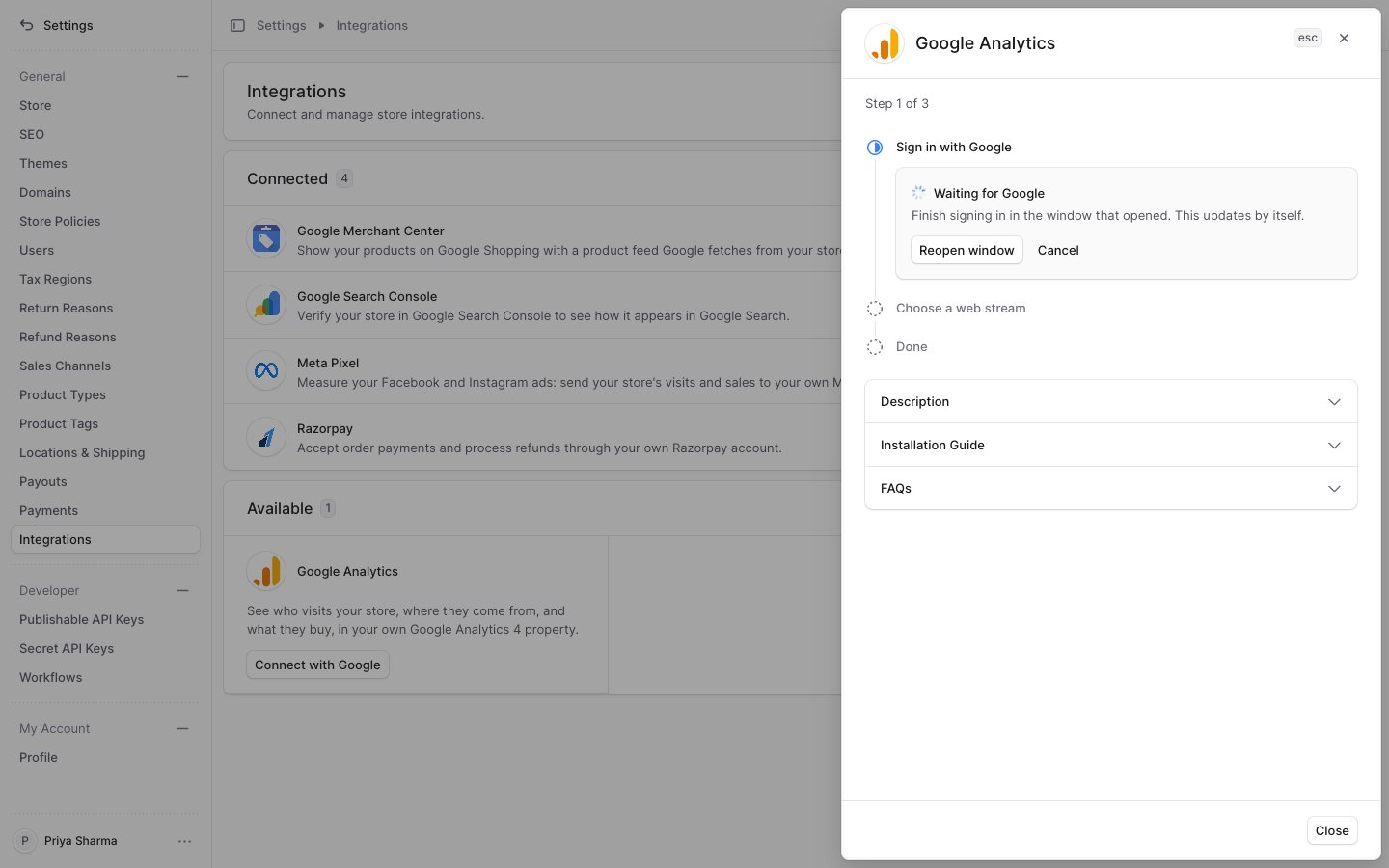
- If you closed the Google window by mistake, click Reopen window.
- To stop, click Cancel.
After you connect one Google integration, Commert remembers your Google account for this store. The next time you connect a Google integration, you’ll see Continue as with your email, so you don’t have to sign in again. To use another account, click Use a different Google account.
Your browser may have blocked the pop-up window. If Commert shows “Your browser blocked the sign-in window,” allow pop-ups for Commert Admin in your browser settings, then click the button again.
Manage a connected integration
To see an integration’s details, click Manage next to it in the list, or click View integration in the setup panel.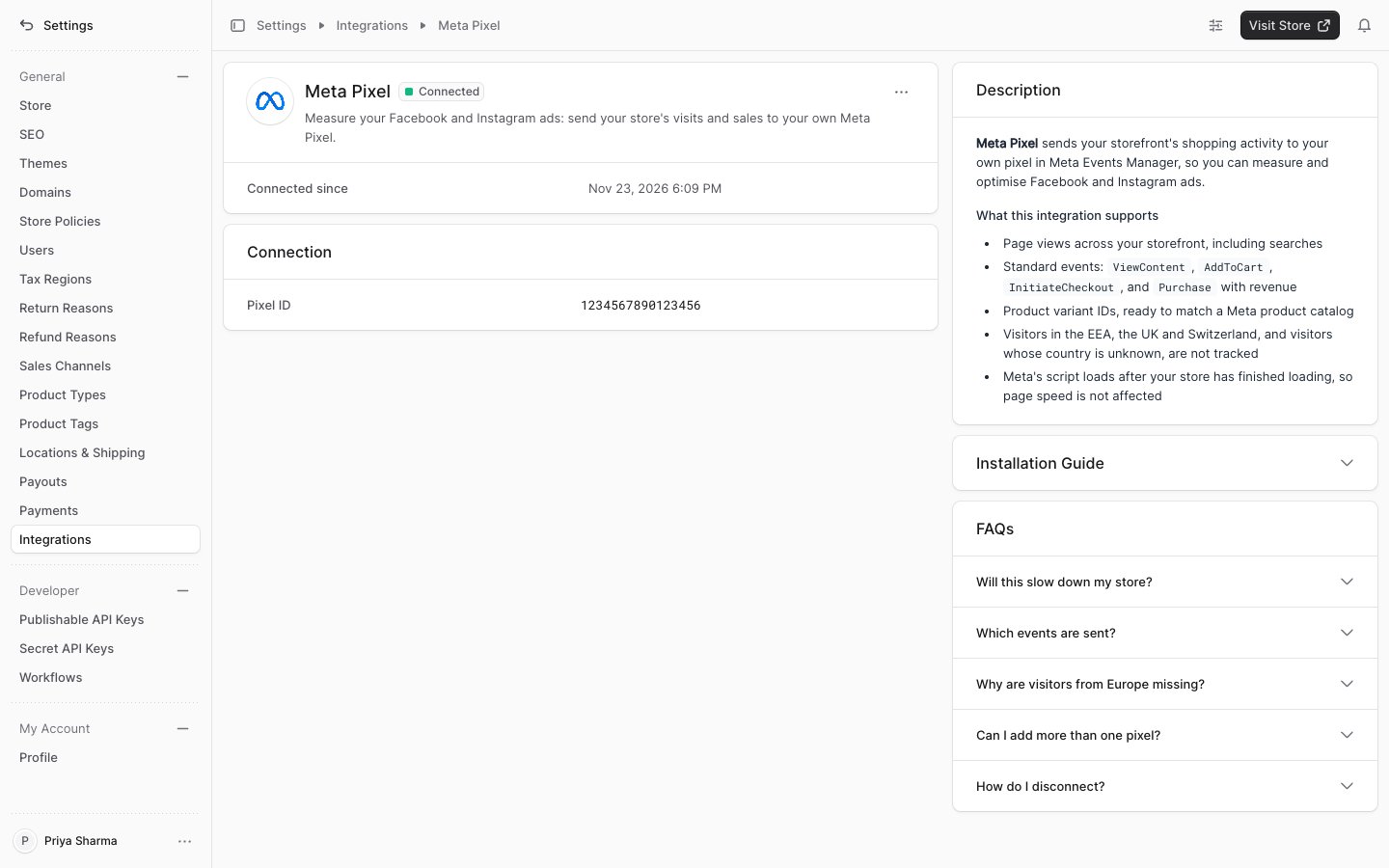
- The integration’s name, its status and Connected since, the date you connected it.
- Connection — the values that are saved, such as your Pixel ID.
- For Google integrations you connected with Google: the Google account you used, and a Setup section with each step’s progress.
- On the right: Description, Installation Guide and FAQs.
Update the saved values
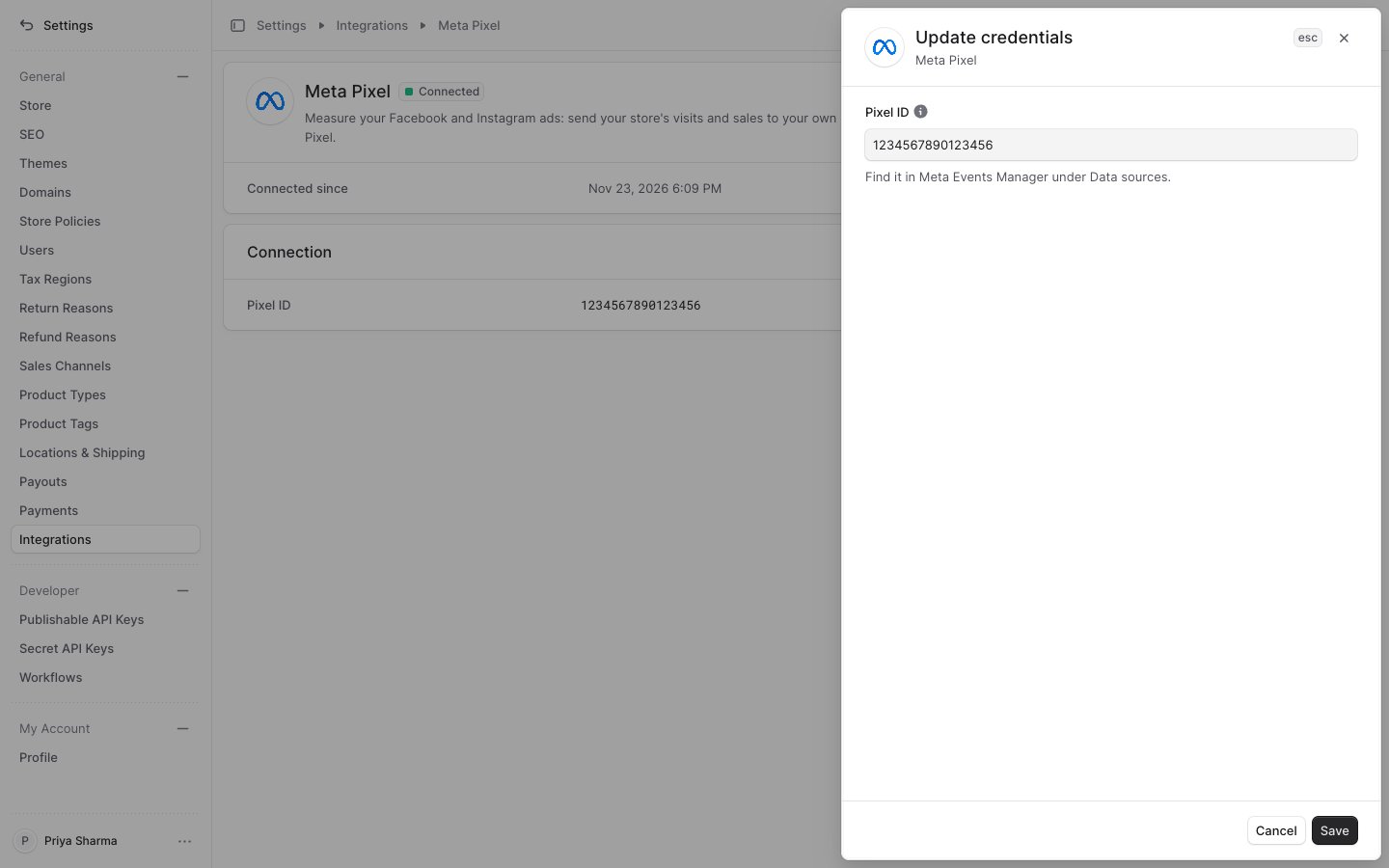
If you need to change a value you pasted, such as a new Pixel ID:- On the integration page, click the ⋯ (three dots) button at the top right of the first card.
- Click Update credentials.
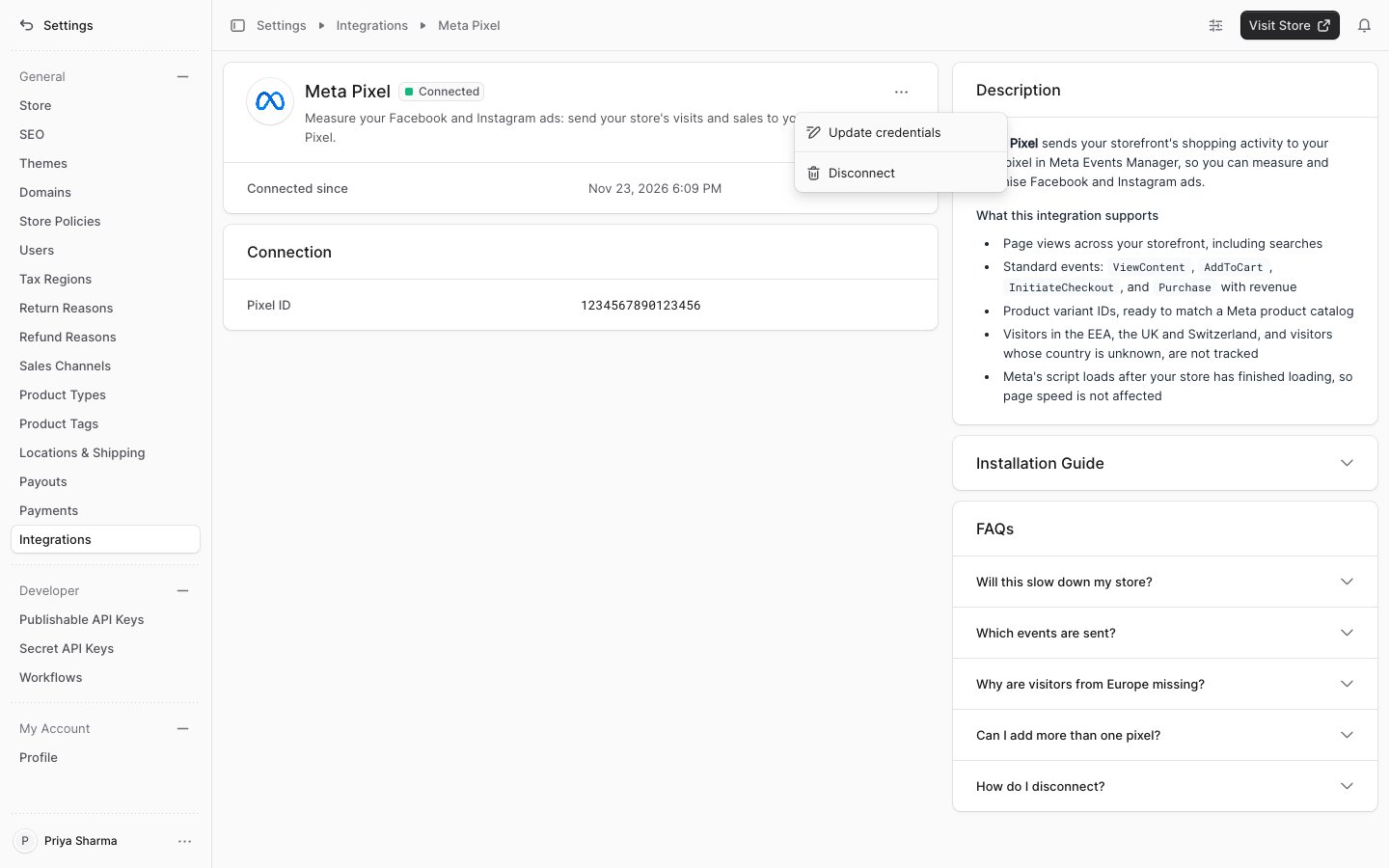
- Enter the new value and click Save.
Disconnect an integration
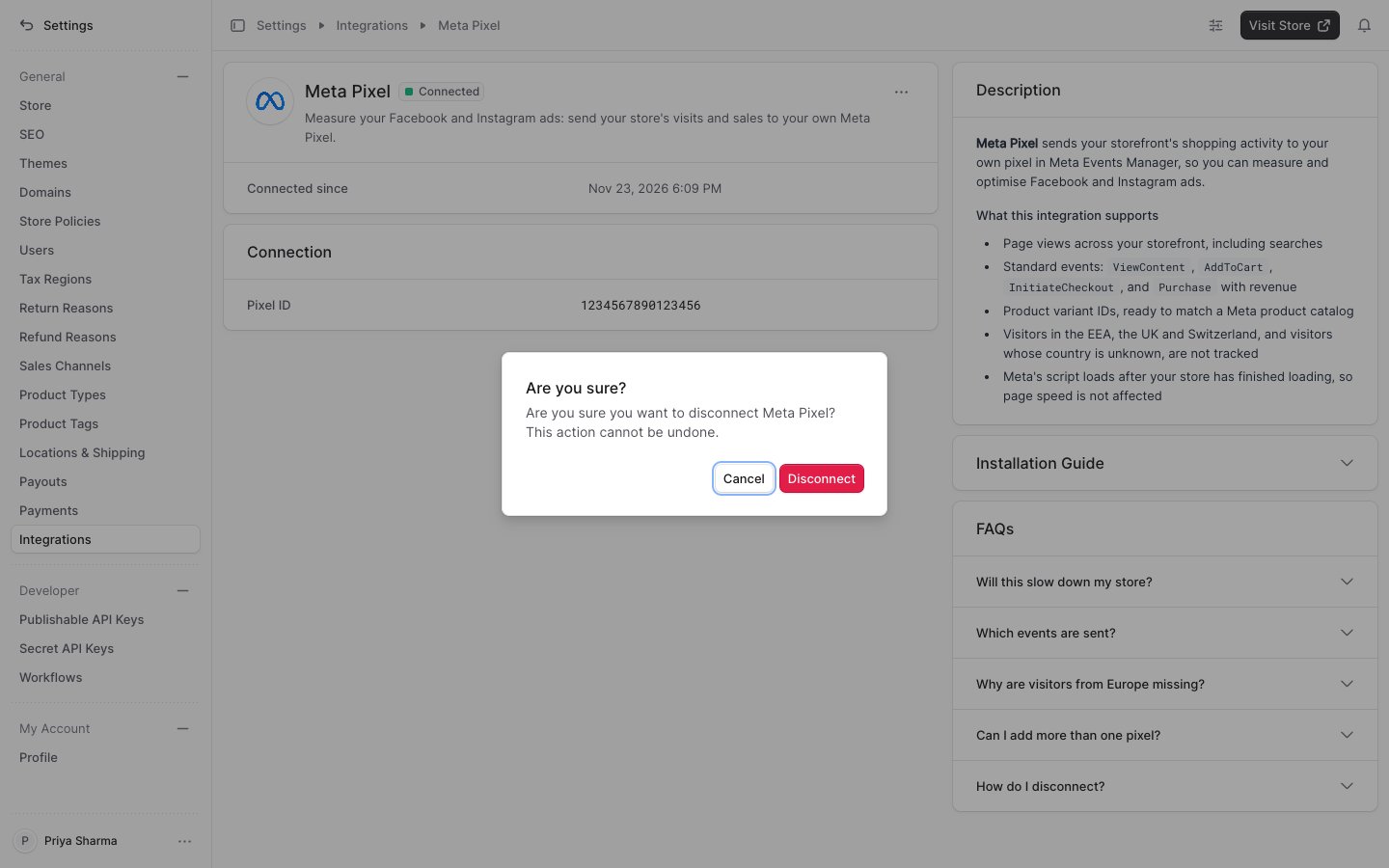
Disconnecting stops the integration. For example, your store stops sending data to Google Analytics.- On the integration page, click the ⋯ (three dots) button at the top right of the first card.
- Click Disconnect.
- In the confirmation, click Disconnect again.
Next steps
- Google Analytics — see your store’s visitors and sales in Google Analytics.
- Google Search Console — verify your store with Google Search.
- Google Merchant Center — list your products on Google Shopping.
- Meta Pixel — measure your Facebook and Instagram ads.
- Payment Gateway (Razorpay) — accept online payments.