

What you get
- A product feed at
/feeds/google.xmlon your store’s address, with every product and variant, and its price, stock and images. - Your website claimed in Merchant Center, so Google knows the products are yours.
- The verification tag on every page of your store if you choose to verify with it, with no script and no effect on page speed.
Before you start
- You need a Google Merchant Center account. If you don’t have one, create it first.
- Your products need a price and should have at least one image. Google can’t show products without an image.
- The feed works for stores with up to about 300 variants in total. Each size or colour of a product counts as one variant.
Connect with Google (recommended)
With this method, Commert claims your website and adds the product feed to Merchant Center for you.This method needs a Google account that has access to your Merchant Center account. If you don’t have one, use Paste the verification tag instead.
Step 1 — Start the connection
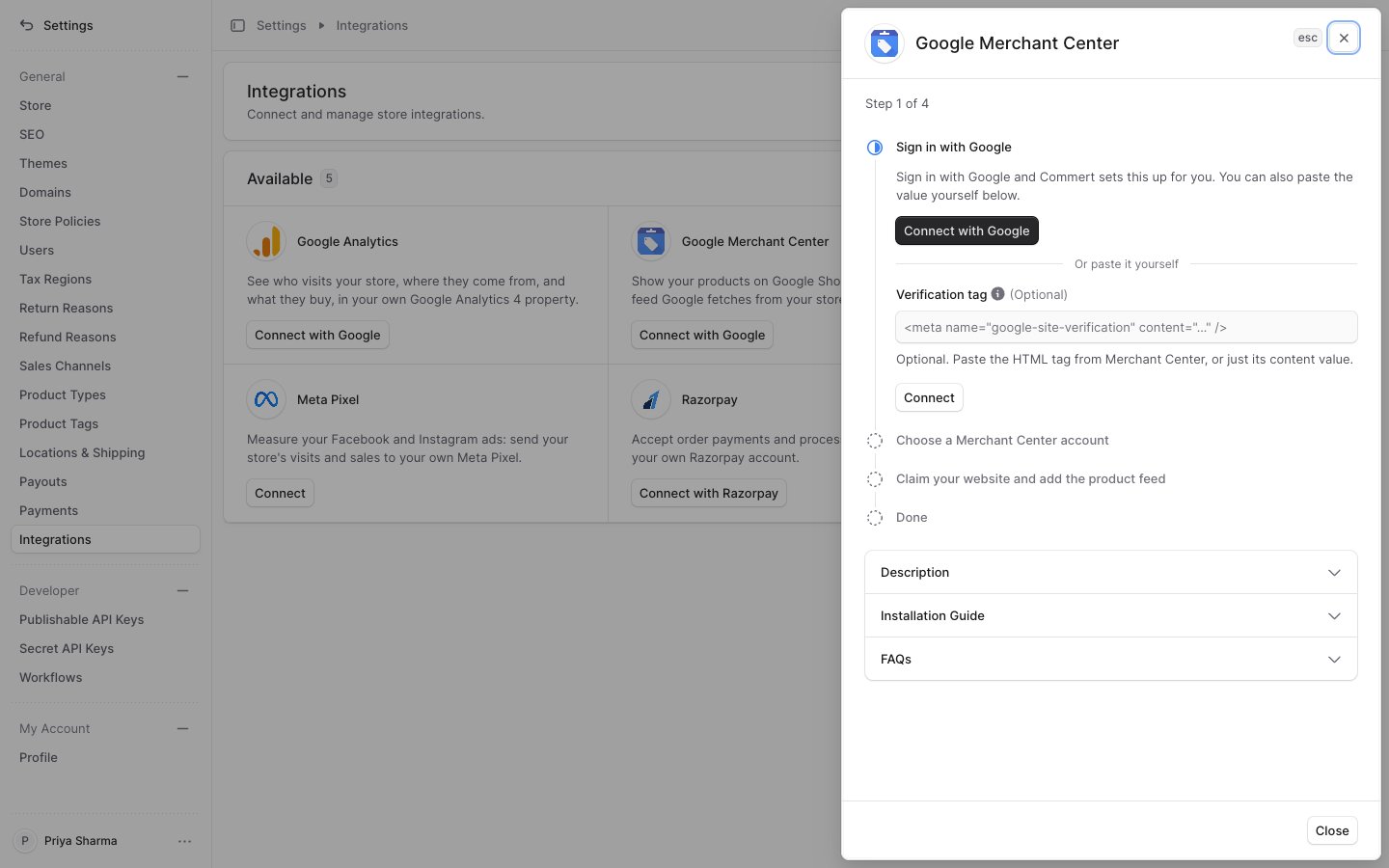
- Go to Settings → Integrations.
- On Google Merchant Center, click Connect with Google.
Step 2 — Sign in with Google
Google’s sign-in page opens in a new window. Sign in with the Google account that has your Merchant Center account, then allow the access Commert asks for.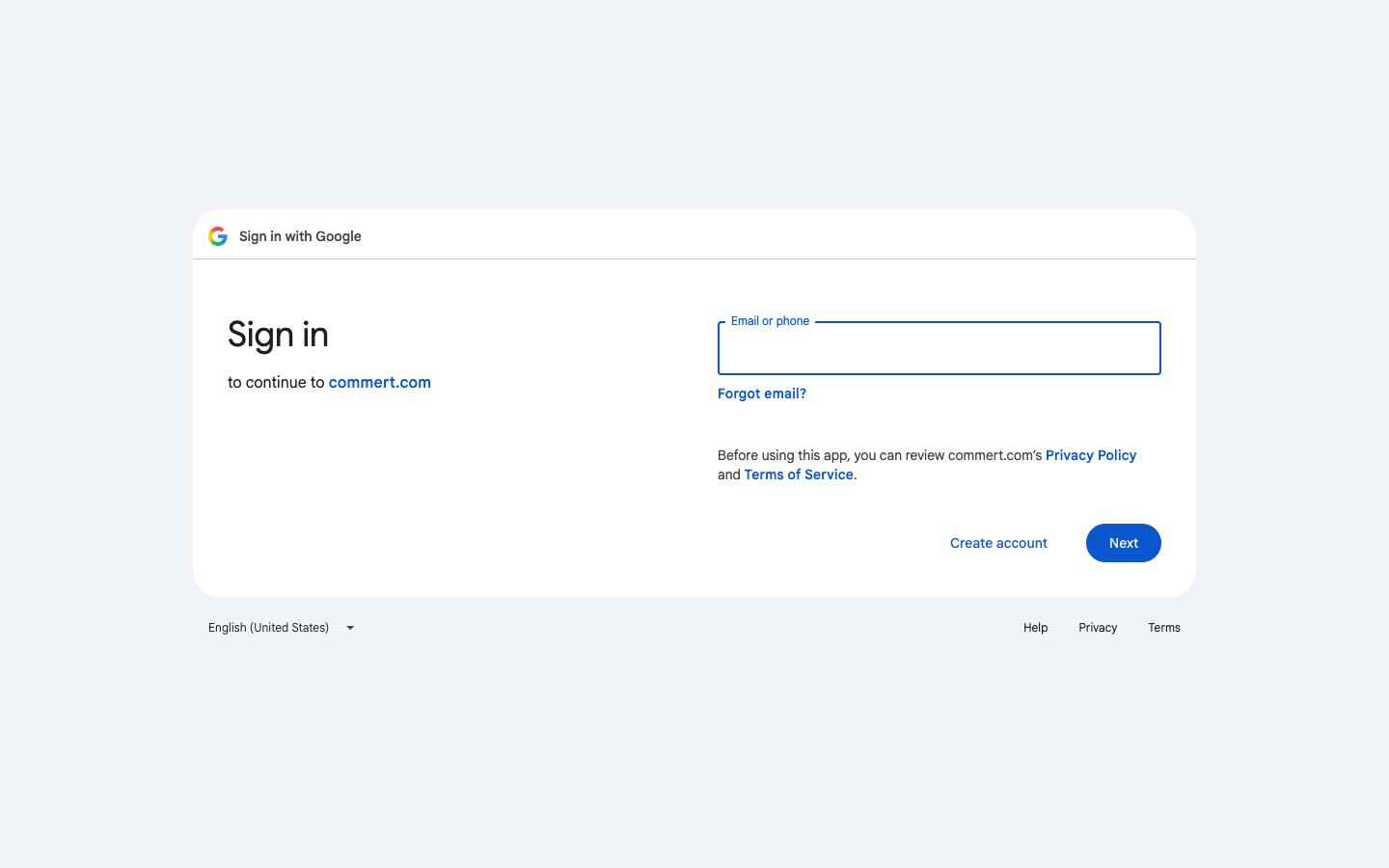
Step 3 — Choose a Merchant Center account
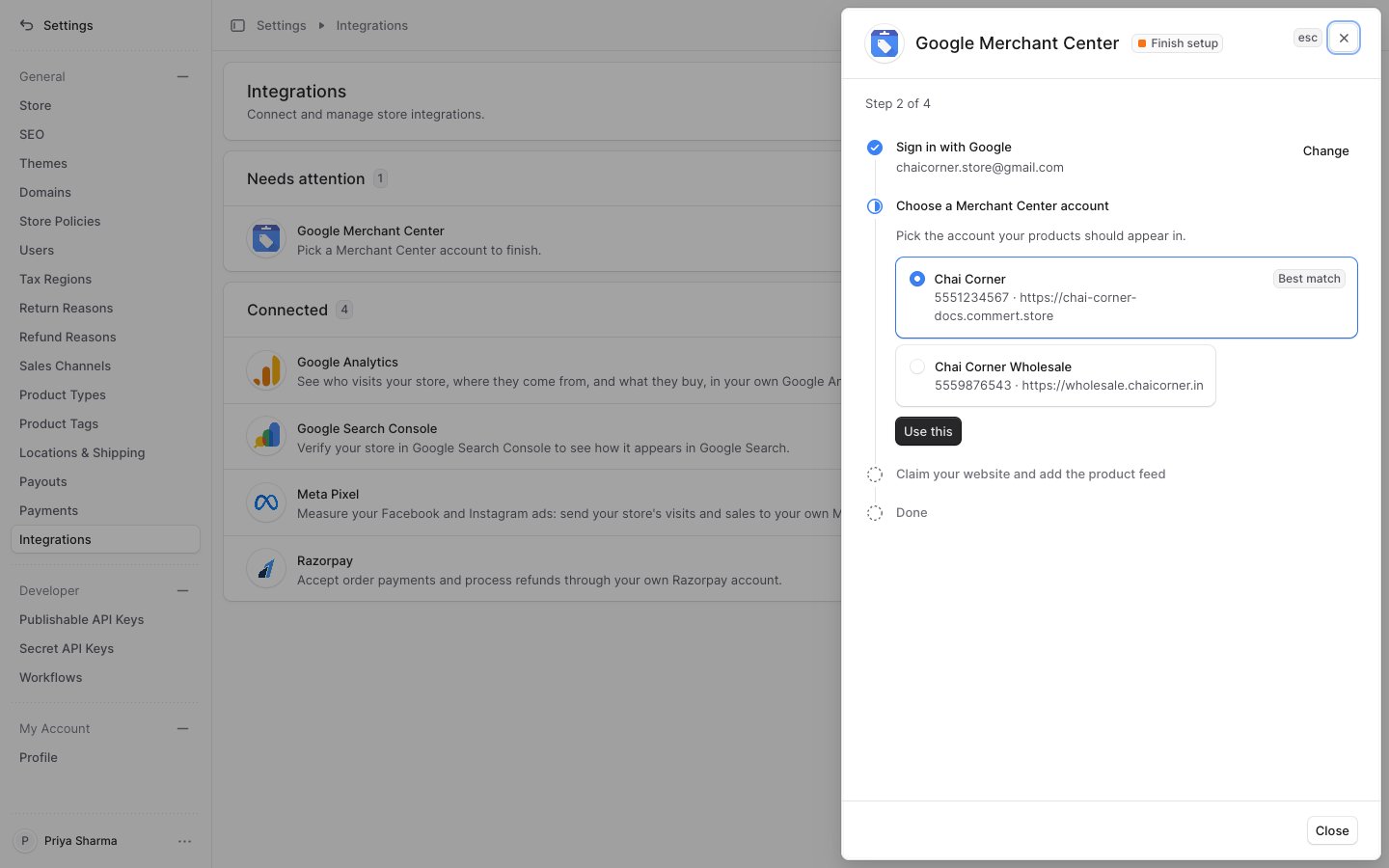
The panel lists the Merchant Center accounts in your Google account, with each account’s ID and website.- Pick the account your products should appear in. The account whose website matches your store is marked Best match and is selected for you.
- Click Use this.
Step 4 — Commert claims your website and adds the feed
Commert now claims your website in Merchant Center and adds your product feed. The panel shows “Verifying your store with Google. This can take a few minutes.”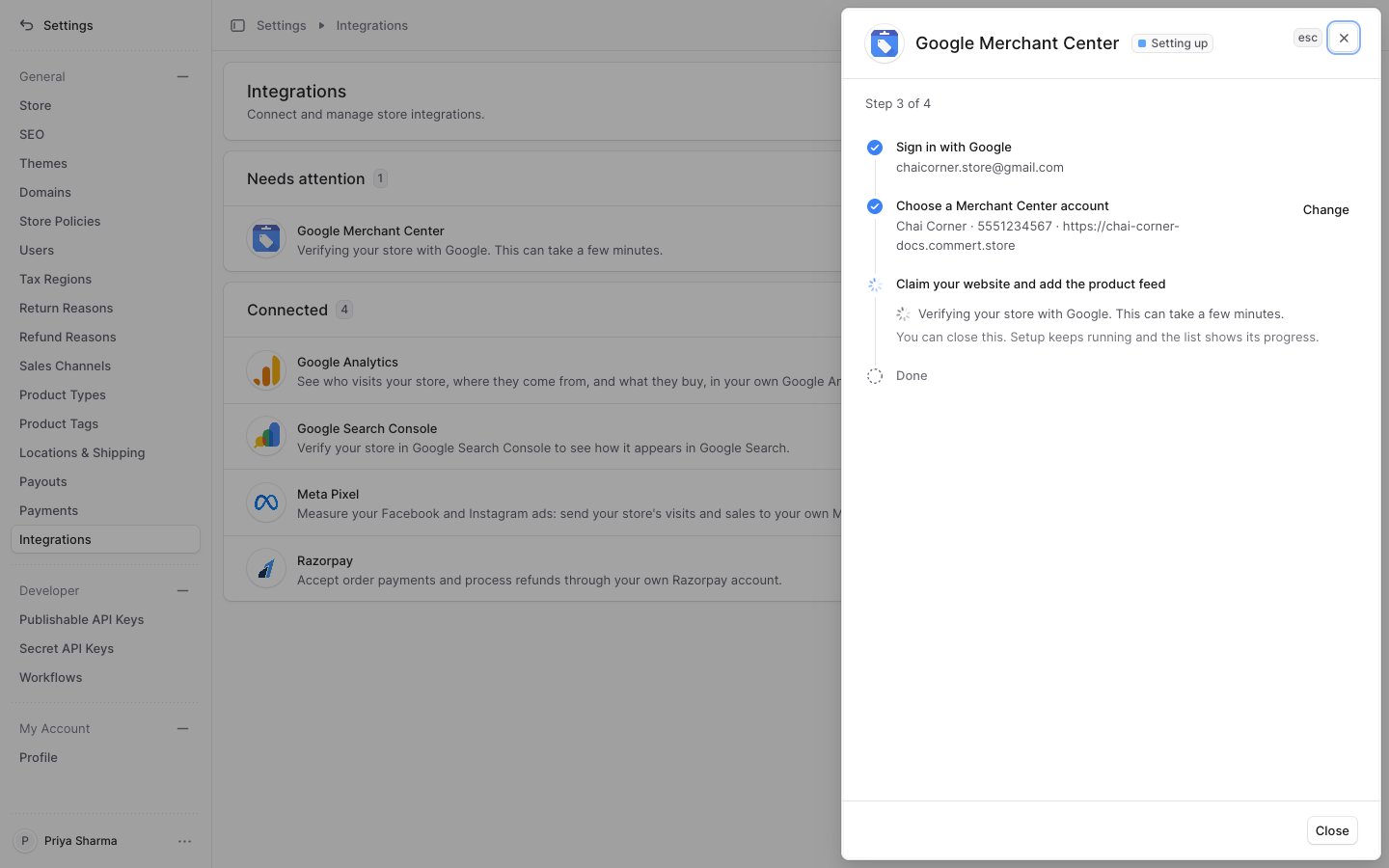
Step 5 — You’re connected
The panel shows Done with your Merchant Center account, your Website and your Product feed address. Merchant Center fetches the feed once a day.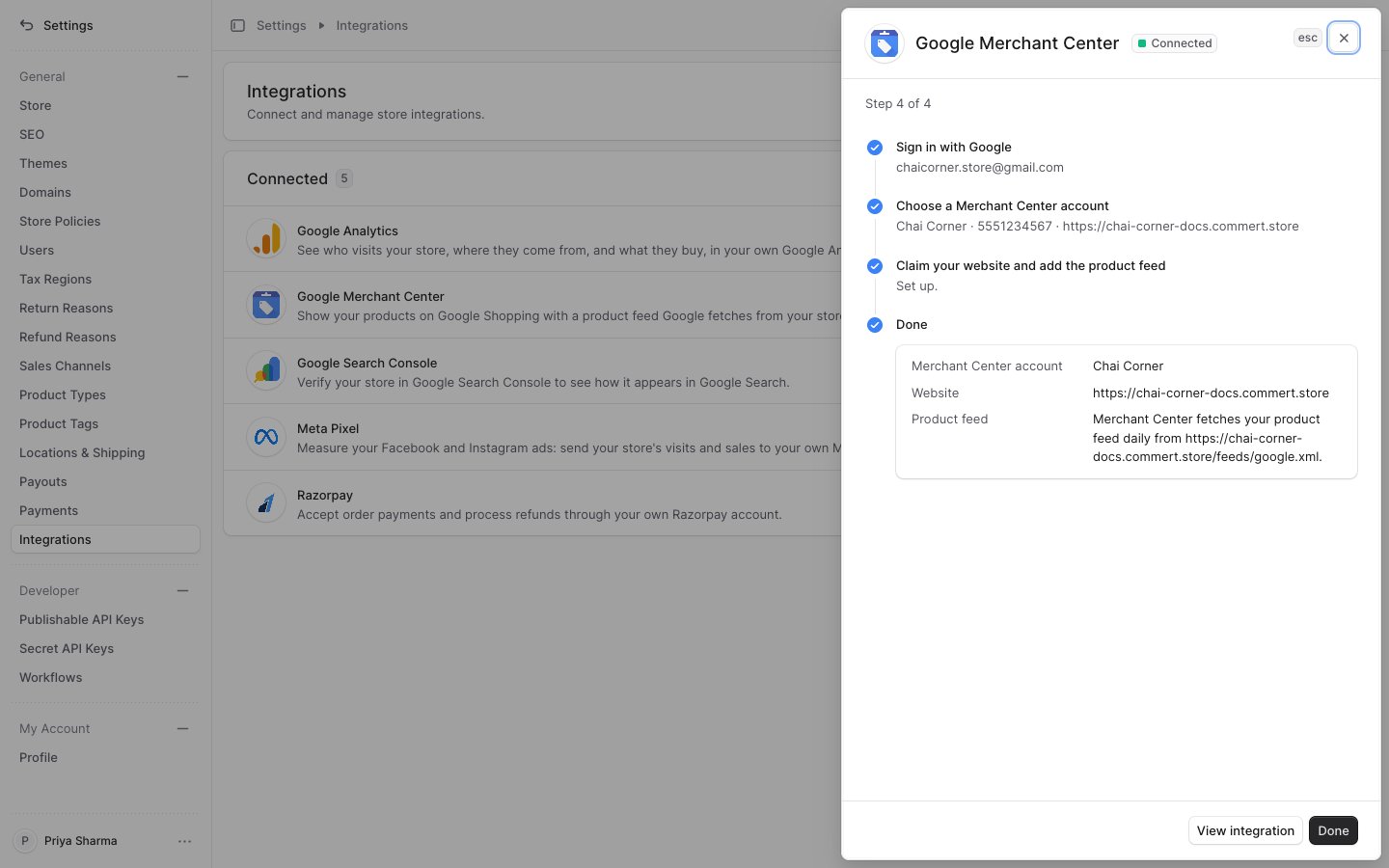
If the panel asks you to do something
Sometimes Merchant Center needs your help. The panel shows a message:- Website claimed by another account — another Merchant Center account has already claimed your store’s address. Click Take over to move the claim to your account. The other account loses it.
- Merchant Center claims your website once Google verifies it — Google hasn’t verified your store yet. Connect Google Search Console with the same Google account, and Commert finishes the claim by itself.
- Add this feed URL in Merchant Center — Commert couldn’t add the feed for you. Add it yourself, as in Step 4 of Paste the verification tag.
- This account has other data sources — your Merchant Center account already lists products from somewhere else. If they are the same products, Google may show them twice. Remove the old data source in Merchant Center.
Paste the verification tag
Use this method if you’d rather set things up in Merchant Center yourself.Step 1 — Add your store in Merchant Center
- Open Google Merchant Center.
- Add your store’s full address, such as
https://www.example.com, as your online store.
Step 2 — Copy the verification tag (optional)
- When Merchant Center asks you to verify your website, choose Add an HTML tag.
- Copy the tag. It looks like
<meta name="google-site-verification" content="..." />.
Step 3 — Paste it in Commert
- In Commert Admin, go to Settings → Integrations.
- On Google Merchant Center, click Connect with Google. If Google’s sign-in window opens, close it.
- Under Or paste it yourself, paste the tag into the Verification tag field. You can paste the whole tag, or only the value inside
content="...". Leave it empty if you skipped Step 2. - Click Connect.
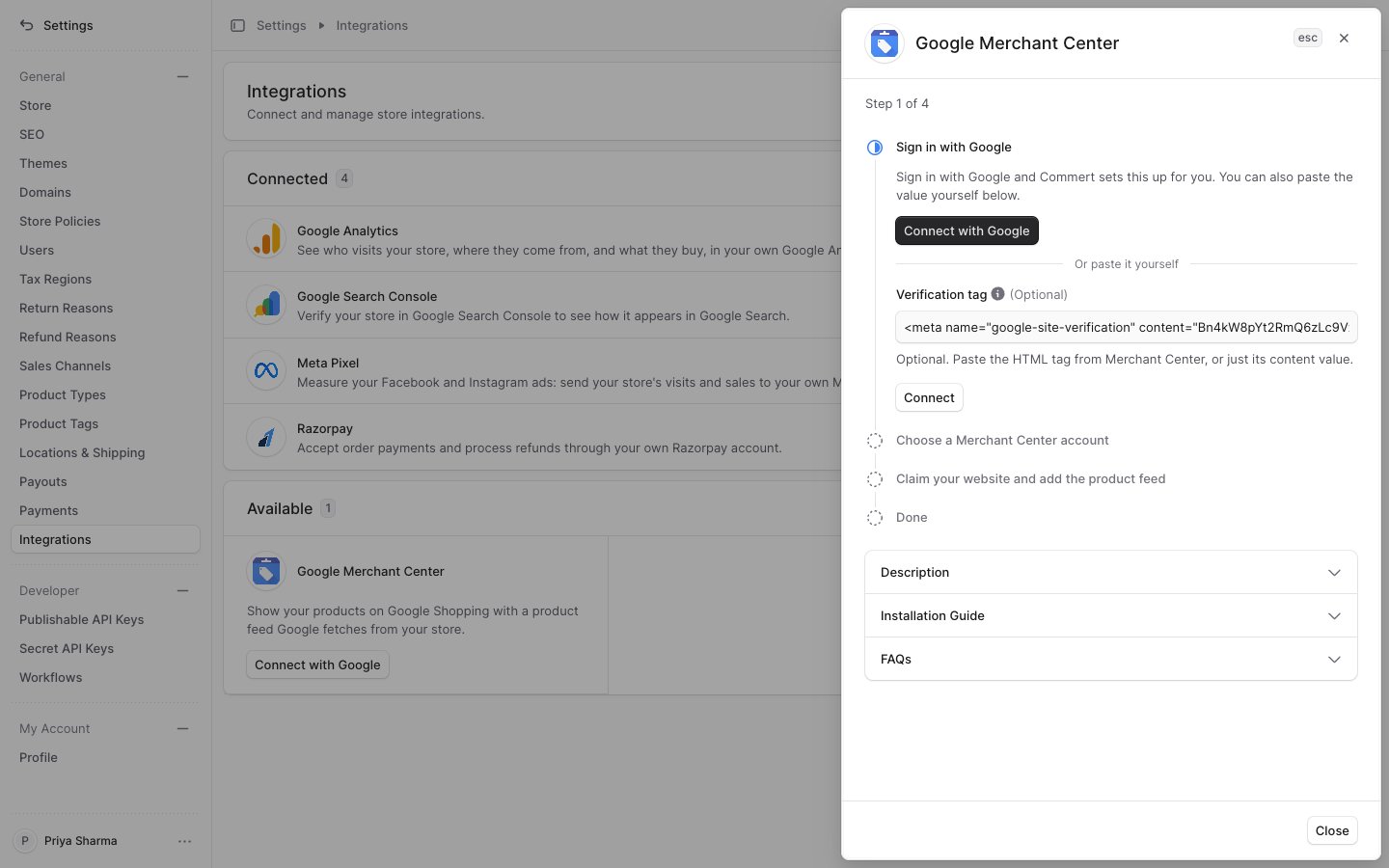
- Wait about one minute, then click Verify in Merchant Center.
Step 4 — Add the product feed
- In Merchant Center, add a product data source and choose Add products from a file.
- Enter your feed address: your store’s address followed by
/feeds/google.xml, such ashttps://www.example.com/feeds/google.xml. - Set it to fetch daily, and save.
View the connection and product issues
In Settings → Integrations, click Manage on Google Merchant Center. The page shows your Google account, the setup progress, your Merchant Center account, your website and your product feed.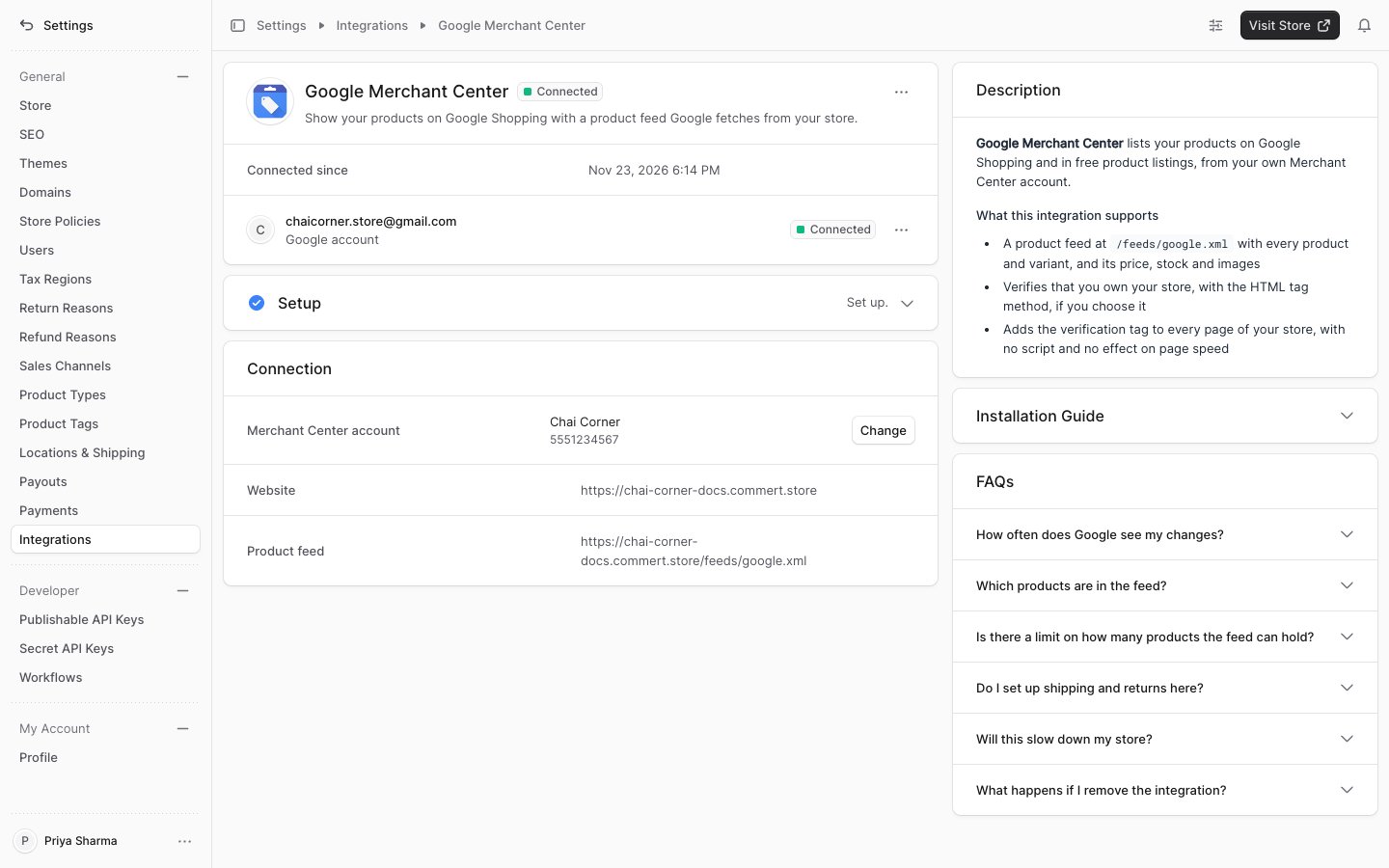
- To use another Merchant Center account, click Change next to it. Commert runs the setup again for the new account.
- When Google finds problems with your products, a Product issues table lists each product, the problem and how serious it is: Disapproved (not shown), Demoted (shown less) or Not impacted. Fix the product in Commert Admin, and Google checks it again at its next fetch.
- To disconnect, click the ⋯ button at the top right of the first card and click Disconnect.
Frequently asked questions
How often does Google see my changes?
How often does Google see my changes?
Google fetches the feed on the schedule set in Merchant Center, at most once a day. Price and stock changes show in Merchant Center after the next fetch.
Which products are in the feed?
Which products are in the feed?
Every published product with a price, one item per variant. Out-of-stock variants are listed as out of stock. A product without an image is listed too, and Merchant Center shows it as an item to fix.
Is there a limit on how many products the feed can hold?
Is there a limit on how many products the feed can hold?
Yes. The feed works for stores with up to about 300 variants in total, where each size or colour of a product counts as one. A larger store’s feed may fail to load, and Merchant Center then shows a fetch error for your data source.
Do I set up shipping and returns here?
Do I set up shipping and returns here?
No. Set your shipping and return policies in Merchant Center.
Will this slow down my store?
Will this slow down my store?
No. The feed is a separate address that only Google fetches, and the verification tag is one meta tag with no script.
What happens if I disconnect?
What happens if I disconnect?
The feed and the tag are removed from your store within a minute, and Merchant Center stops getting your products at its next fetch.
Next steps
- Google Search Console — verify your store with Google.
- Integrations overview — statuses, managing and disconnecting integrations.