

What you get
- Your store verified with Google, using the HTML tag method.
- The verification tag on every page of your store, with no script and no effect on page speed.
- Your sitemap ready at
/sitemap.xml. When you connect with Google, Commert submits it for you.
Before you start
- You need a Google account. You can open Google Search Console with any Google account.
- Know your store’s full address, such as
https://www.example.com. You can find it in Settings → Domains.
Connect with Google (recommended)
With this method, Commert adds your store to Search Console, verifies it and submits the sitemap for you. You don’t need to copy any tag.This method needs you to sign in with a Google account. If you’d rather not, use Paste the verification tag instead.
Step 1 — Start the connection
- Go to Settings → Integrations.
- On Google Search Console, click Connect with Google.
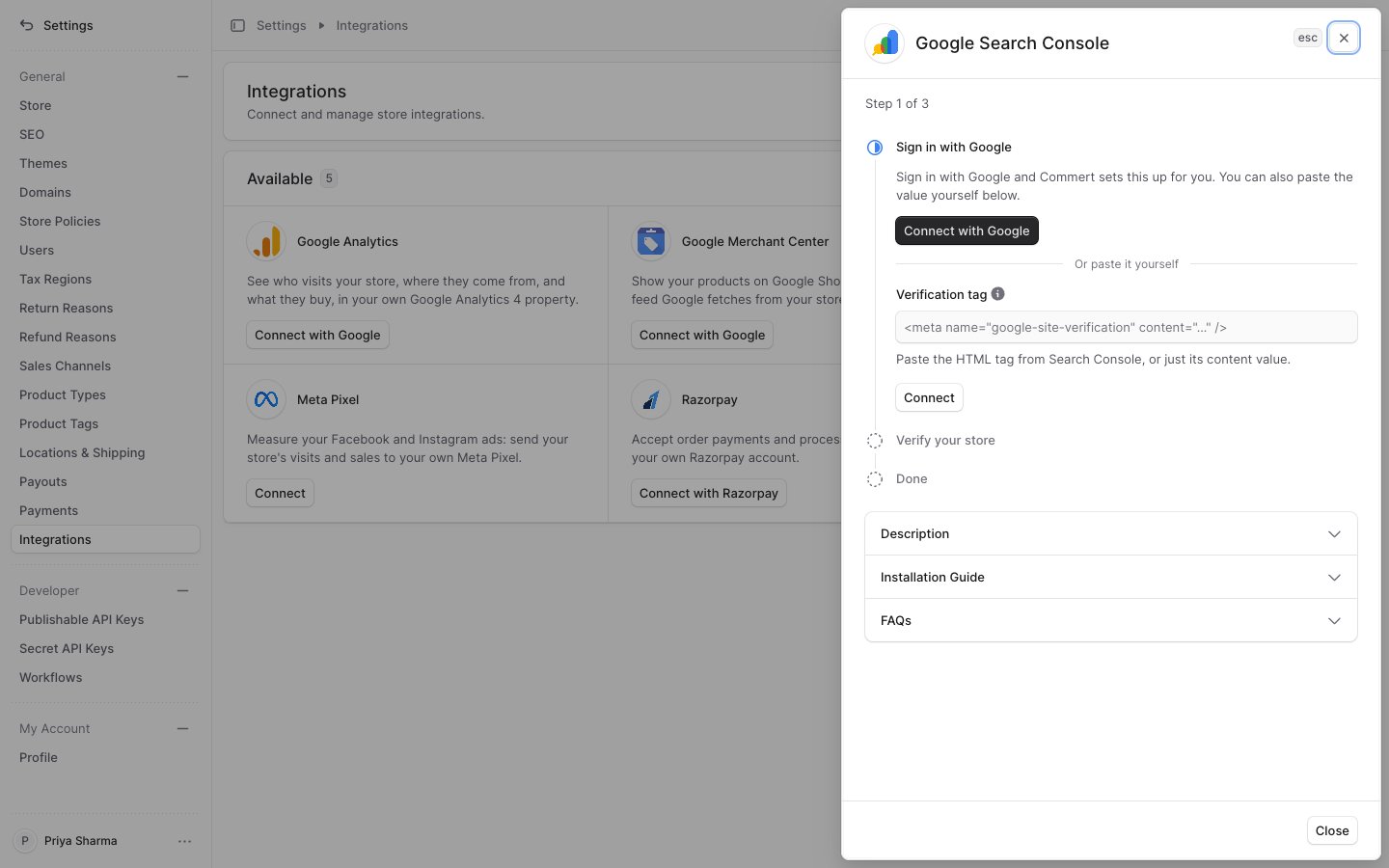
Step 2 — Sign in with Google
Google’s sign-in page opens in a new window. Sign in with your Google account, then allow the access Commert asks for.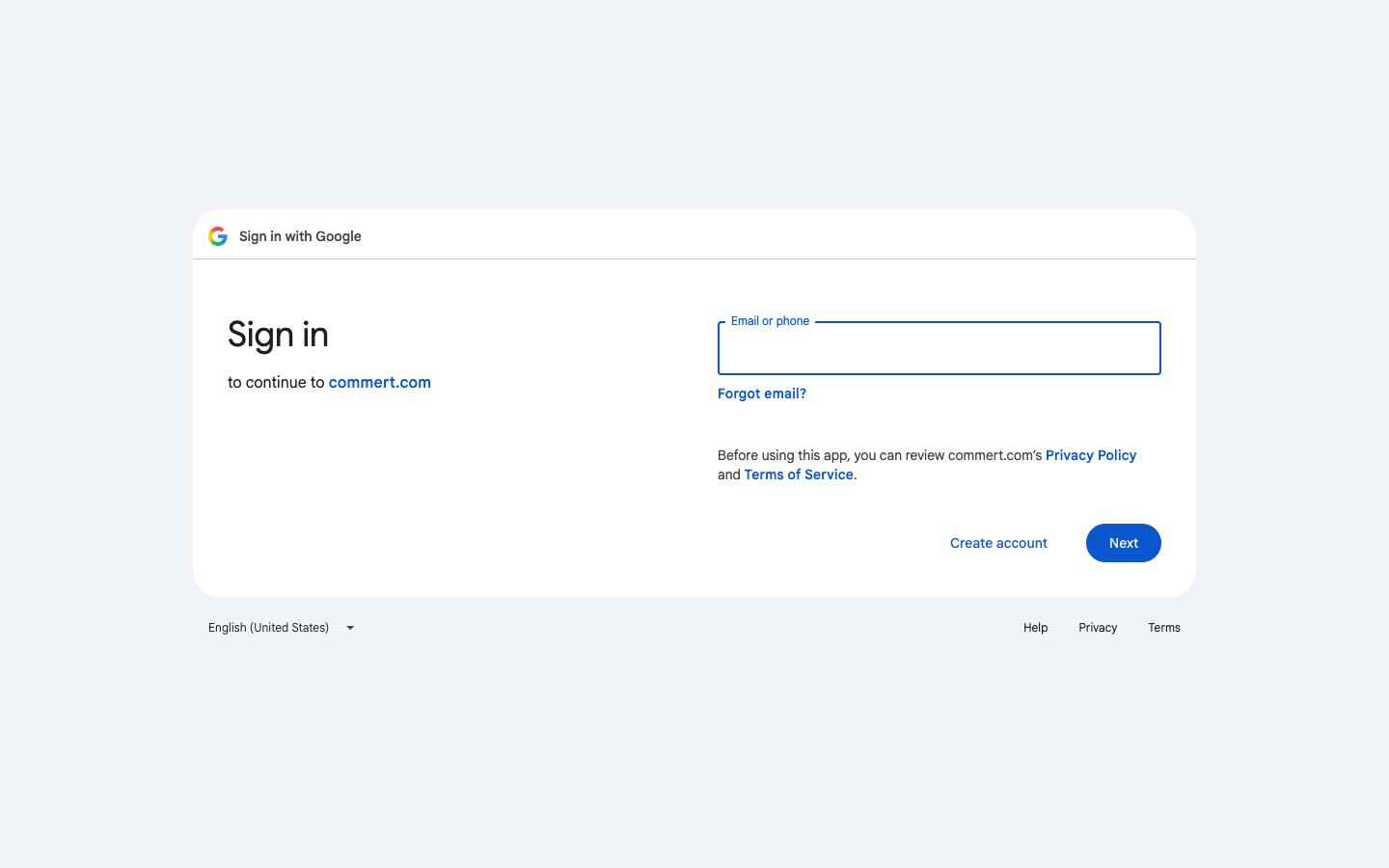
Step 3 — Commert verifies your store
After you sign in, Commert starts verifying your store with Google. The panel shows “Verifying your store with Google. This can take a few minutes.”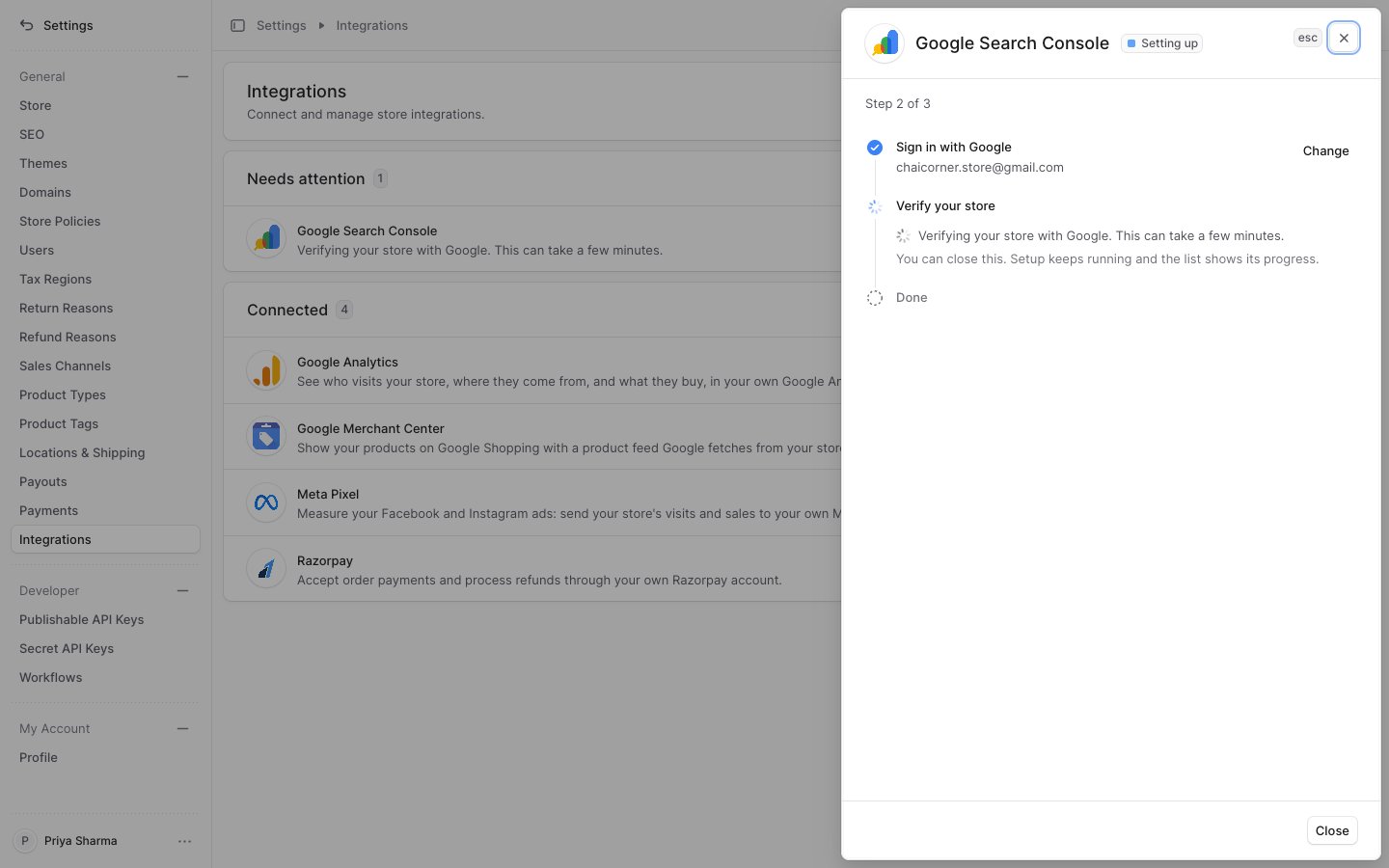
Step 4 — You’re connected
When Google has verified your store, the panel shows Done with your Property (your store’s address) and the date it was Verified. The status changes to Connected.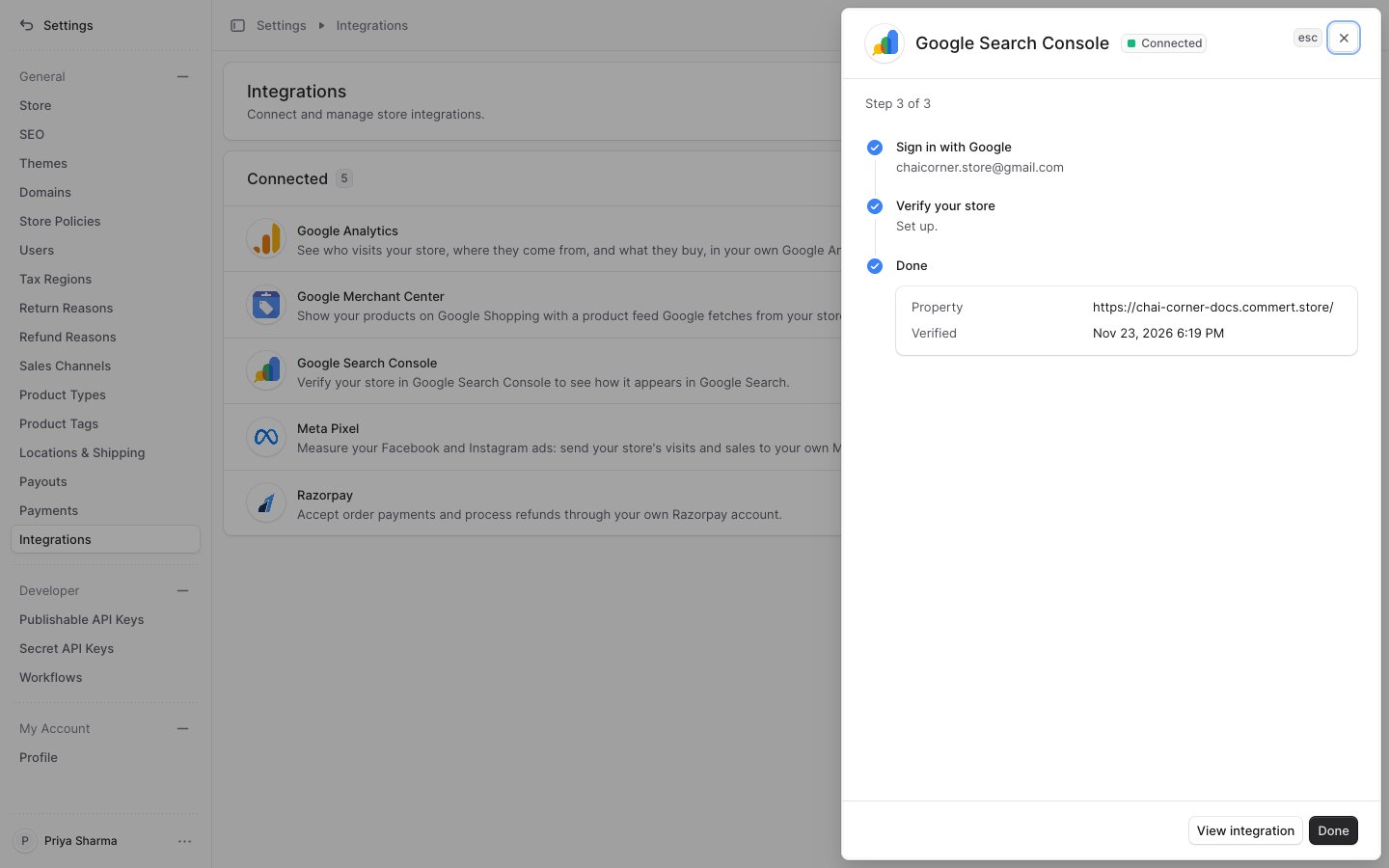
Paste the verification tag
Use this method if you’d rather add your store in Search Console yourself.Step 1 — Get the tag from Search Console
- Open Google Search Console and click Add property.
- Choose URL prefix and enter your store’s full address, such as
https://www.example.com. - Under Other verification methods, choose HTML tag.
- Copy the tag. It looks like
<meta name="google-site-verification" content="..." />. Keep this Search Console page open.
Step 2 — Paste it in Commert
- In Commert Admin, go to Settings → Integrations.
- On Google Search Console, click Connect with Google. If Google’s sign-in window opens, close it.
- Under Or paste it yourself, paste the tag into the Verification tag field. You can paste the whole tag, or only the value inside
content="...". - Click Connect.
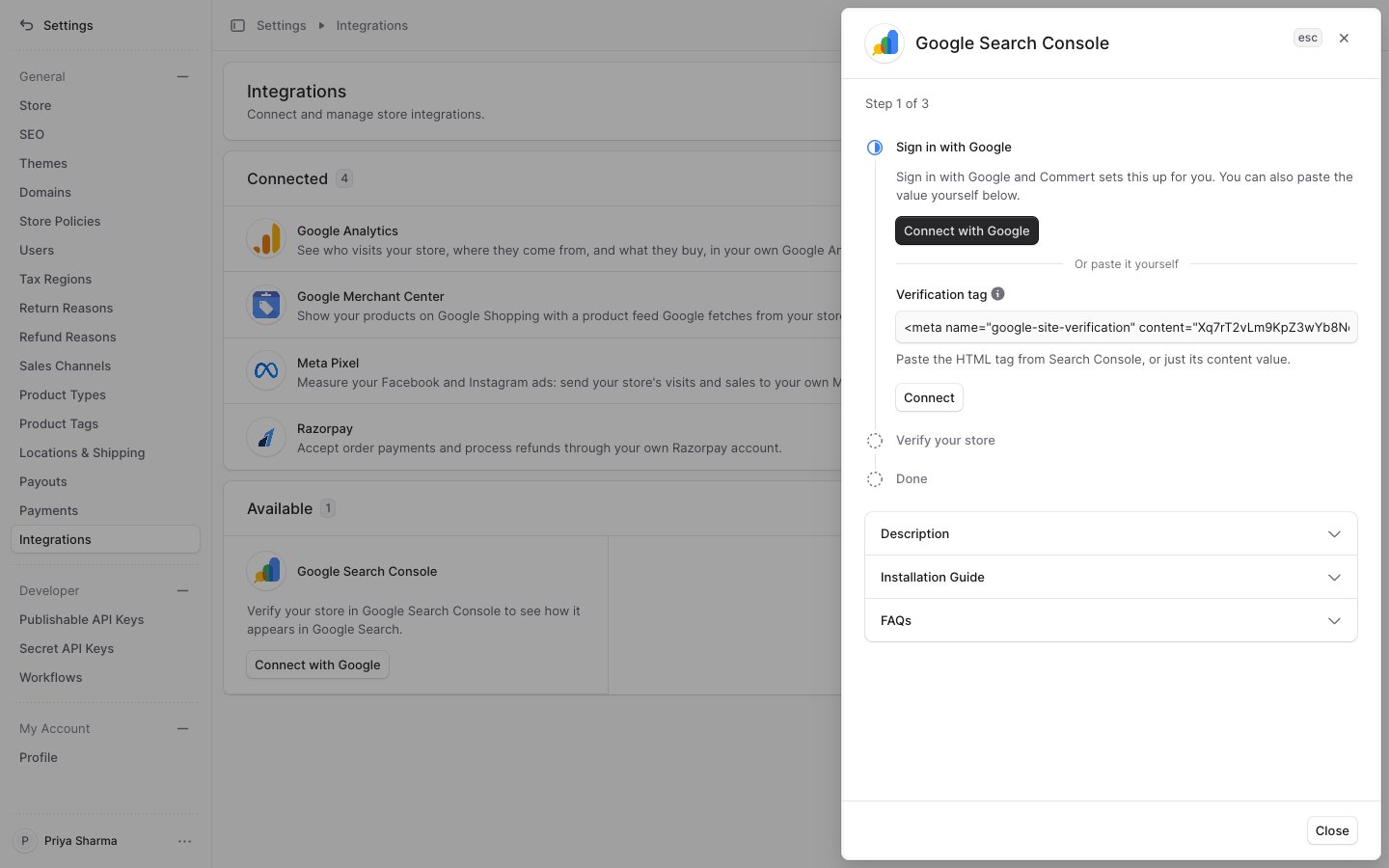
Step 3 — Verify in Search Console
- Wait about one minute. Commert adds the tag to every page of your store.
- Go back to Search Console and click Verify.
- In Search Console, open Sitemaps, enter
sitemap.xmland click Submit.
View or change the connection
In Settings → Integrations, click Manage on Google Search Console. The page shows your Google account, the setup progress and the verified Property.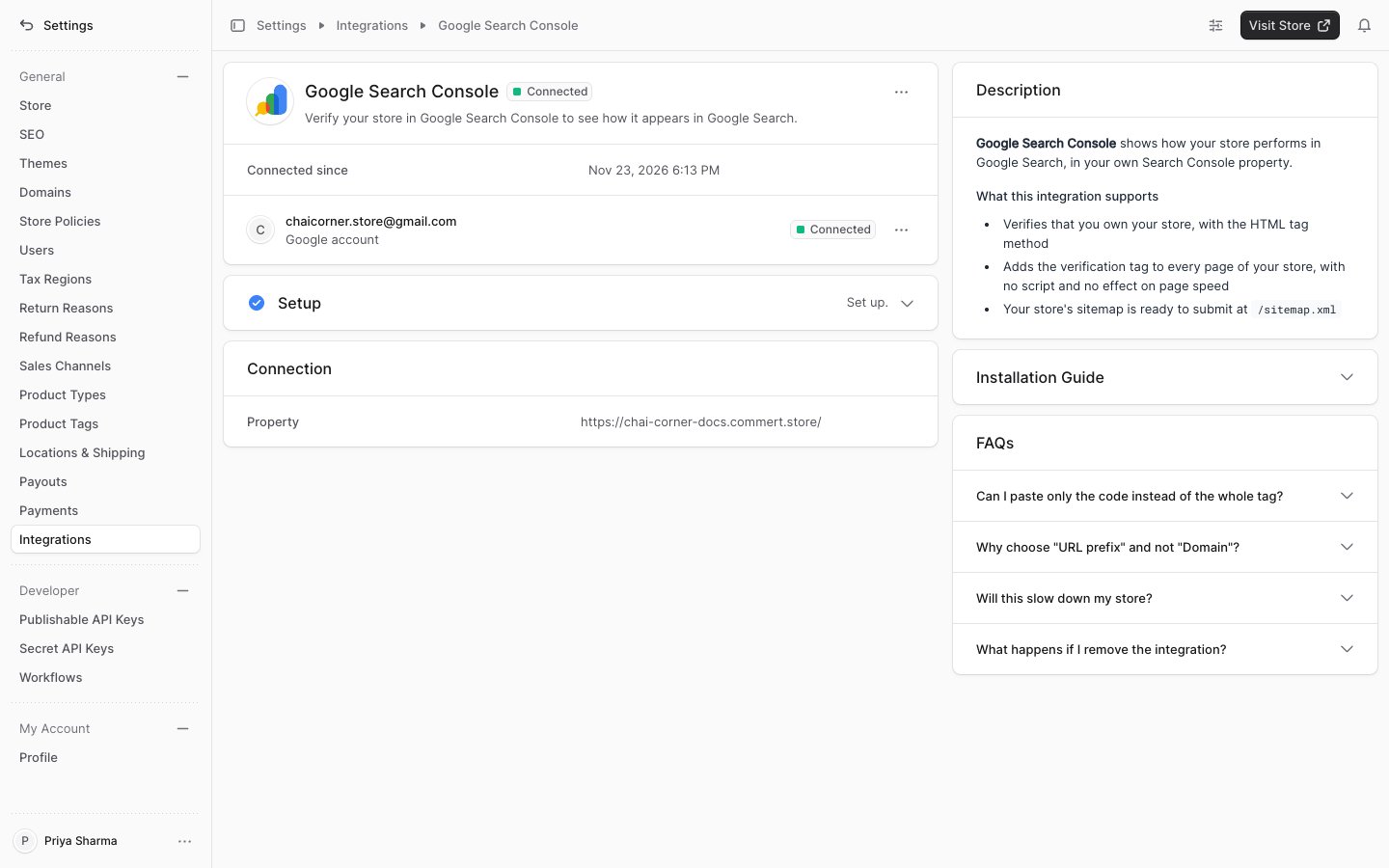
Frequently asked questions
Can I paste only the code instead of the whole tag?
Can I paste only the code instead of the whole tag?
Yes. Paste the whole tag, or only the value of its
content attribute.Why choose "URL prefix" and not "Domain"?
Why choose "URL prefix" and not "Domain"?
A Domain property is verified with a DNS record, which needs access to your domain’s DNS settings. The HTML tag works for every store address.
Will this slow down my store?
Will this slow down my store?
No. The integration adds one meta tag to your pages and loads no script.
What happens if I disconnect?
What happens if I disconnect?
The tag is removed from your store within a minute. Search Console checks the tag from time to time, and stops treating your store as verified once the tag is gone.
Next steps
- Google Merchant Center — list your products on Google Shopping. Connect it with the same Google account, so Commert can claim your website automatically.
- Integrations overview — statuses, managing and disconnecting integrations.