

What you get
- Page views across your store, including searches.
- Shopping events:
ViewContent,AddToCart,InitiateCheckoutandPurchase, with the order value. - Product variant IDs with each event, ready to match a Meta product catalog.
- Privacy-friendly tracking: visitors in the EEA, the UK and Switzerland, and visitors whose country is unknown, aren’t tracked.
- No slowdown: Meta’s script loads only after your store’s page has finished loading.
Before you start
You need a Meta Pixel in Meta Events Manager. If you don’t have one, create it there with Connect data → Web.Connect Meta Pixel
Step 1 — Copy your Pixel ID
- Open Meta Events Manager.
- Go to Data sources and click your pixel.
- Copy the pixel’s ID. It’s the 15 or 16 digit number under the pixel’s name.
Step 2 — Paste it in Commert
- In Commert Admin, go to Settings → Integrations.
- On Meta Pixel, click Connect. The setup panel opens.
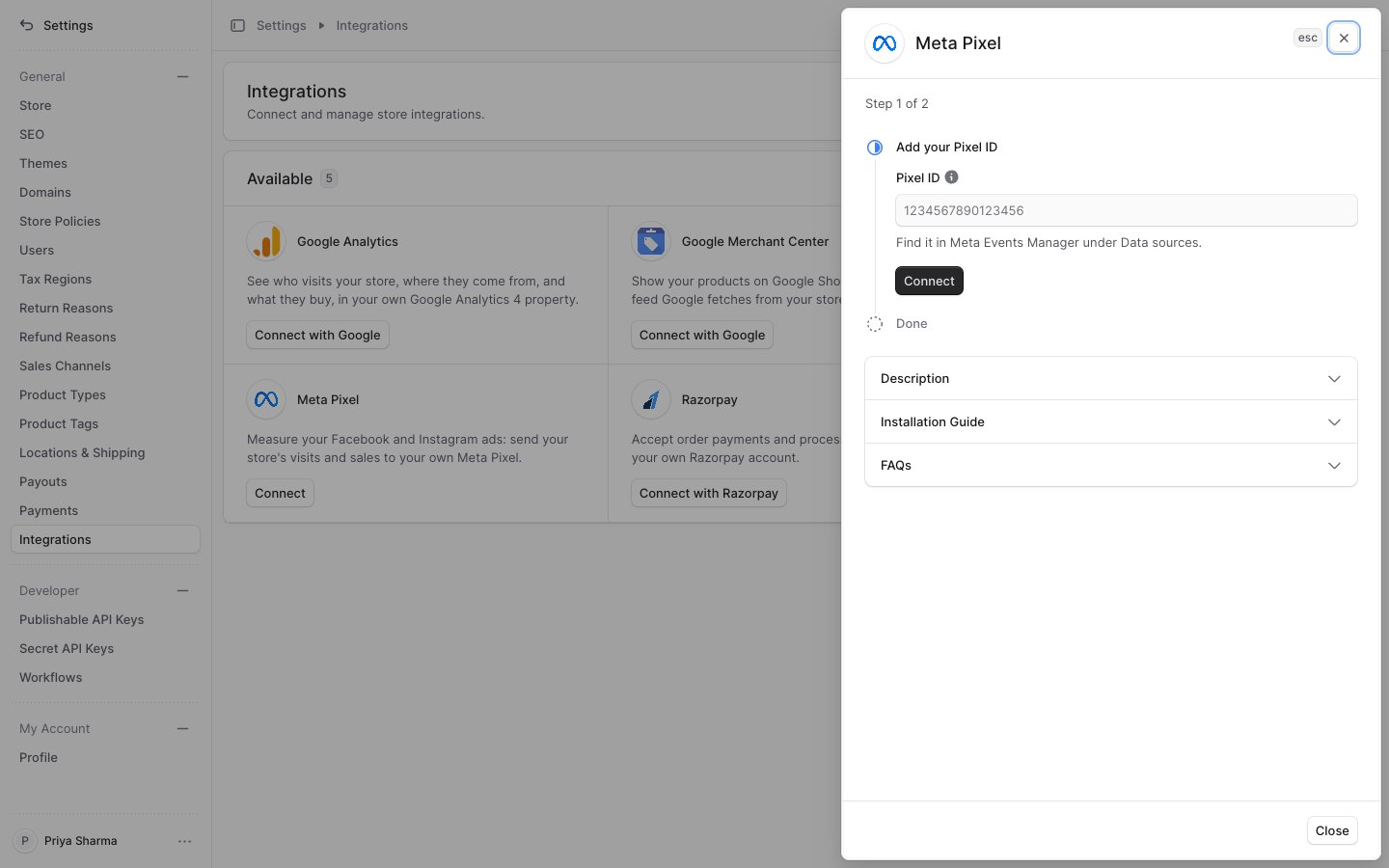
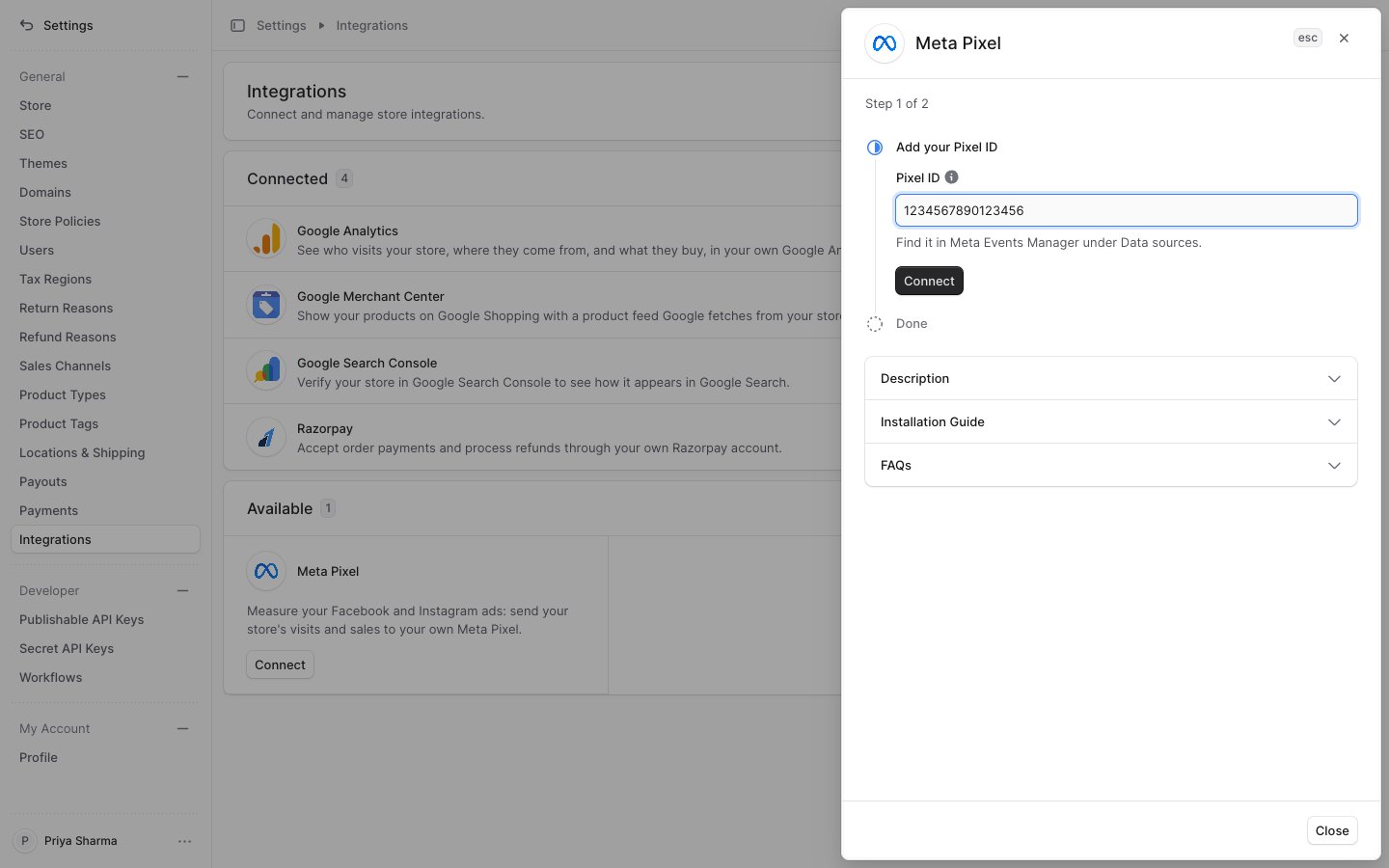
- Paste the ID into the Pixel ID field.
- Click Connect.
Step 3 — You’re connected
The panel shows Done with your Pixel ID, and the status changes to Connected.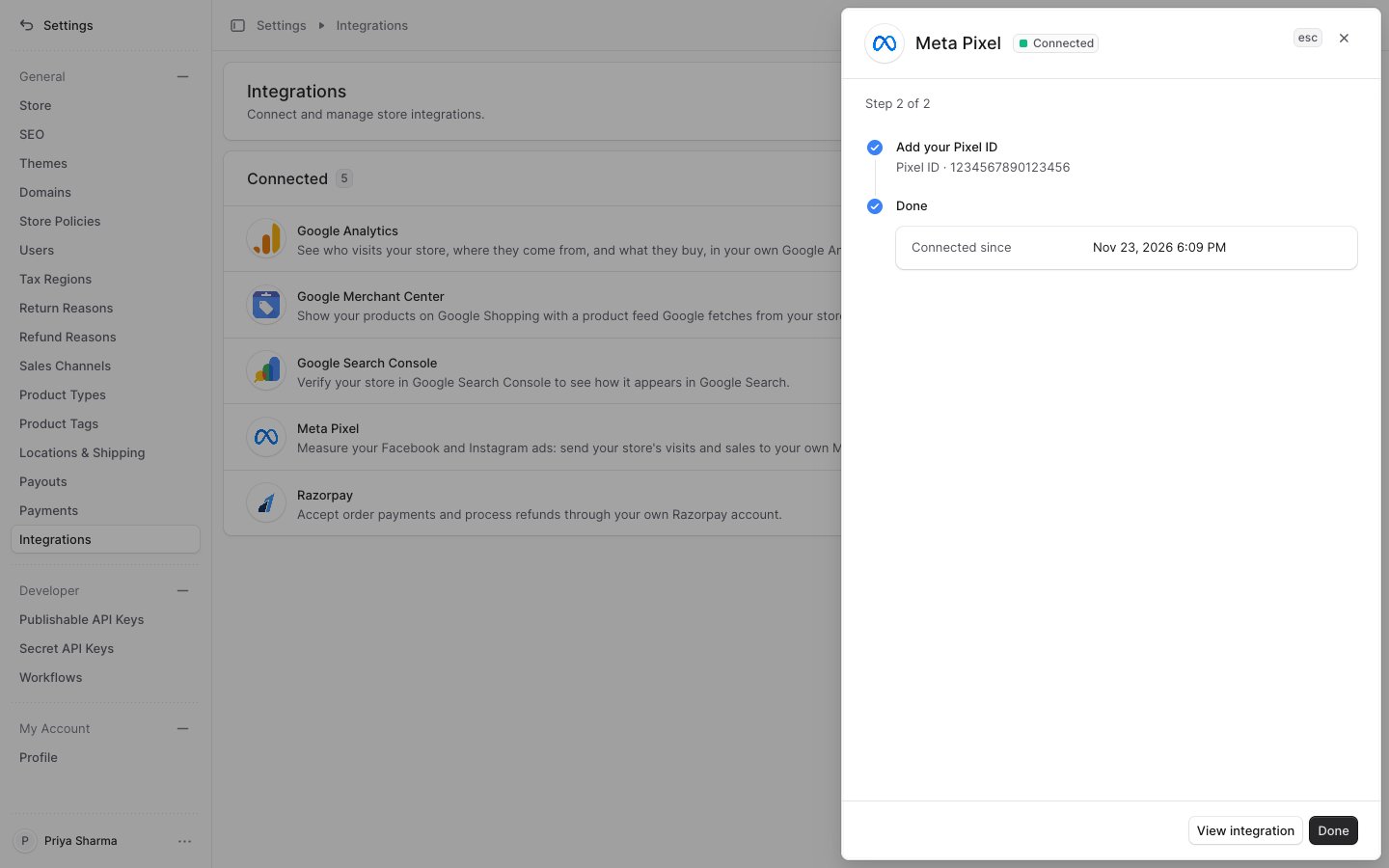
Check that it works
- Open your store in a new browser tab.
- In Meta Events Manager, open your pixel and go to Test events.
- A
PageViewevent shows up within a couple of minutes.
In your pixel’s Settings in Events Manager, keep Automatic advanced matching off. Your store sends only the events listed above.
View or change the connection
In Settings → Integrations, click Manage on Meta Pixel. The page shows when you connected it and your saved Pixel ID.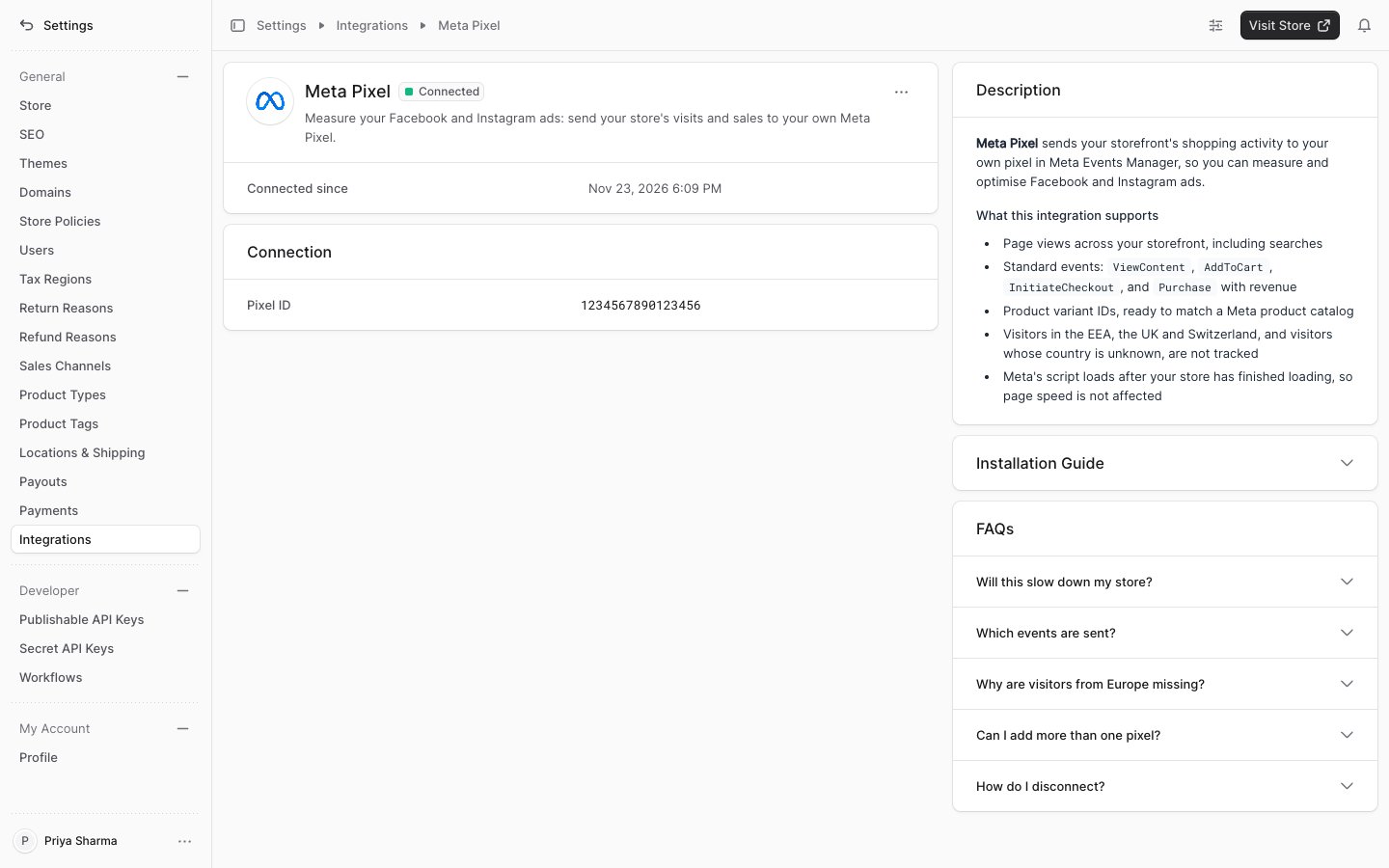
- To use another pixel, click the ⋯ button at the top right of the first card, click Update credentials, enter the new ID and click Save.
- To disconnect, click the ⋯ button and click Disconnect. Your store stops sending data within a minute.
Frequently asked questions
Will this slow down my store?
Will this slow down my store?
No. Meta’s script loads only after your store’s page has finished loading.
Which events are sent?
Which events are sent?
PageView, Search, ViewContent, AddToCart, InitiateCheckout and Purchase. Product IDs are your variant IDs, and values are before tax and shipping.Why are visitors from Europe missing?
Why are visitors from Europe missing?
Visitors in the EEA, the UK and Switzerland haven’t agreed to advertising cookies, so the pixel doesn’t track them. Visitors whose country is unknown aren’t tracked either, in case they are in one of these places.
Can I add more than one pixel?
Can I add more than one pixel?
Not yet. Each store connects one pixel.
Next steps
- Google Analytics — see all your store’s visitors and sales, not only those from ads.
- Integrations overview — statuses, managing and disconnecting integrations.