

CSV फ़ाइल से उत्पाद आयात करें
जब आप CSV फ़ाइल आयात करते हैं, तो आपके द्वारा अपलोड की गई CSV फ़ाइल के आधार पर कॉमर्ट या तो उत्पाद बनाएगा या अपडेट करेगा।सीएसवी फ़ाइल स्वरूप
आयात फ़ॉर्म में, आप आयात के लिए आवश्यक प्रारूप देखने के लिए एक टेम्पलेट CSV फ़ाइल डाउनलोड कर सकते हैं।सीएसवी फ़ाइल पंक्तियाँ
CSV फ़ाइल में प्रत्येक पंक्ति बनाने या अद्यतन करने के लिए एक उत्पाद संस्करण का प्रतिनिधित्व करती है। इसलिए, यदि किसी उत्पाद के कई प्रकार हैं, तो CSV फ़ाइल में प्रत्येक संस्करण की अपनी पंक्ति होगी। उदाहरण के लिए, दो वेरिएंट (लाल और नीला) वाले उत्पाद में CSV फ़ाइल में दो पंक्तियाँ होंगी, एक लाल वेरिएंट के लिए और एक नीले वेरिएंट के लिए।सीएसवी फ़ाइल कॉलम
CSV फ़ाइल के कॉलम में उत्पाद प्रकार और उससे संबंधित उत्पाद का विवरण होता है। CSV फ़ाइल में निम्नलिखित कॉलम हो सकते हैं:| Column | Description |
|---|---|
Product Id | The ID for an existing product to update. If provided, no other columns are required. |
Product Handle | A unique identifier used in the product’s URL on the storefront. It allows you to create a human-readable URL for the product. The handle must be unique across all products, and it must contain lowercase letters, numbers, and hyphens (-). If not specified, Commert will generate a handle from the title. |
Product Title | The product’s title. This is the only required field if you don’t provide a Product Id. |
Product Status | The status of the product. Can be draft (default), published, proposed, or rejected. |
Product Description | A description of the product. |
Product Subtitle | A subtitle for the product. |
Product External Id | The ID of the product in an external system, such as an ERP. |
Product Thumbnail | The URL of the product’s thumbnail image. |
Product Collection Id | The ID of the collection the product belongs to. |
Product Type Id | The ID of the product type. |
Product Category * | The ID of a product category, where * is the number of the category, allowing you to add more than one category. For example, Product Category 1. |
Product Discountable | Whether the product can be discounted. Can be true or false. |
Product Height | The height of the product. |
Product Hs Code | The Harmonized System (HS) code for the product. |
Product Image * | The URL of a product image, where * is the image’s number, allowing you to add more than one image. For example, Product Image 1. |
Product Length | The length of the product. |
Product Material | The material of the product. |
Product Mid Code | The Manufacturer Identification Number (MID) for the product. |
Product Origin Country | The country of origin for the product. |
Product Tag * | The ID of the product’s tag, where * is the tag’s number, allowing you to add more than one tag. For example, Product Tag 1. |
Product Sales Channel * | The ID of a sales channel the product is available in, where * is the sales channel’s number, allowing you to add more than one sales channel. For example, Product Sales Channel 1. |
Product Weight | The weight of the product. |
Product Width | The width of the product. |
Variant Id | The ID for an existing variant to update. The variant must belong to the product specified in the Product Id column. If provided, no other variant-related columns are required. |
Variant Title | The title of the variant. |
Variant Sku | The SKU of the variant. |
Variant Upc | The UPC of the variant. |
Variant Ean | The EAN of the variant. |
Variant Hs Code | The Harmonized System (HS) code for the variant. |
Variant Mid Code | The Manufacturer Identification Number (MID) for the variant. |
Variant Manage Inventory | Whether Commert manages the variant’s inventory. Can be true or false. |
Variant Allow Backorder | Whether the variant allows backorders. Can be true or false. |
Variant Barcode | The barcode of the variant. |
Variant Height | The height of the variant. |
Variant Length | The length of the variant. |
Variant Material | The material of the variant. |
Variant Metadata | Metadata for the variant. |
Variant Option * Name | The name of the variant’s option, where * is the option’s number. For example, Variant Option 1 Name. |
Variant Option * Value | The value of the variant’s option, where * is the option’s number. For example, Variant Option 1 Value. |
Variant Origin Country | The country of origin for the variant. |
Variant Price * | The price of the variant in a currency, where * is the currency’s ISO code. For example, Variant Price USD. |
Variant Price [X] Y | The price of the variant in a region, where X is the region’s name, and Y is the ISO currency code of the region. For example, Variant Price Europe [EUR]. |
Variant Variant Rank | The rank of the variant among its siblings. Can be 0 or higher. |
Variant Weight | The weight of the variant. |
Variant Width | The width of the variant. |
Shipping Profile Id | The ID of the shipping profile that the product belongs to. |
उत्पादों की आयात सूची
आवश्यकताएँ: आयात करने के लिए एक CSV फ़ाइल
- उत्पाद पृष्ठ पर जाएँ।
- ऊपर दाईं ओर आयात बटन पर क्लिक करें।
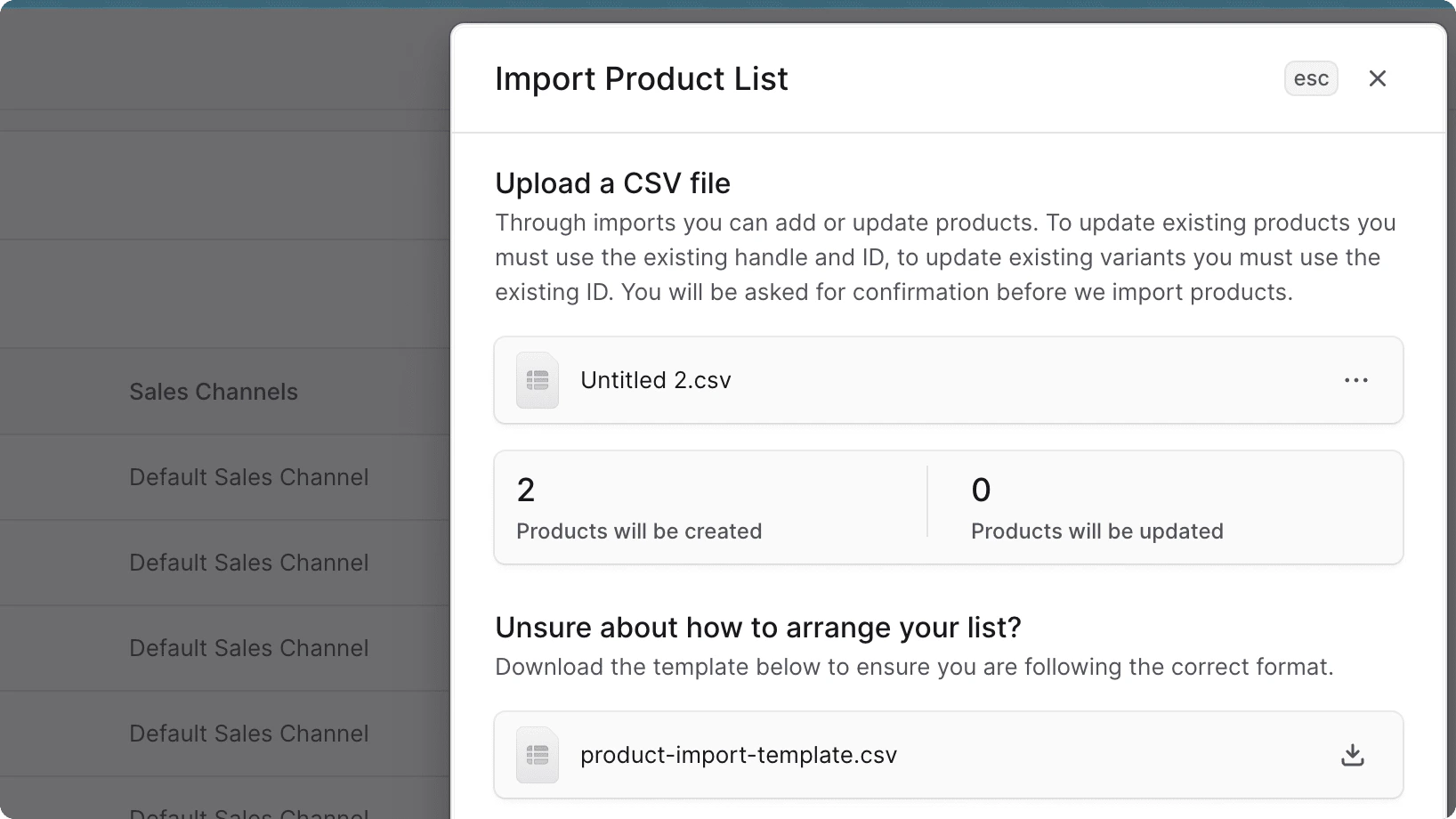
- साइड विंडो में:
- यदि आप अनिश्चित हैं कि CSV फ़ाइल का प्रारूप कैसा होना चाहिए, तो आप टेम्पलेट CSV फ़ाइल डाउनलोड कर सकते हैं।
- जिस सीएसवी फ़ाइल से आप उत्पाद आयात करना चाहते हैं उसे अपलोड करने के लिए या तो फ़ाइल को अपलोड क्षेत्र में खींचें और छोड़ें या फ़ाइल पिकर खोलने के लिए क्षेत्र पर क्लिक करें।
- सीएसवी फ़ाइल अपलोड करने के बाद:
- बनाए या अद्यतन किए जाने वाले उत्पादों की संख्या जांचें।
- अपलोड की गई फ़ाइल को हटाने के लिए, आइकन पर क्लिक करें, और ड्रॉपडाउन से हटाएँ चुनें।
- एक बार जब आपका काम पूरा हो जाए, तो आयात बटन पर क्लिक करें।
यदि आपको कोई त्रुटि या कठिनाई आती है, तो कृपया अपनी तकनीकी सहायता टीम से संपर्क करें क्योंकि यह उपयोग किए गए भंडारण एकीकरण] में एक समस्या हो सकती है।
आयात स्थिति जांचें
यह जांचने के लिए कि आयात प्रगति पर है, समाप्त हो गया है या विफल हो गया है:- पेज के ऊपर दाईं ओर आइकन पर क्लिक करें।
- उत्पाद आयात ढूंढें, जो सूची में नवीनतम आइटम होना चाहिए।
यदि उत्पाद आयात विफल हो जाता है, तो त्रुटि लॉग की जांच के लिए कृपया अपने तकनीकी समर्थन से संपर्क करें।